
Admin holds the settings that apply to your whole organization rather than to one property or tenant: users and roles, company details, portfolios, accounting setup and communication settings.
To open it, click Admin in the sidebar (under System). The Admin home page shows a card for each section you can use.
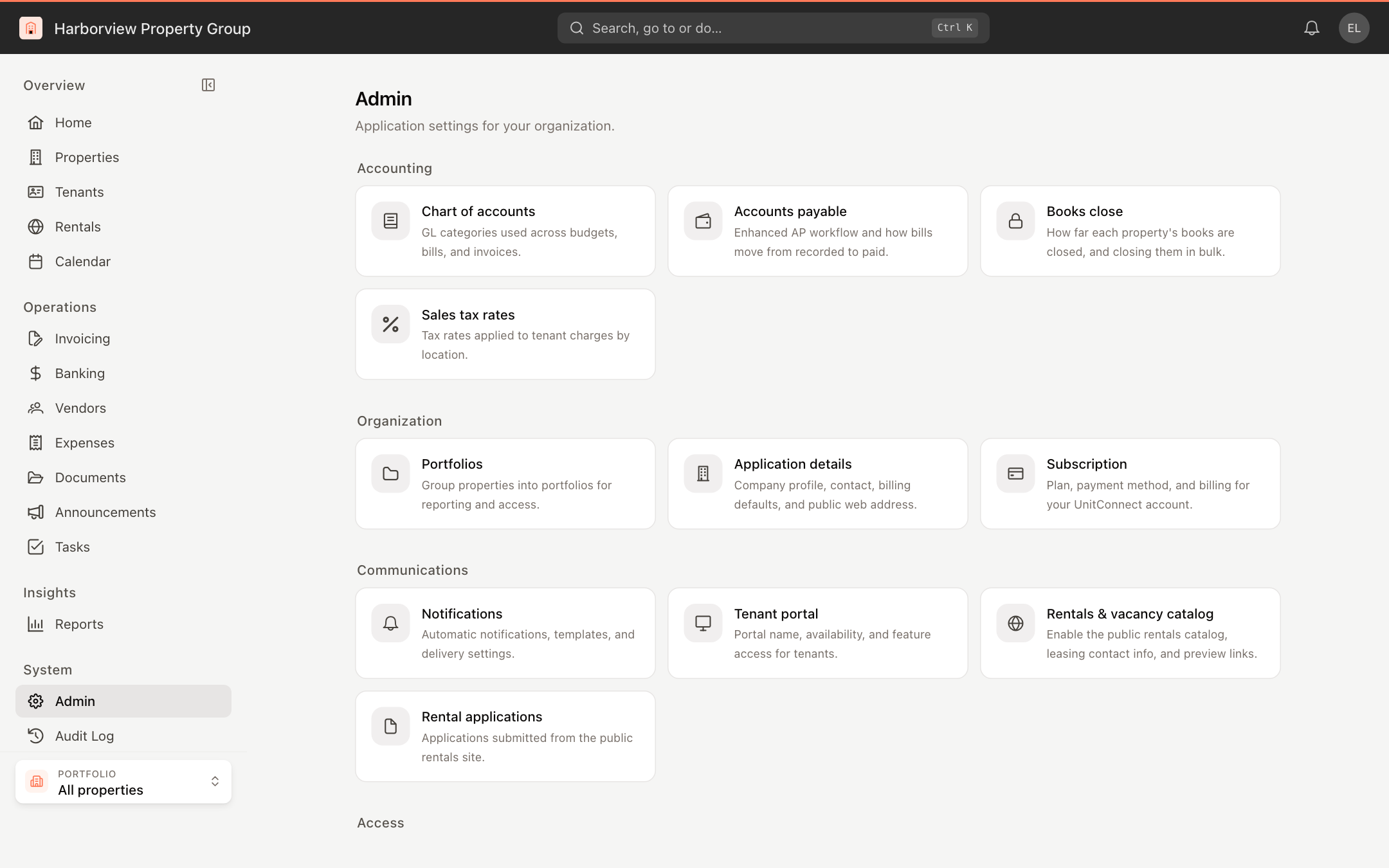
When you open a section, the list of all sections stays on the left so you can move between them.
Sections
| Group | Section | Use it to |
|---|---|---|
| Accounting | Chart of accounts | Manage the GL categories used on budgets, bills and invoices. See Manage the chart of accounts. |
| Accounts payable | Choose how bills move from recorded to paid. See Accounts payable settings. | |
| Books close | See how far each property's books are closed, and close them in bulk. See Close the books. | |
| Sales tax rates | Set tax rates applied to tenant charges. | |
| Organization | Portfolios | Group properties. See Create and manage portfolios. |
| Application details | Company name, contact, billing defaults and web address. See Company details and billing defaults. | |
| Subscription | Your plan, payment method and cancellation. See Manage your subscription. | |
| Communications | Notifications | Choose which events notify you. See Notification settings. |
| Tenant portal | Portal name, availability and what tenants can do there. See Tenant portal settings. | |
| Rentals & vacancy catalog | Publish vacancies on your public rentals site. | |
| Rental applications | Review applications submitted from the rentals site. | |
| Access | Users | See Add a user and Manage users. |
| Roles | See Create and manage roles. |
Each section needs its own permission, so you may see only some of these cards. Accounts payable appears only when your account includes the enhanced accounts payable workflow, and the two rentals sections appear only when your account includes public leasing. If Admin isn't in your sidebar at all, your role doesn't include any admin section.