
Adding users lets colleagues, owners or partners work in your UnitConnect account, each with only the access they need. You choose what a user can do with roles, and which properties they can see with property access.
Before you start
You need permission to view and modify users. If you don't see Admin > Users, or the New user button, ask your UnitConnect administrator.
Decide which role (or roles) the person needs. If none of the existing roles fits, create one first — see Create and manage roles.
Create the user
In the sidebar, click Admin, then click Users (under Access).
Click New user.

Admin > Users Enter the person's email address in Email (username). This is what they'll sign in with, so it must be a valid email address.
Optionally, enter First name and Last name.
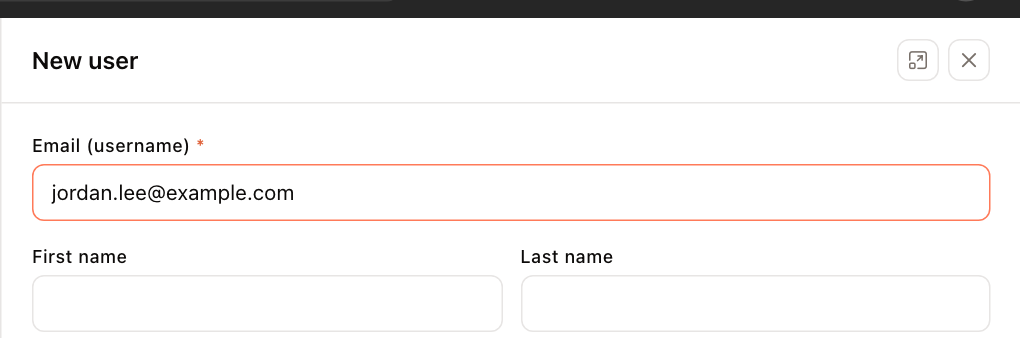
The New user panel Under Roles, click each role to give the user. Selected roles show a check mark. The user can do everything any of their roles allows.
Under Properties, choose which properties the user can see:
- Check All properties to give access to every property, including properties you add later.
- Or leave it unchecked and tick individual properties in the list. Use Search properties to find one, and Selected only to review your picks. The chips under Selected properties show what you've chosen; click a chip's × to remove it.
Optionally, fill in Contact details: address, Phone, Mobile and Fax.
Click Create user.
Share the temporary password
When the user is created, UnitConnect shows a temporary password in a green User created box.
- Click Copy (or select the password and copy it).
- Send it to the new user securely, together with their username.
- Click Done.
The temporary password is shown only once. If you close the panel without copying it, the user can set their own password with Forgot password? on the sign-in page. See Sign in and reset your password.
Next steps
After the user exists, you can fine-tune individual permissions, change their property access, or deactivate them later. See Manage users.