
A role is a named set of tasks — the individual things a user is allowed to do, such as viewing vendors or recording payments. Give a role to a user and they can do every task the role grants. Roles let you set up access once and reuse it for everyone in the same job.
You need permission to view roles to open Admin > Roles, and permission to modify roles to create or change them.
See your roles
In the sidebar, click Admin, then click Roles (under Access).

The list shows each role's name and description, how many Users have it, how many Tasks it grants, and its Status. A user count such as 3 (+2) means three active users and two inactive users have the role.
- The list shows Active roles at first. Use the status filter to show Inactive roles or All statuses.
- Type in Search name or description to filter the list.
Roles marked System come with UnitConnect. You can open them to see what they grant, and assign them to users, but you can't change them.
Create a role
On the Roles page, click New role.
Enter a Name (required) and, optionally, a Description that explains who the role is for.
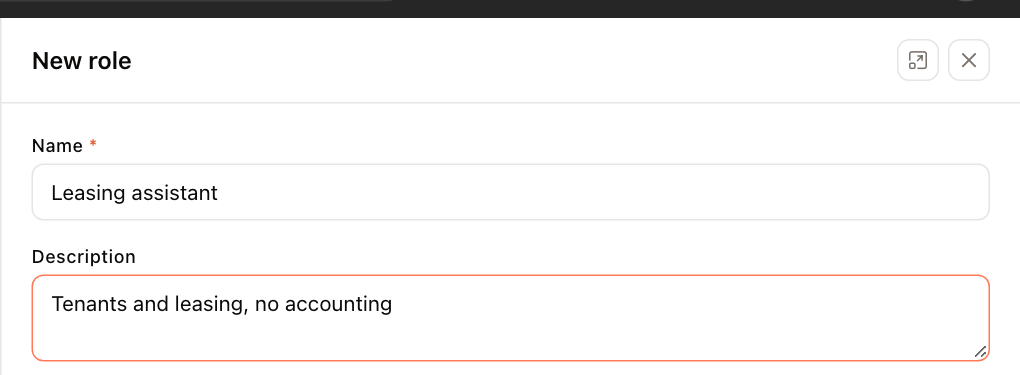
The New role panel Under Tasks granted by this role, choose the tasks:
- Click an area on the left (for example Banking or Vendors) to list its tasks. The count shows how many of the area's tasks are selected.
- Tick each task the role should grant.
- Use Search task or code to find a task by name, and Selected only to review what you've ticked.
Click Create role.
The new role is now available when you add or edit a user. See Add a user.
Start small. It's easier to add a task later than to discover a role gives more access than intended. You can also grant or deny single tasks for one user without changing the role — see Manage users.
Change a role
- Click the role in the list to open it.
- To rename it or change its description, edit Name or Description and click Save details.
- To change what it grants, tick or clear tasks under Tasks granted by this role.
Task changes on an existing role save as soon as you tick or clear a box, and they affect every user who has the role straight away.
Deactivate a role
Open the role and click the Active switch at the top of the panel to set it to Inactive. Click it again to reactivate the role. An inactive role stays in the list under the Inactive filter.
System roles show their status without a switch, because they can't be changed.