
Admin > Users lists everyone who can sign in to your UnitConnect account. From here you can see each user's roles and status, and open a user to change their details and access.
Viewing this page needs permission to view users. Changing anything needs permission to modify users.
Find a user
The list shows each user's name and username, Roles, Status and Last login. Click a column heading to sort by it.
- Type in Search name, username, role to filter the list.
- Use the status filter to show All statuses, Active, Inactive or Locked users.
Status badges:
| Badge | Meaning |
|---|---|
| Active | A current user. |
| Inactive | The user has been deactivated. |
| Locked | The account is locked and the user can't sign in. |
Click a user to open their details on the right. The panel has three tabs: Profile, Roles & permissions and Properties.
You can open and edit your own profile, but you can't change your own status, role, permissions or property access. Ask another administrator to do that.
Update a user's profile
- Open the user and stay on the Profile tab.
- Change Email (username), name, address or phone details.
- Click Save profile.
Changing Email (username) changes what the user signs in with, so let them know.
Change a user's role
- Open the user and click Roles & permissions.
- Under Role, pick a role from the list and click Apply.
Current shows the roles the user has now.
Applying a role replaces all of the user's roles with the one you picked, and clears any permissions you had granted or denied for this user individually.
Grant or deny individual permissions
Below the role, the permission list shows every task the user can or can't do, grouped by area (for example Banking, Properties or Vendors). Each group shows how many of its tasks are on.
- Click a group on the left to see its tasks. Use Search task or code to find a task, and Selected only to show only the tasks that are on.
- Tick or clear a task to grant or remove it for this user.
A tag next to each task shows where the access comes from:
| Tag | Meaning |
|---|---|
| Role | Granted by one of the user's roles. |
| Granted | Granted to this user individually. |
| Denied | Taken away from this user individually, even if a role grants it. |
Permission changes save as soon as you tick or clear a box — there's no Save button on this tab.
Change which properties a user can see
- Open the user and click Properties.
- Do one of the following:
- Check All properties to give access to every property, now and in future.
- Clear All properties, then tick the individual properties the user should see.
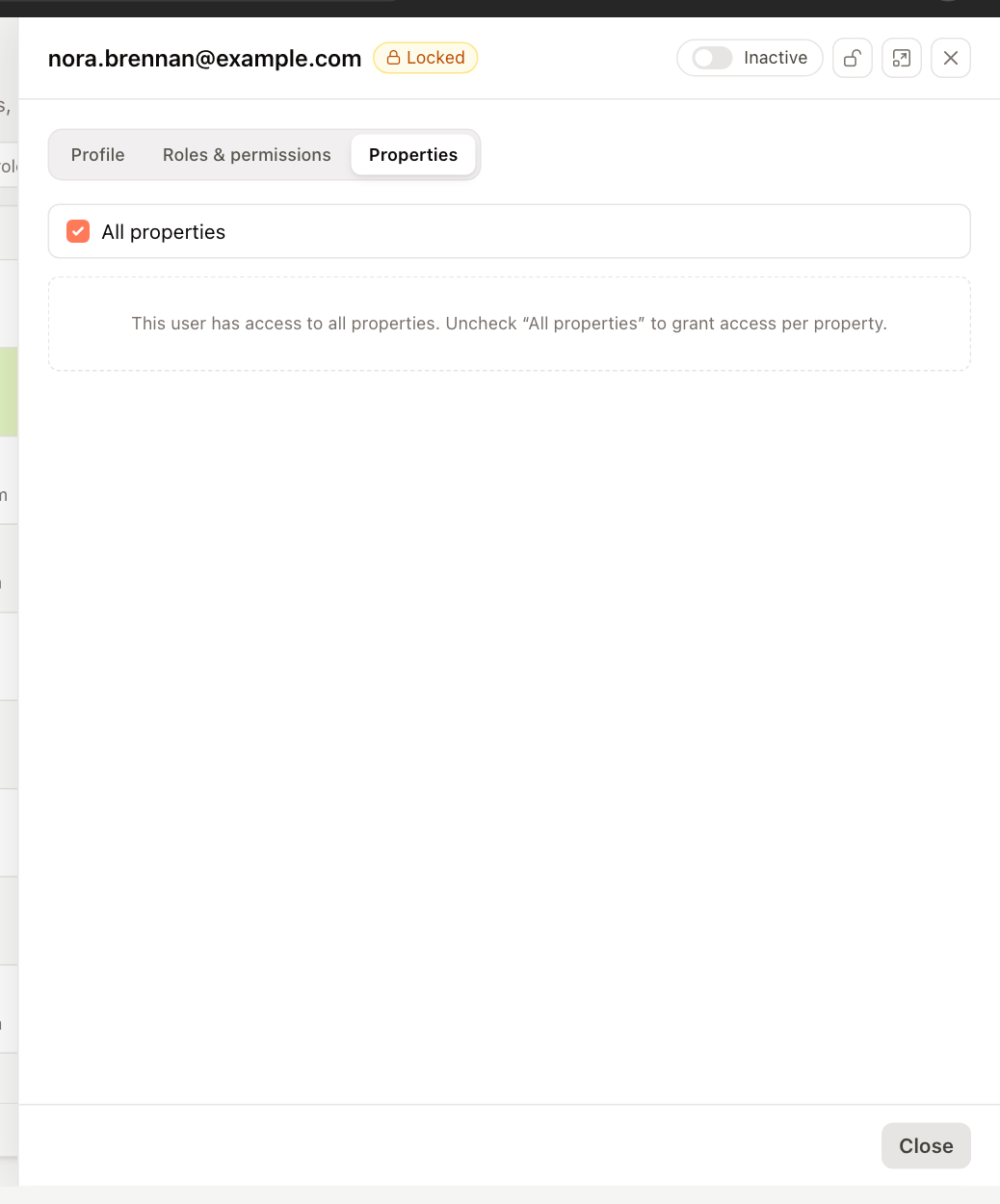
Like permissions, property access changes save immediately.
Deactivate or reactivate a user
At the top of the user's panel, the Active / Inactive switch shows the user's status. Click it to deactivate an active user, or to reactivate an inactive one.
Deactivate users who leave your organization rather than trying to remove them, so their history in the Audit Log stays attached to a name.
Lock or unlock an account
Next to the status switch, click the lock icon (Lock account) to stop a user from signing in. A Locked badge appears next to their username. Click the icon again (Unlock account) to let them sign in again.
If a user is locked out and has forgotten their password, unlock the account, then ask them to use Forgot password? on the sign-in page.