
Application details holds your management company's own information: its name and time zone, the primary contact, the defaults used when you generate tenant invoices, and the web address shared by your public pages.
To open it, click Admin in the sidebar, then Application details (under Organization). The page has three tabs: Account details, Billing defaults and Company web address.
You need permission to view application details to open this page, and permission to modify them to change anything. Without it, the fields are read-only and the Save buttons are hidden.
Account details
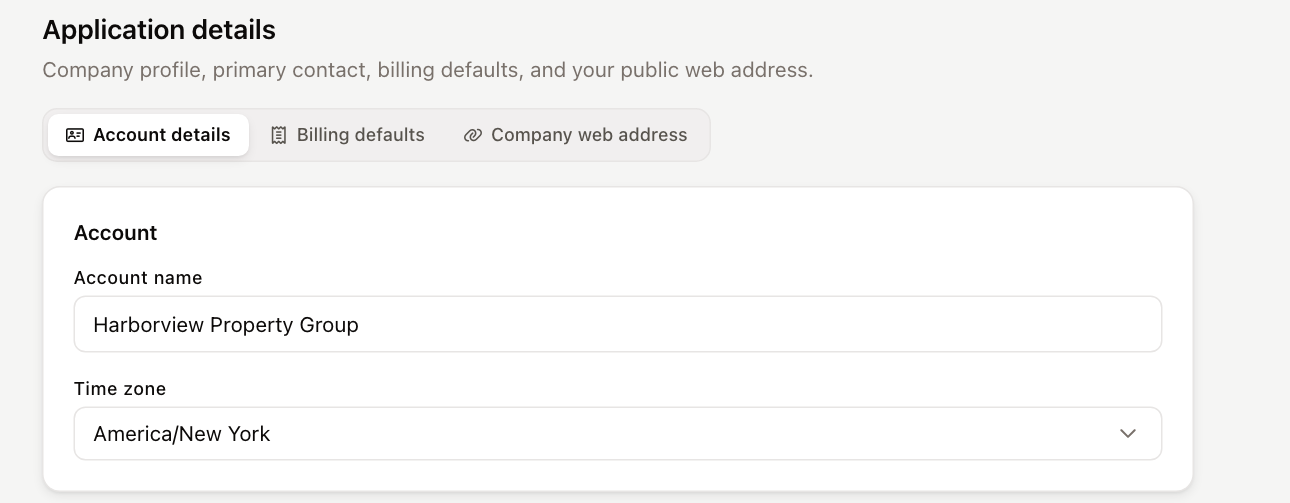
- Under Account, set:
- Account name — your management company's name as it appears across UnitConnect.
- Time zone — the time zone your company works in.
- Under Primary contact, fill in the main contact for your company: First name, Last name, Address line 1, Address line 2, City, State, ZIP, Country, Contact type, Phone, Mobile, Fax and Email.
- Click Save account details.
Billing defaults
Tenant billing defaults are used when you generate tenant invoices.
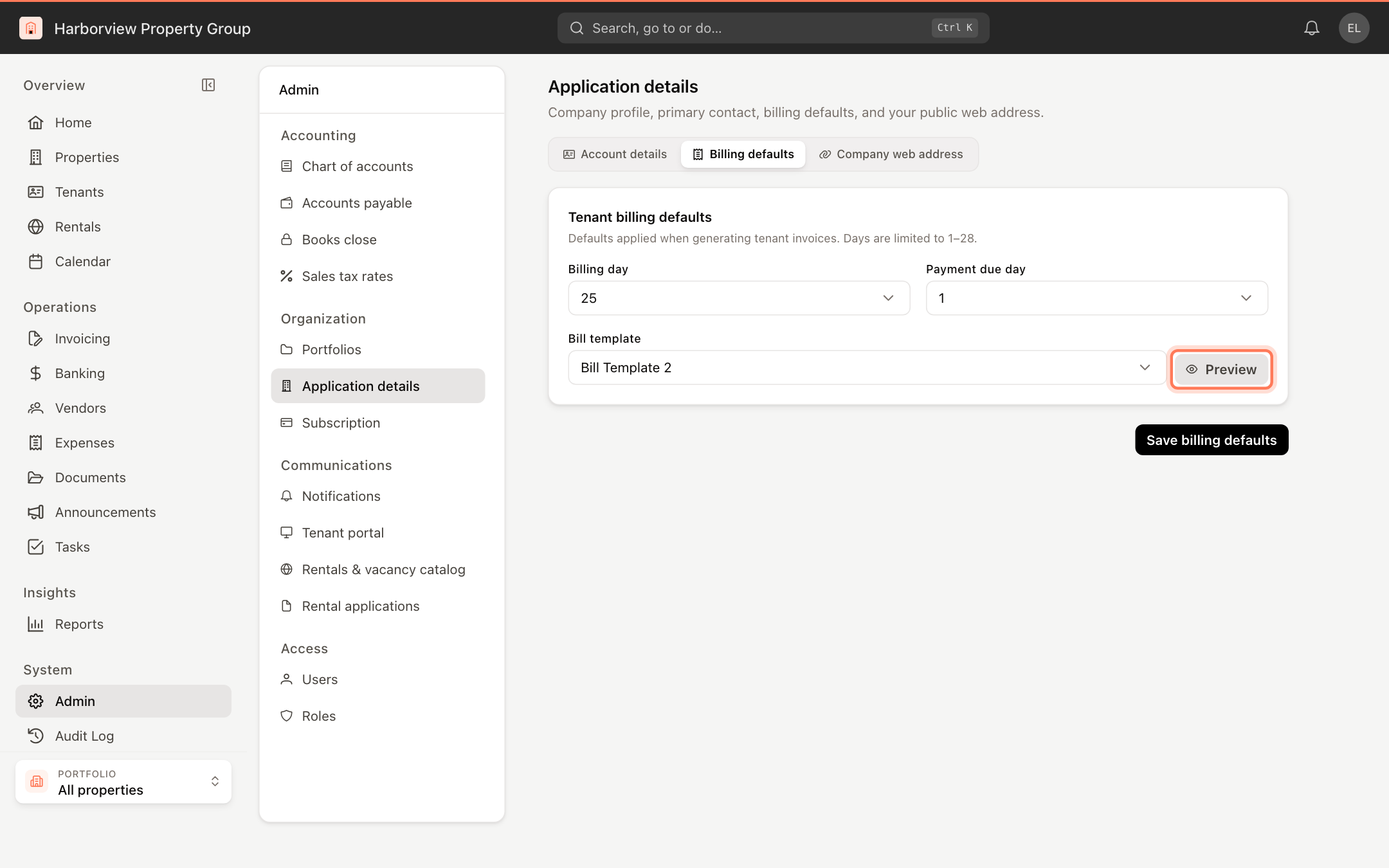
Click the Billing defaults tab.
Set:
- Billing day — the day of the month invoices are billed.
- Payment due day — the day of the month payment is due.
Both can be any day from 1 to 28, or None.
Choose a Bill template — the layout used for invoices. Click Preview to see a sample of the selected template as a PDF.
Click Save billing defaults.
Company web address
Your company web address is the single address shared by your public pages, such as your rentals site and tenant portal sign-in page, in the form your-slug.unitconnect.com.
Click the Company web address tab.
Enter a URL slug. Use lowercase letters, numbers and hyphens only.
Under Suggestions, UnitConnect offers slugs based on your account name (From account name) and short phrases (Creative names; click Shuffle for more). Click a suggestion to put it in the field.
Check the links under Public URLs — they show where your Rentals page and Tenant portal sign-in will be.
Click Save web address.
Changing the slug changes every public URL. Links you've already shared — on your website, in emails or on printed material — will stop working.
Turning each public page on or off is done separately, in the Tenant portal and Rentals & vacancy catalog sections of Admin.