
Admin > Notifications controls which events reach you, and how. Each event — such as a tenant payment failing — can send you an email, an in-app notification under the bell, both, or neither.
Opening this page needs permission to view notification settings, and changing a setting needs permission to modify them. The choices you make under Event notifications are your own: they decide what reaches you, not what other users receive.
Choose which events notify you
- Click Admin in the sidebar, then Notifications (under Communications).
- Click the Event notifications tab.
- On the left, click a category, such as Payments, Tasks, Invoices or Expenses. The events in that category appear on the right, each with a short description.
- For each event, use the switches:
- Email — send an email to your login address.
- In-app — show a notification under the bell in the header.
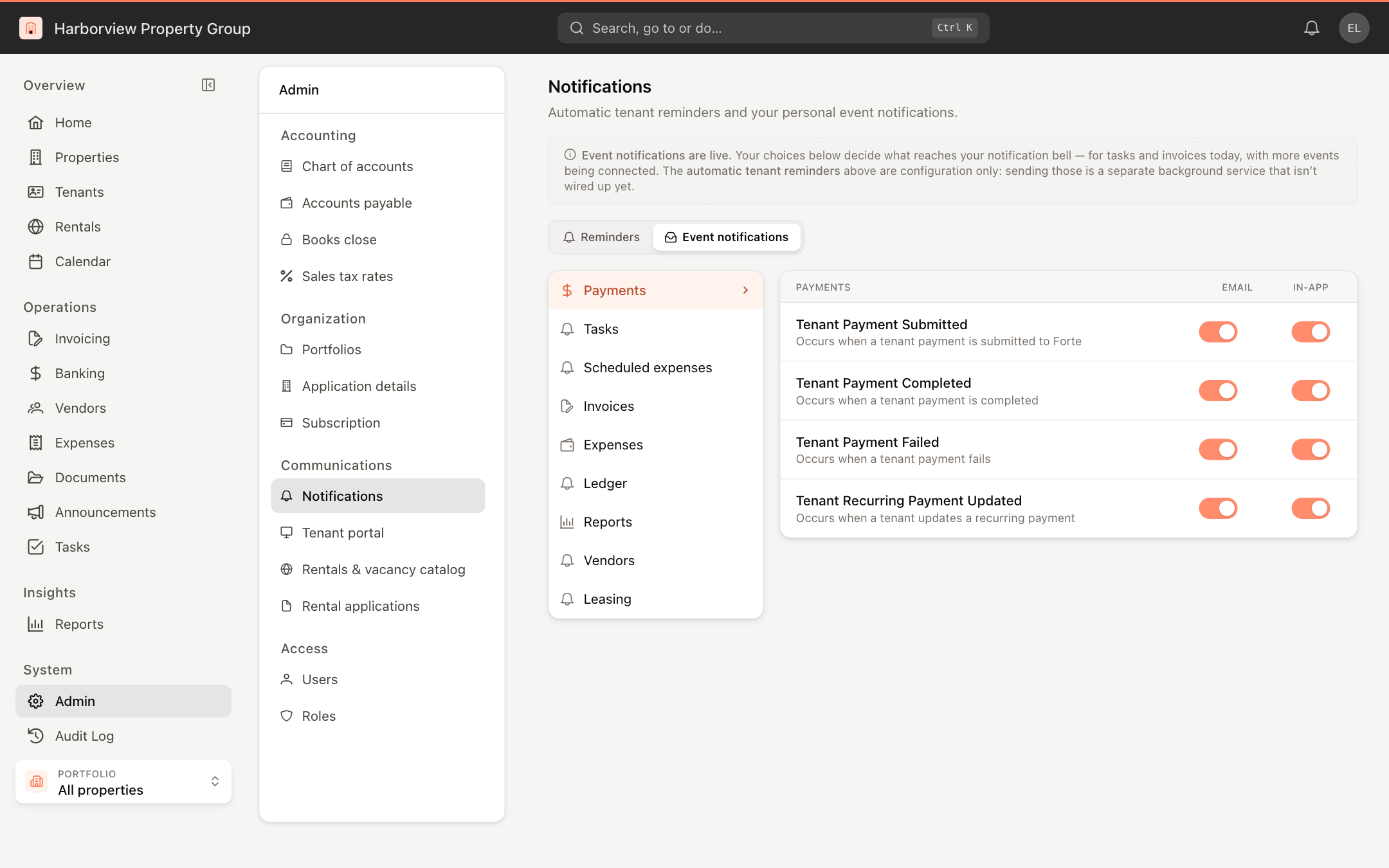
Each change saves as soon as you flip the switch.
In-app notifications are live for tasks and invoices, with more events being connected. A category with nothing to configure for your account shows No configurable events.
Automatic tenant reminders
The Reminders tab lists automatic reminders for tenants, with Send to tenant and Send to manager switches and a Modify button for each. As the notice at the top of the page says, this is configuration only for now: the service that sends these reminders isn't switched on yet.
Read your notifications
To read, open and dismiss the notifications you receive, see Notifications.