
UnitConnect notifies you when something needs your attention — for example when invoice PDFs are ready, invoice emails are queued, or new invoices are waiting in the expense inbox. Notifications appear under the bell icon in the header.
Check your notifications
A red dot on the bell means you have unread notifications. Click the bell to open the notification panel.
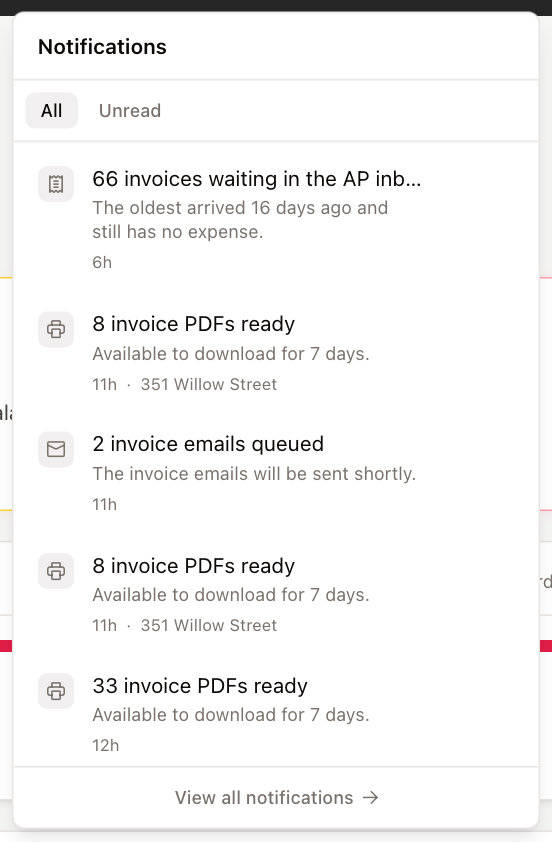
- The header shows how many are unread.
- Switch between All and Unread to filter the list.
- Unread notifications have a red dot on their icon and a bold title.
- Each notification shows how long ago it arrived and, where it applies, the property it relates to.
Click a notification to go to the record it's about. Notifications that aren't linked to a record can't be clicked.
Mark as read or dismiss
Hover over a notification to show its buttons:
- Mark as read (check mark) or Mark as unread (undo arrow).
- Dismiss (×) removes it from your list.
To mark everything as read at once, click Mark all read.
See all notifications
At the bottom of the panel, click View all notifications to open the Notifications page.
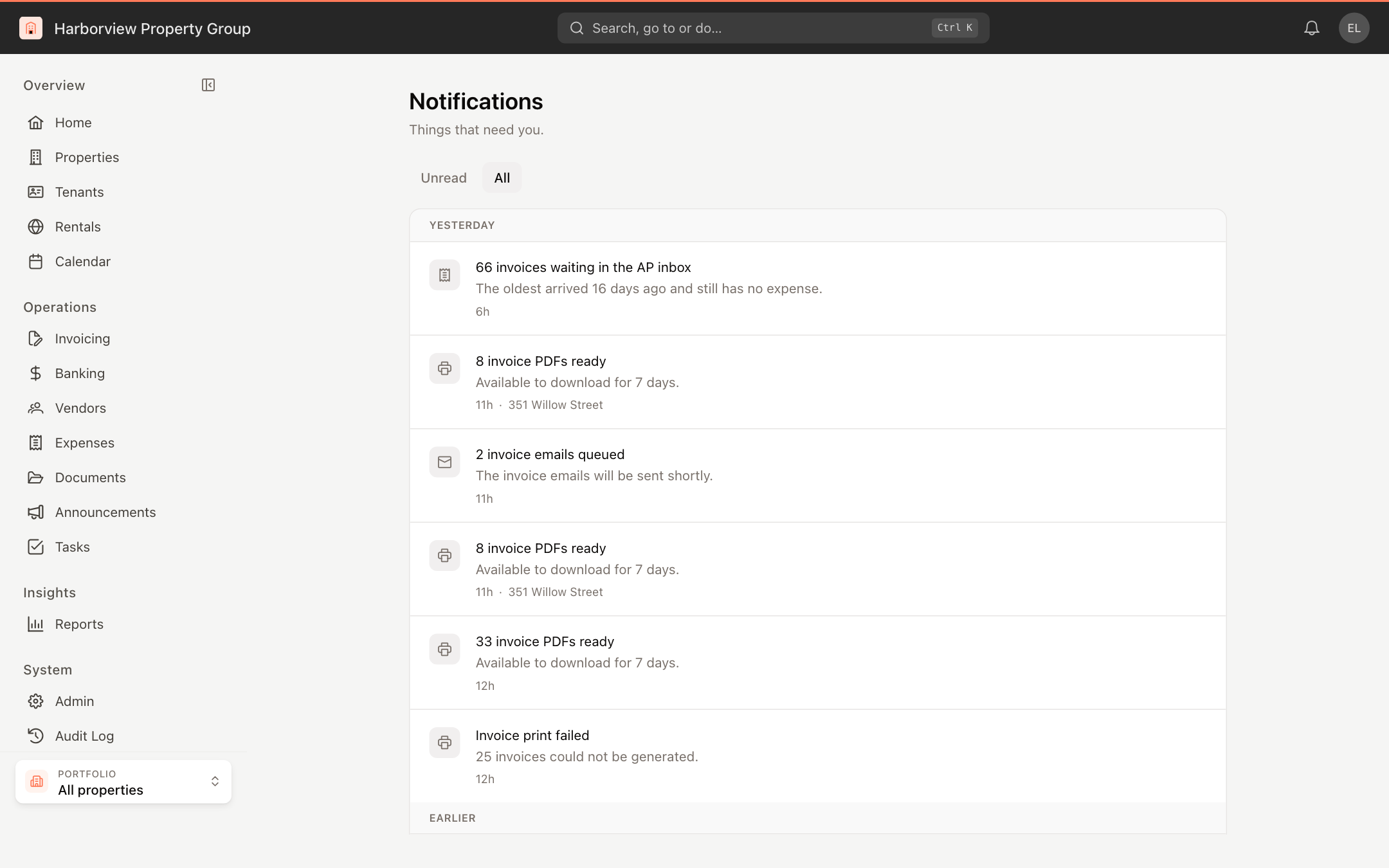
The page opens on Unread; click All to include notifications you've already read. Notifications are grouped under Today, Yesterday and Earlier. The same Mark all read, mark as read and dismiss controls work here, and Load more shows older items.
Notifications are cleared automatically once they've been read for a while. For a permanent history of changes, use the Audit Log (if your role includes it).
Choose what you're notified about
You can choose, event by event, whether you get an email, an in-app notification, or both. See Notification settings.