
Every screen in UnitConnect shares the same frame: a dark header across the top, a navigation sidebar on the left, and the page you're working on in the middle. This article walks through each part so you know where to look for things.
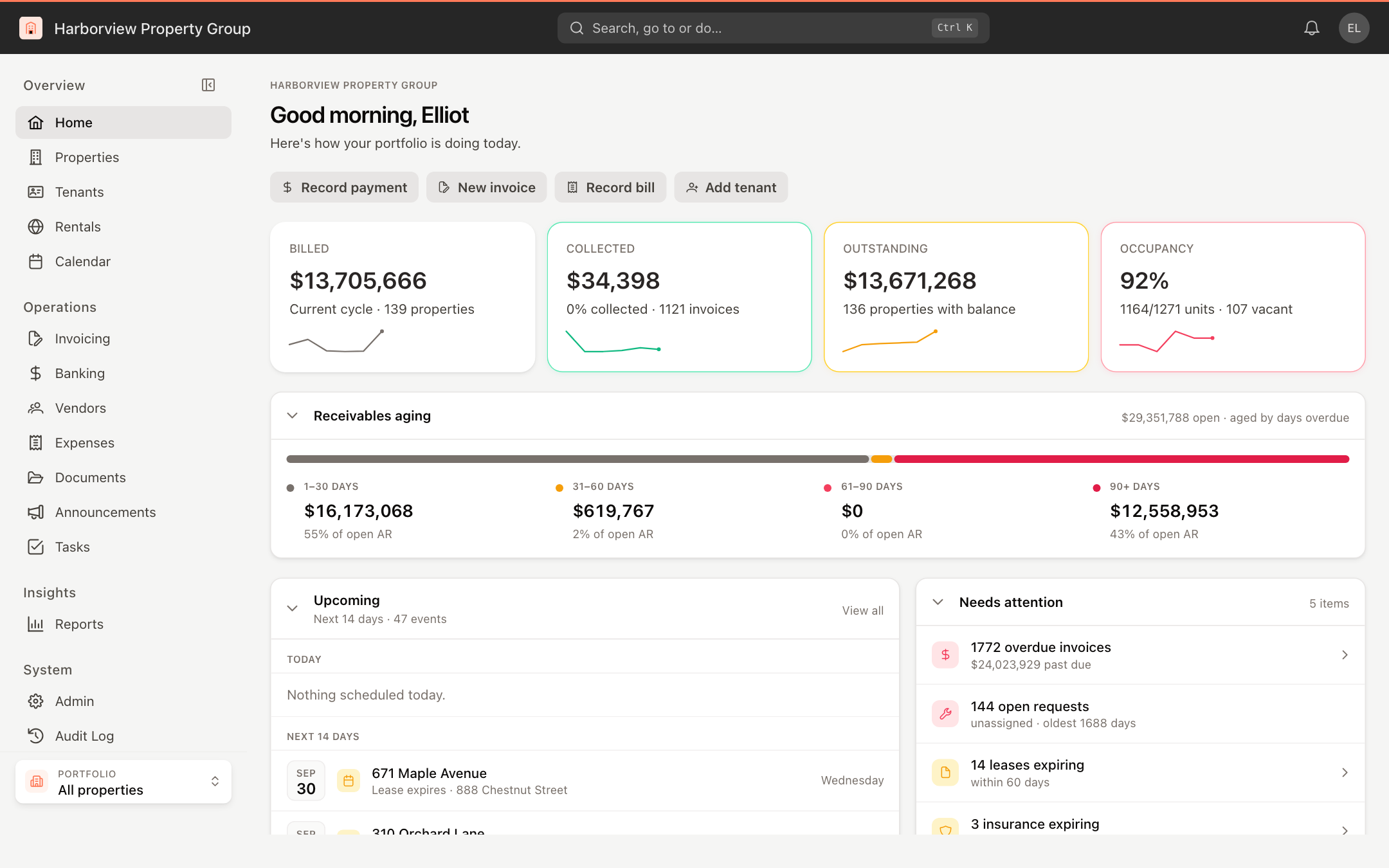
The header
The header runs across the top of every page.
- Company name and logo — on the left, the name of your management company.
- Search, go to or do… — the search bar in the middle opens the command palette. Use it to find a tenant, vendor, property, unit, invoice or expense, jump to a page, or start a common task. You can also press Ctrl + K from anywhere. See Search and keyboard shortcuts.
- Notifications — the bell icon. A red dot means you have unread notifications. See Notifications.
- Your avatar — your initials or photo on the right. Click it to open the account menu.
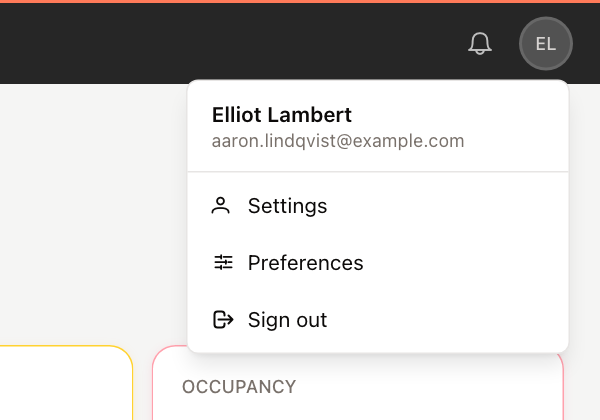
The account menu
Click your avatar to see your name and login email, and three options:
- Settings — your profile, sign-in and password, and invoice printing preference. See Update your profile and password.
- Preferences — theme, navigation layout, font, scale, density and contrast. See Change how UnitConnect looks.
- Sign out — ends your session on this device.
The sidebar
The sidebar groups the main areas of UnitConnect under four headings:
| Heading | Pages |
|---|---|
| Overview | Home, Properties, Tenants, Rentals, Calendar |
| Operations | Invoicing, Banking, Vendors, Expenses, Documents, Announcements, Tasks |
| Insights | Reports |
| System | Admin, Audit Log |
You only see the pages your role allows. For example, Admin appears only if you have access to at least one admin section, and Audit Log, Calendar, Documents, Announcements and Tasks each need their own view permission. Rentals appears only when your company uses the public rentals catalog. If you're missing a page you need, ask your UnitConnect administrator.
Collapse the sidebar
To get more room for the page, click the collapse icon next to the Overview heading, or press [. The sidebar shrinks to a narrow strip of icons. Hover over the strip to see the full sidebar temporarily, or click the expand icon (or press [ again) to pin it open.
On a small screen, the sidebar is hidden. Tap the menu button (☰) at the left of the header to open it.
Prefer a horizontal menu? Open Preferences from the account menu and set Navigation to Top bar.
The portfolio switcher
At the bottom of the sidebar, the Portfolio box shows which group of properties you're looking at. All properties means everything you have access to. Choosing a portfolio narrows the data on every page to that portfolio's properties. See Switch between portfolios.