
The command palette is the fastest way to move around UnitConnect. From one search box you can find a record, jump to a page, or start a task without reaching for the sidebar.
Open the command palette
Do either of the following:
- Click Search, go to or do… in the middle of the header (on a small screen, click the magnifying-glass icon).
- Press Ctrl + K (⌘ + K on a Mac). Press it again to close the palette.
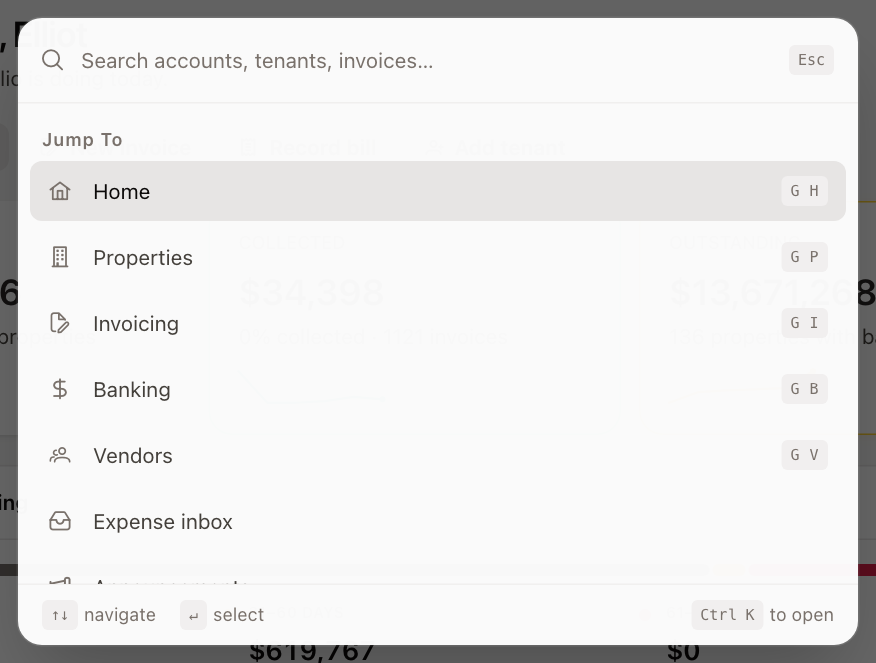
Before you type, the palette shows:
- Recent — the records you opened most recently, newest first.
- Jump To — the main pages: Home, Properties, Invoicing, Banking, Vendors, Announcements, Tasks, Reports, Settings and Admin. If your company uses the enhanced accounts payable workflow, Expense inbox appears here too.
- Actions — Add new property..., Add new vendor..., Add new task... and Create invoice....
Search for a record
Type at least two characters. As you type, the palette searches your data and groups the results under Tenants, Vendors, Properties, Units, Accounts, Expenses and Invoices. Matching text is highlighted.
- Search by name — for example part of a tenant, vendor or property name.
- Search by number — type an account or invoice number (you can start it with #). When your search looks like a number, account, expense and invoice results are listed first.
Typing also filters the Jump To and Actions lists, so typing rep offers Reports.
You only see result groups for records your role allows you to view. For example, the Invoices group needs permission to view invoicing.
Move around the palette with the keyboard
| Key | What it does |
|---|---|
| ↑ ↓ | Move through the results |
| Enter | Open the highlighted result |
| Ctrl + Enter | Open the highlighted result in a new browser tab |
| Esc | Close the palette |
Actions for the record you're viewing
When you have a record open — a tenant, a property or a vendor, for example — press / to open the palette scoped to that record. It lists where you can go from that record and what you can do with it (Actions). Type to filter the list.
To go back to searching everything, press Backspace in the empty search box, or click the × on the record's name at the start of the box.
When you open the palette normally from a record page, the same related links and actions appear at the top, labeled with the record's name.
Keyboard shortcuts
These work anywhere in UnitConnect, as long as you aren't typing in a field.
| Shortcut | Goes to / does |
|---|---|
| Ctrl + K | Open or close the command palette |
| / | Open the palette for the record on screen |
| [ | Collapse or expand the sidebar |
| G then H | Home |
| G then P | Properties |
| G then I | Invoicing |
| G then B | Banking |
| G then V | Vendors |
| G then T | Tasks |
| G then R | Reports |
For the two-key shortcuts, press G, release it, then press the second key within about a second.