
A portfolio is a named group of properties — for example one owner's buildings, or all your retail centers. Selecting a portfolio narrows what you see across UnitConnect to just those properties, so you can focus on one set at a time.
Choose a portfolio
- At the bottom of the sidebar, click the Portfolio box. It shows the portfolio you're in now.
- In Select portfolio, click the portfolio you want. Each one shows how many properties it holds. All properties shows everything you have access to.
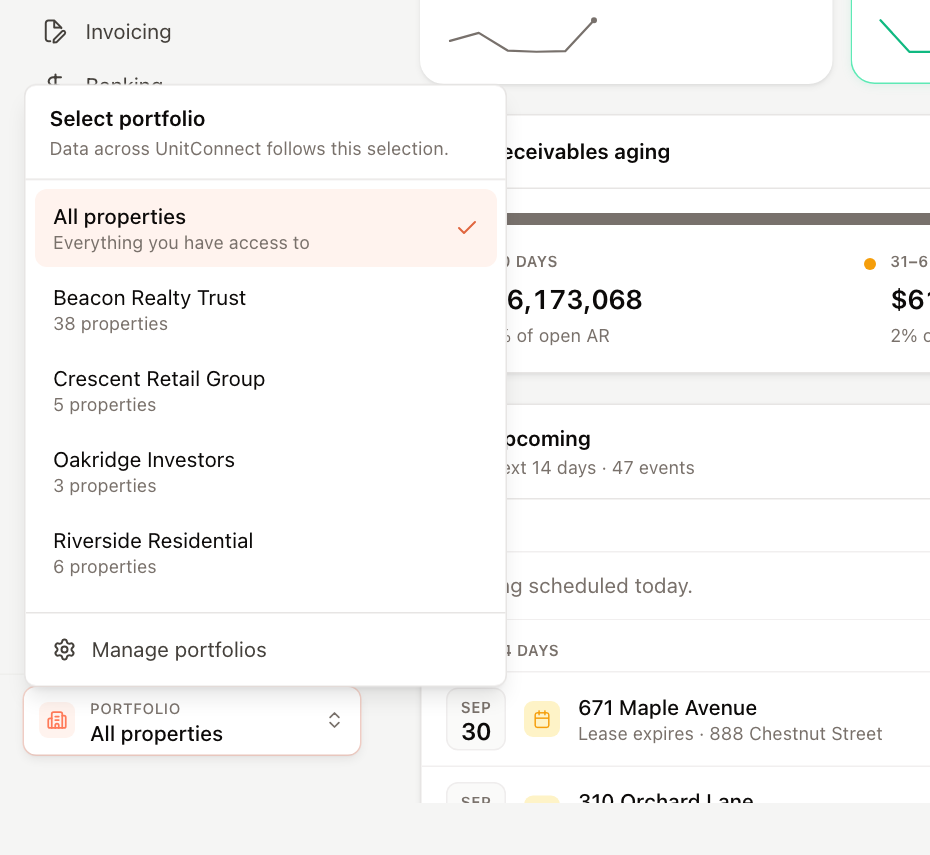
If you have many portfolios, a Search portfolios box appears at the top of the list.
What changes when you switch
- The data on every page — Home, Properties, Tenants, Invoicing, reports and so on — reloads for the properties in the selected portfolio.
- If you had a single record open (a tenant or a property, for example), UnitConnect returns you to that area's list, because the record may not belong to the new portfolio.
- Your choice is remembered on this device, including when you reload the page.
Note
A portfolio never gives you access to properties you can't already see. Which properties you can see is set per user by an administrator. See Manage users.
Create or change portfolios
If you're allowed to manage portfolios, Manage portfolios appears at the bottom of the list and opens Admin > Portfolios. See Create and manage portfolios.