
Portfolios group properties so you can filter UnitConnect to one set at a time — for example all of one owner's buildings. Once a portfolio exists, anyone can pick it in the portfolio switcher. See Switch between portfolios.
You need permission to view portfolios to open this page, and permission to modify portfolios to create, edit or deactivate them.
Open Portfolios
Click Admin in the sidebar, then Portfolios (under Organization). You can also click the portfolio switcher at the bottom of the sidebar and choose Manage portfolios.

Each portfolio shows its name, description, number of properties and an Active or Inactive badge.
- Type in Search name or description to filter.
- Check Show inactive to include deactivated portfolios.
- Switch between tile view and list view with the icons on the right.
Create a portfolio
- Click New portfolio.
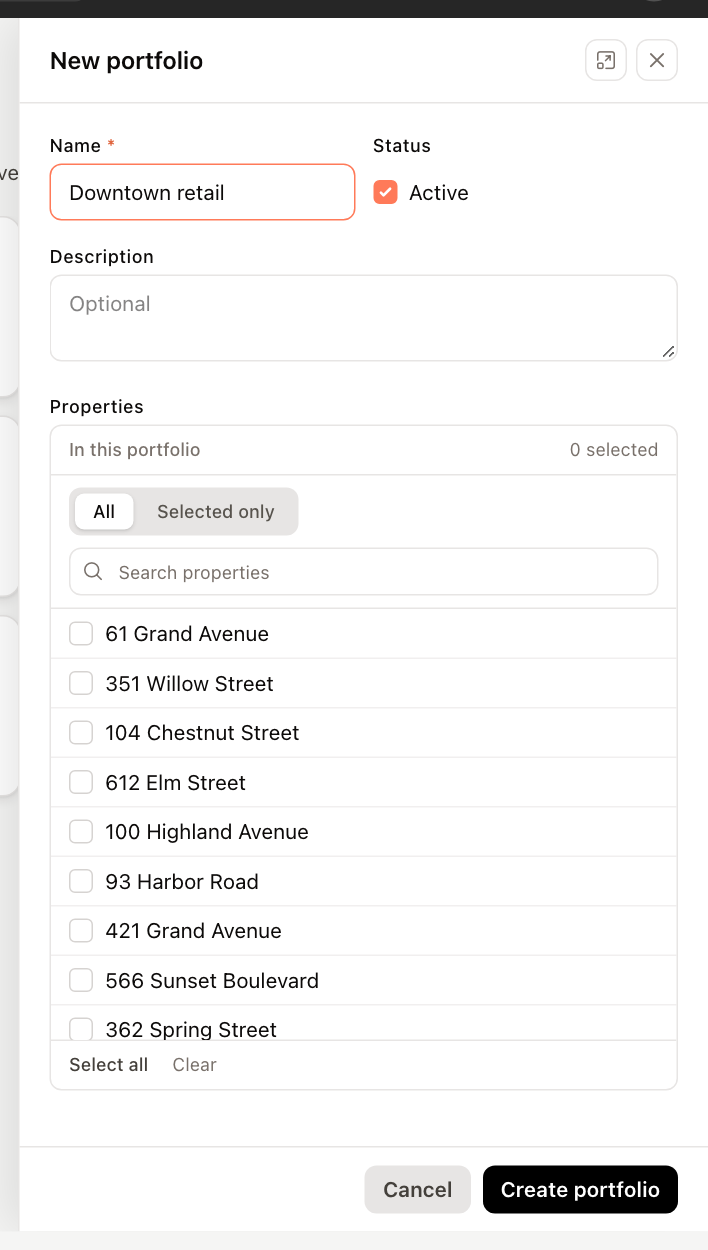
- Enter a Name (required). Leave Active checked so the portfolio can be used right away.
- Optionally, enter a Description.
- Under Properties, tick each property that belongs in the portfolio.
- Use Search properties to find a property.
- Click Selected only to review what you've picked, or All to see every property.
- Select all ticks every property in the list (or every property matching your search), and Clear unticks them all.
- Click Create portfolio.
Edit a portfolio
- Click the portfolio, or click its Edit button.
- Change the name, description, status or property list.
- Click Save changes.
Deactivate a portfolio
Click Deactivate on the portfolio. It's hidden from the list unless Show inactive is checked. To use it again, check Show inactive and click Activate.