
Your personal settings live under Settings. To open them, click your avatar in the top-right corner and choose Settings. The left side lists the sections: Profile, Sign-in and Invoicing.
Update your profile
Profile shows your Personal details: name, mailing address, phone and mobile numbers.

- In Personal details, click Update.
- In Edit profile, change any of First name, Last name, Address line 1, Address line 2, City, State, ZIP, Phone, Mobile and Fax.
- Click Save.
Change your password
Go to Settings > Sign-in.
Next to Password, click Change.
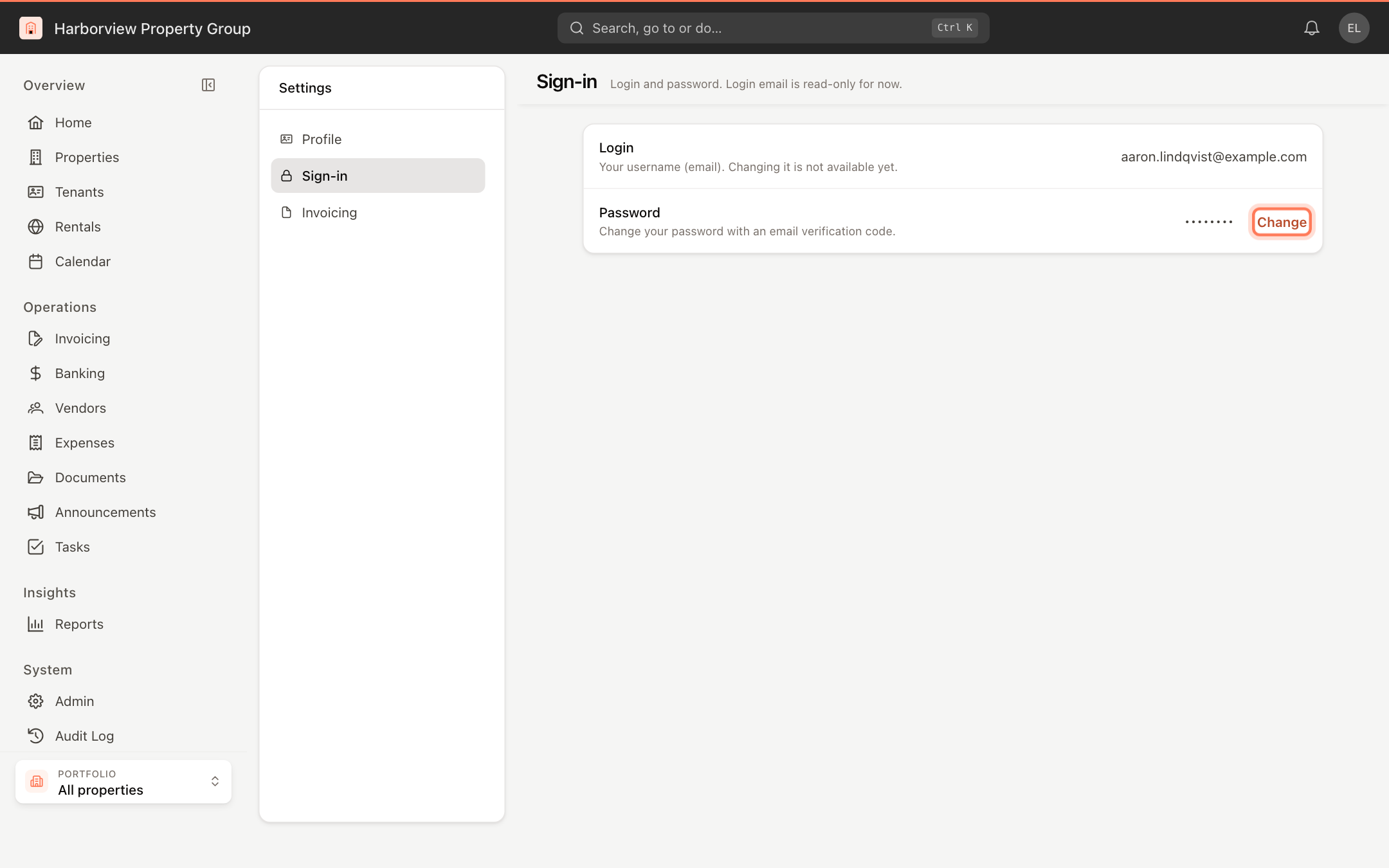
Settings > Sign-in In Change password, click Send code. UnitConnect emails a verification code to your login address. The code expires in 15 minutes.
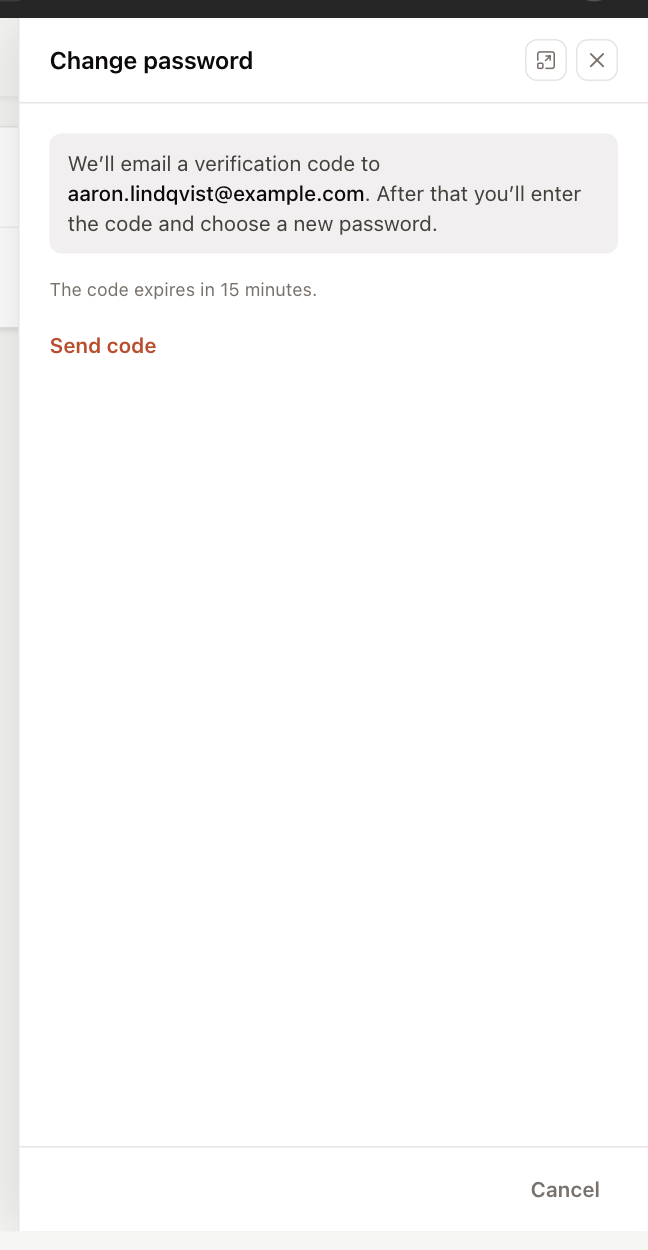
Step 1 — send a verification code Enter the 6-digit code from the email in Email verification code.
Enter your New password and type it again in Confirm new password. It must be at least 8 characters and include at least one letter and one number.
Click Change password.
If the email doesn't arrive, check your spam folder and click Resend code. Click Back to return to the first step.
Your login email is shown under Login on the same page. You can't change it yourself — ask an administrator if it needs to change. See Manage users.
Forgot your current password and can't sign in? Use Forgot password? on the sign-in page instead. See Sign in and reset your password.
Choose how invoices print
Settings > Invoicing has one setting, Print with attachments. Turn it on to add an invoice's attached documents after the statement whenever you print it. The change saves as soon as you switch it.
Links to invoices that tenants receive always include attachments, whatever this setting says.
The Invoicing section appears only if you have permission to view invoicing.