
The Preferences panel holds every appearance setting in one place. Changes apply immediately, and there is nothing to save.
Open Preferences
Click your avatar in the top-right corner, then click Preferences. The panel opens on the right. Click × or press Esc to close it.
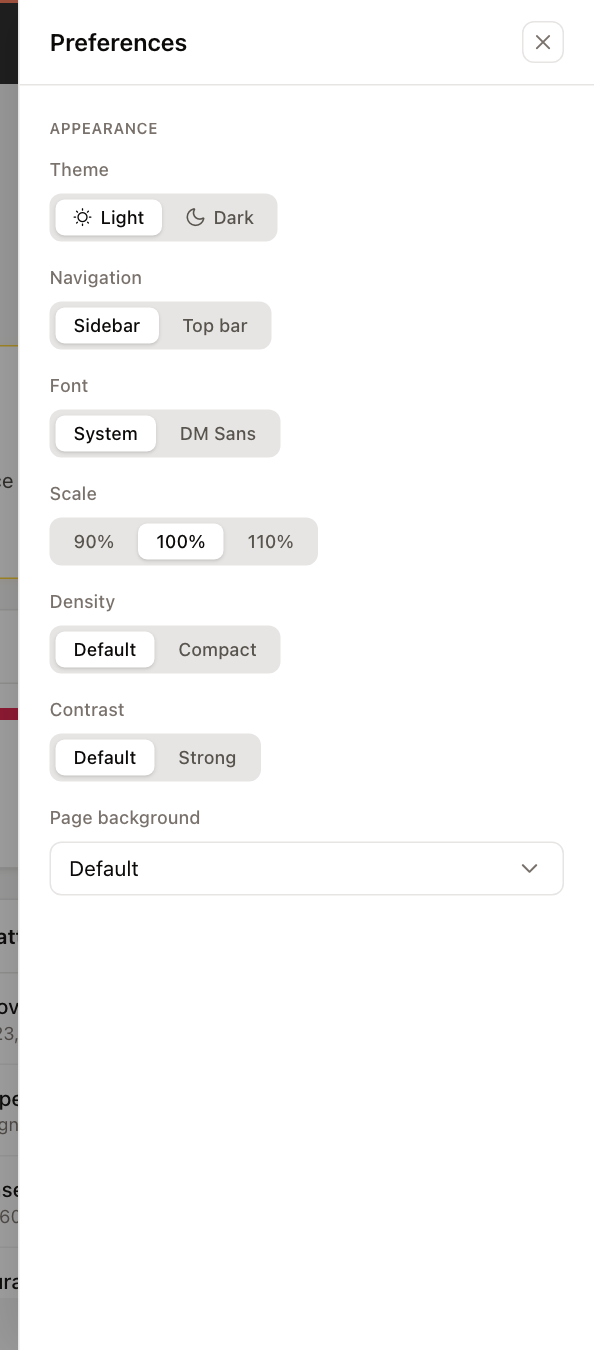
The settings
| Setting | Options | What it changes |
|---|---|---|
| Theme | Light, Dark | The color scheme of the whole app. |
| Navigation | Sidebar, Top bar | Whether the main menu is a sidebar on the left or a horizontal bar under the header. The top bar shows the most used pages and puts the rest under a More menu. |
| Font | System, DM Sans | The typeface. System uses your computer's standard font. |
| Scale | 90%, 100%, 110% | The size of all text in the app. |
| Density | Default, Compact | How much space table rows take. Compact fits more rows on screen without making the text smaller. |
| Contrast | Default, Strong | How strongly borders and fields stand out. Try Strong if outlines are hard to see. |
| Page background | A list of background shades | The color of the page behind cards and tables. |
Note
The Navigation setting is available on larger screens. On a phone or small window, the menu is always opened with the ☰ button.
Where your preferences are kept
Your theme is saved to your account. The other settings are remembered in the browser on this device, so if you use UnitConnect on another computer you may need to set them again there.