
Closing the books records that a property's accounting is final through a given date — typically after month-end reconciliation. After that, anyone who records or changes a transaction dated on or before that date is warned first. Nothing is blocked: they can go back, or confirm and record it anyway, and their answer is kept in the activity log.
Close one property's books
- Open the property and click the Settings tab.
- In the Books section, find Closed through and click Close books (or Change if the books are already closed).
- Pick the Books closed through date.
- Review the bank reconciliation check that appears. It tells you, for example, whether transactions before that date are still unmatched. It is information only — it doesn't stop you from closing.
- Click Close books.

To reopen, open the same panel and click Reopen. To reopen only part of a closed period, choose an earlier date instead and click Close books.
Close many properties at once
- In the sidebar, click Admin, then Books close.
- The list shows each property with Books closed through, Closed by and a Bank reconciliation check.
- Enter a date in Close through. The Bank reconciliation column then shows what each property still has unmatched before that date.
- Tick the properties to close, click Close N properties and confirm.
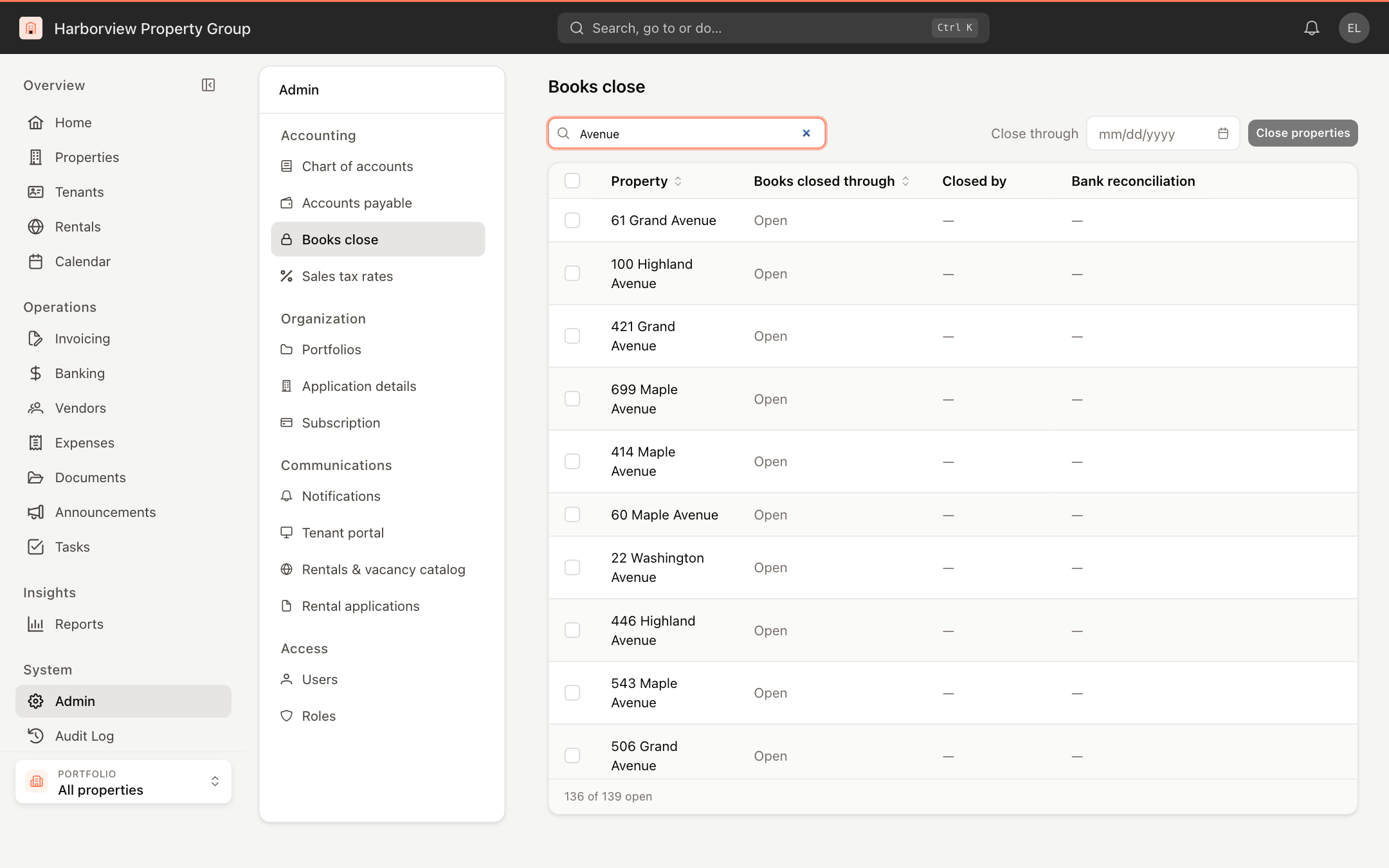
To reopen a single property, click Reopen books on its row and confirm.
You can also close the books straight from reconciliation: when a period is fully matched, the Reconciliation tab offers to close it. See Reconcile a bank account.
When the books are closed
- Forms with a date, such as a manual journal entry or a bank transaction, show Books closed through under the date, and warn when the date is inside the closed period.
- When you save something dated inside a closed period, These books are closed asks you to confirm. Click Go back to change it, or Record anyway to save it.
Closing and reopening the books requires the close-books permission. Other users see the closed date but cannot change it.