
Each bank account keeps a register of every transaction that moved money in or out of it — tenant payments, paid bills, transfers and manual entries — with a running balance. You can add deposits, withdrawals and transfers directly from the register.
View the register
- In the sidebar, click Banking and select the account.
- Open the Transactions tab.
- Use the date filter to choose the period. The register opens on the last 90 days.
The register lists the Date, Description, Increase, Decrease and Running balance of each transaction. Click the refresh icon to reload it.
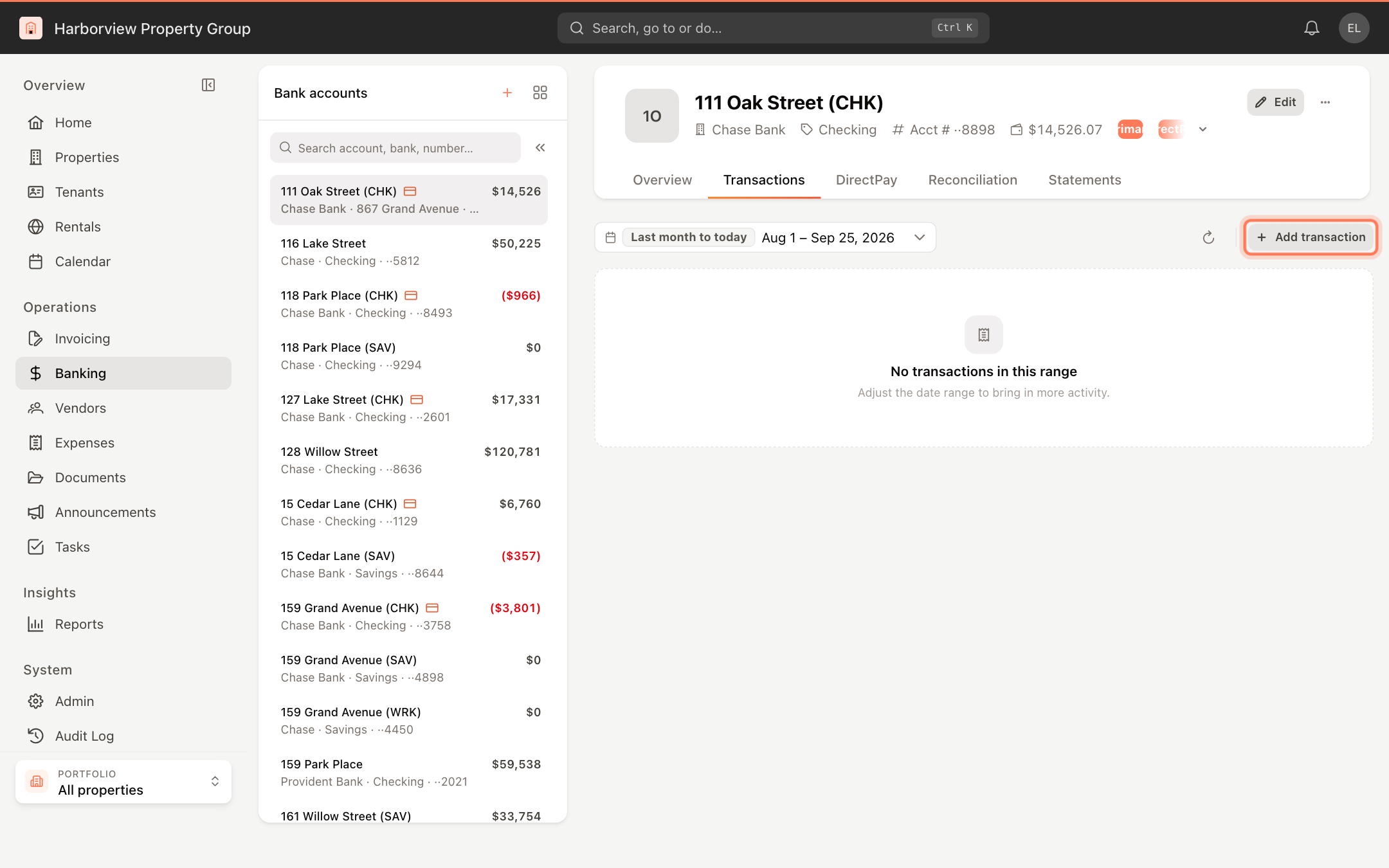
Click a row to open its details. The panel shows the transaction type and date and, where it applies, links to the tenant and invoice, or the vendor and bill, that created it. The Journal entry section lists every debit and credit line of the transaction. Click Show more for the remaining invoice or bill details.
Add a transaction
- On the Transactions tab, click Add transaction.
- Choose Deposit, Withdrawal or Transfer at the top of the panel. The current account is filled in for you as Deposit to, Withdrawal from or Transfer from.
- For a deposit or withdrawal, choose the Offset account — the chart-of-accounts category on the other side of the entry. For a transfer, choose the account under Transfer to.
- Enter the Date and Amount, and optionally a Reference.
- Click Record.
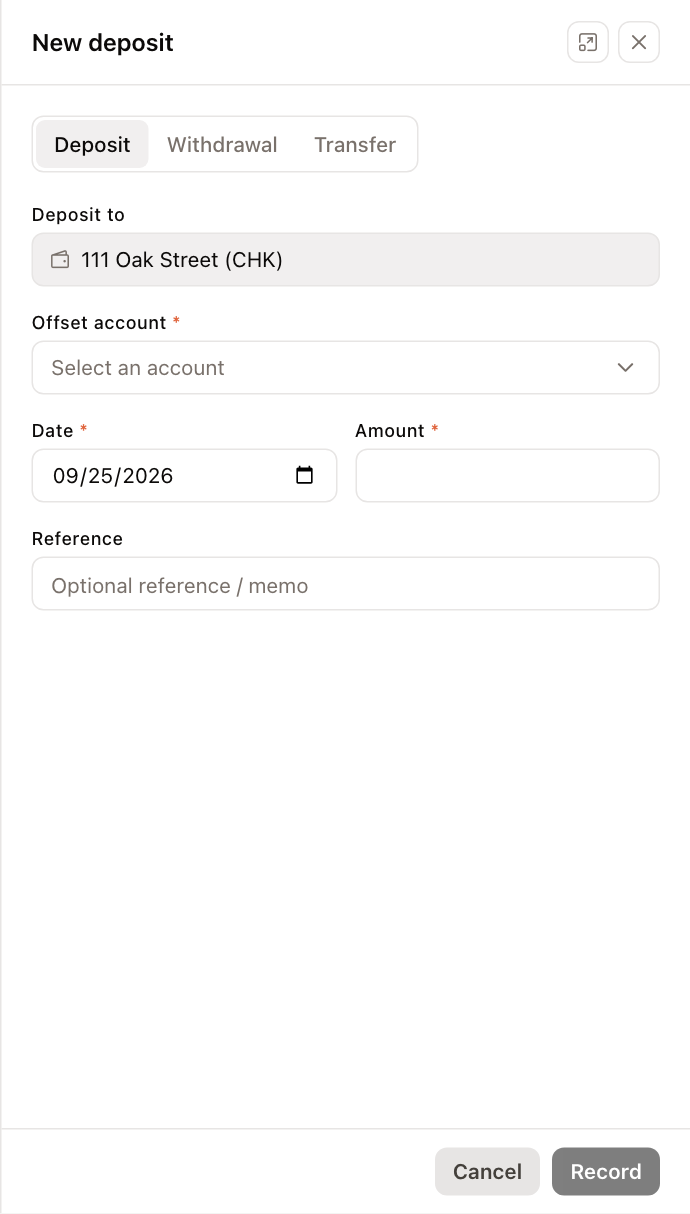
Use the icon next to the close button to switch the panel between a side panel and a centered window. UnitConnect remembers your choice.
If the date falls inside a period whose books are closed, a note under the date says so, and you are asked to confirm before the transaction is saved. See Close the books.
Modify or delete a manual transaction
Only manual entries can be changed here. The Modify and Delete buttons appear in the details panel of a manual transaction only.
- Click the transaction in the register.
- Click Modify to change the type (deposit or withdrawal), offset account, date, amount or reference, then click Save changes. Or click Delete to remove it. Deleting reverses the entry's ledger postings and cannot be undone.
To change a tenant payment or a paid bill, open it from the details panel (the tenant, invoice, vendor or bill link) and change it there.
Adding, modifying and deleting transactions requires permission to modify the ledger.