
The Statements tab keeps one PDF statement per month for each bank account, so the bank's own record sits next to your reconciliation.
Open the statements
- In the sidebar, click Banking and select the account.
- Open the Statements tab. Use the date filter to choose which months to list.
Each row is a month and shows the Source (Upload or Plaid), the Status (Ready, Pulling, Failed or Empty) and when the file was last uploaded or pulled.
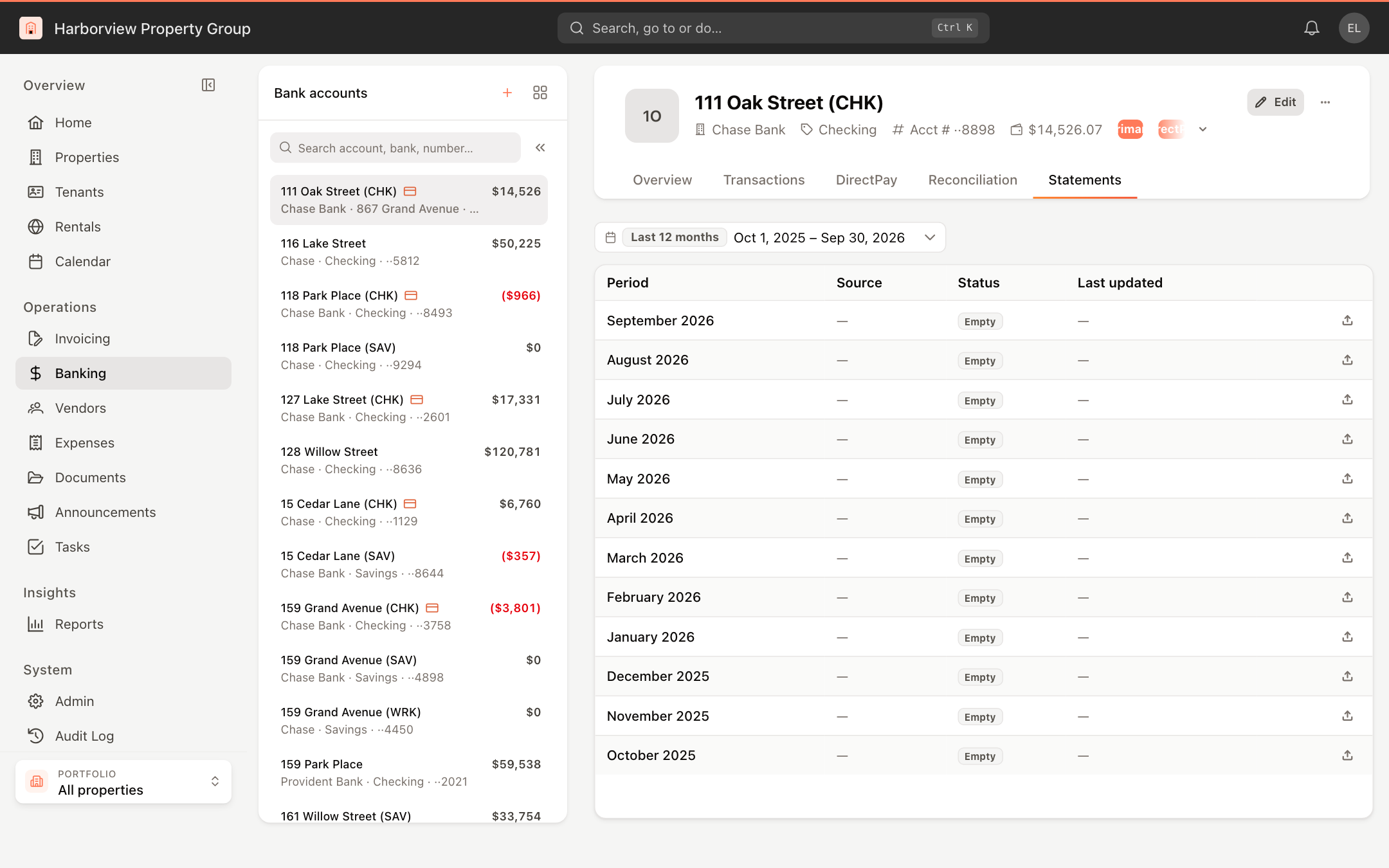
Upload, view, replace or delete a statement
Use the icons at the end of each row:
- Upload — attach a PDF for that month (up to 50 MB), then click Upload.
- View — open the statement in a preview.
- Replace — upload a new PDF in place of the one on file.
- Delete — remove the PDF for that month.
Pull statements from the bank
If the account is connected to a bank feed (see Reconcile a bank account):
- Click Enable statements the first time.
- Click Pull from bank to fetch the statements for closed months.
Pull from bank is unavailable when every closed month already has a statement, or when the only missing month hasn't ended yet. Hover over the button to see why.
Note
Uploading, replacing, deleting and pulling statements requires permission to modify bank synchronization.