
Every bank account in UnitConnect belongs to a property. The Banking page lists all of your accounts, shows your cash position at a glance, and opens each account's own workspace for transactions, reconciliation, statements and DirectPay.
The Banking page
In the sidebar, click Banking. The list of Bank accounts sits on the left; each row shows the account name, the bank and the current balance. A card icon next to a name means electronic payments (DirectPay) are enabled or pending for that account. Use Search account, bank, number… to narrow the list.
When no account is selected, the page shows a summary of all accounts:
- Total cash, Accounts, Operating accounts, Institutions and DirectPay counts.
- Cash by institution — balances grouped by bank.
- Recent activity — the latest bank transactions. Click one to open its account.
- Top properties by cash.
- Needs attention — overdrawn accounts, and properties that have no primary account set.
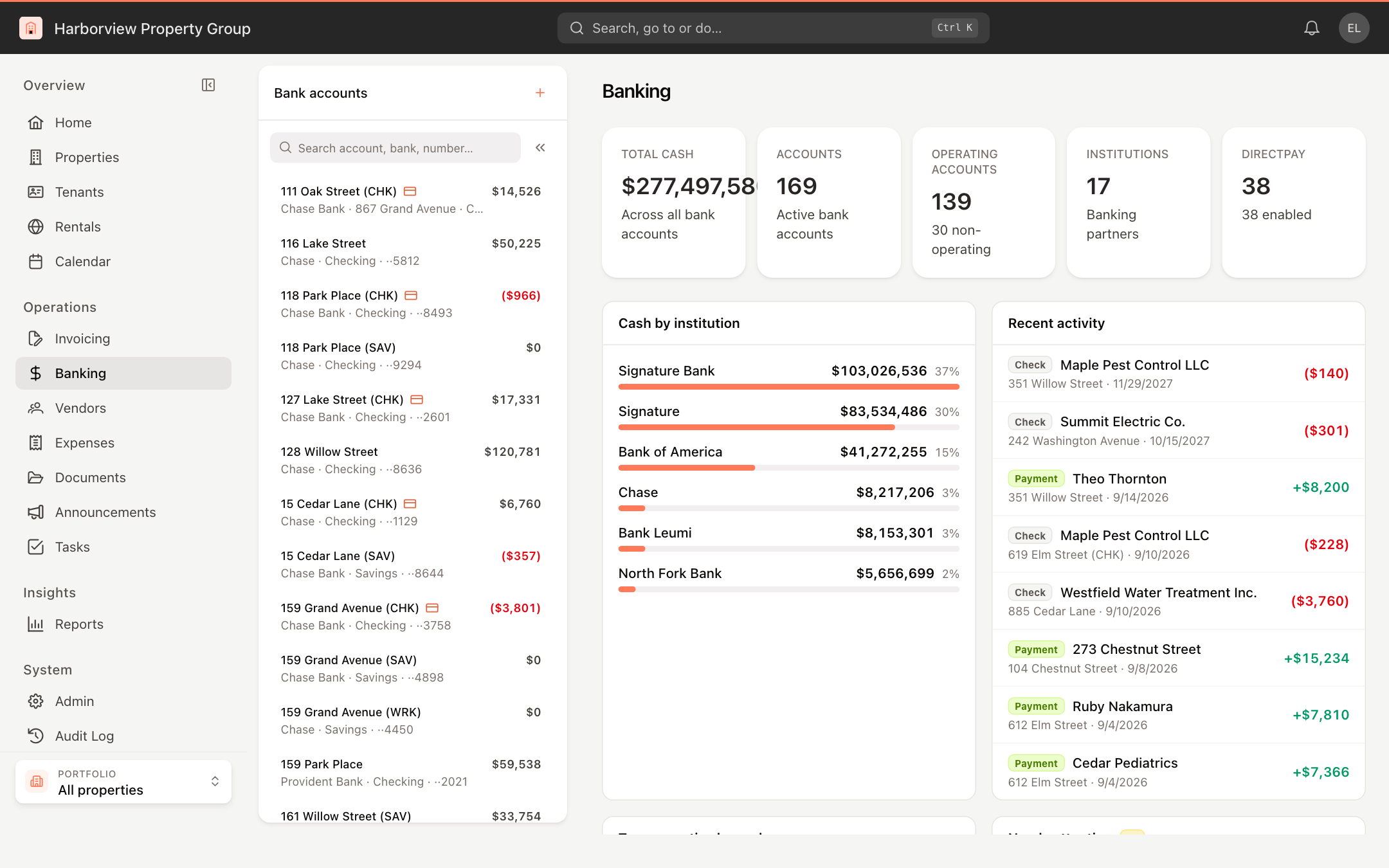
To return to the summary from an account, click Banking overview (the grid icon) at the top of the list.
Add a bank account
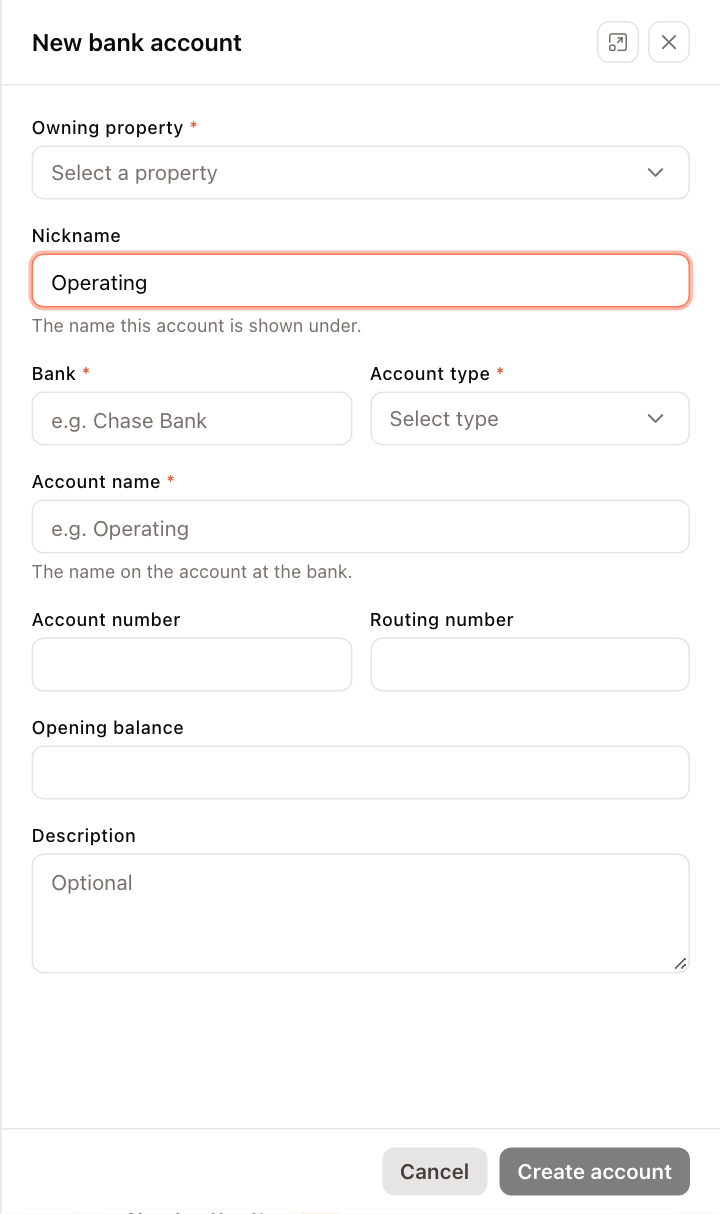
- On the Banking page, click + (New bank account) at the top of the list.
- Choose the Owning property.
- Enter a Nickname — the name the account is shown under throughout UnitConnect, for example "Operating".
- Enter the Bank and choose the Account type.
- Enter the Account name — the name on the account at the bank.
- Optionally add the Account number, Routing number, Opening balance and a Description.
- Click Create account.
You can also add a bank account from a property: open the property, click More actions (…) and choose Add Bank Account.
Review and edit an account
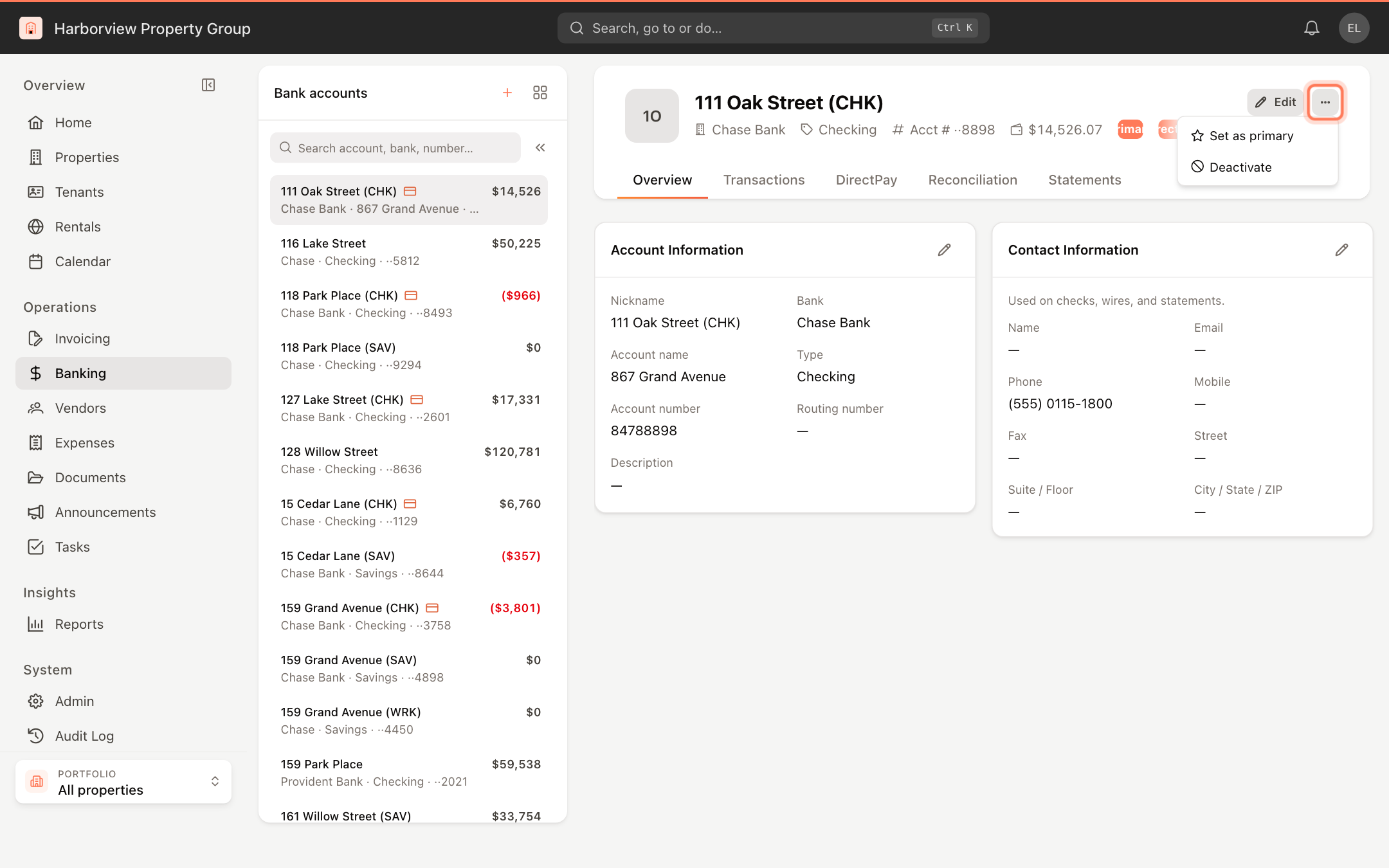
Click an account in the list to open it. The header shows the bank, account type, the last four digits of the account number, the balance, and badges such as Primary, DirectPay or Inactive.
The Overview tab has two cards:
- Account Information — nickname, bank, account name, type, account and routing numbers, and description.
- Contact Information — the name, email, phones and address used on checks, wires and statements.
To change either card, click Edit in the header or the pencil icon on the card.
Set as primary, deactivate or reactivate
Click More actions (…) in the account header:
- Set as primary makes this the property's primary (operating) account.
- Deactivate hides the account from active lists. You are asked to confirm. A deactivated account keeps its history and can be brought back.
- Reactivate appears on an inactive account and returns it to active use.
Creating, editing, deactivating and reactivating bank accounts requires permission to manage bank accounts. Without it, the Edit and More actions buttons are hidden.