
A passthrough turns an expense into charges on your tenants' invoices. Each unit is charged its share of the expense total. This suits costs you pay on the tenants' behalf, such as utilities.
Set it up once on the vendor account
Passthrough is quickest when the vendor account already knows which units it covers. On the vendor's Accounts tab, open the account and set:
- the Charge description and Income category under Expense passthrough, and
- the units and their Share % under Linked units & tenants.
See Link a vendor to a property. With that in place, choosing the account on an expense turns the passthrough on and fills everything in.
Pass through while recording
- Record the expense as usual; see Record an expense. Choose the property first — passthrough needs it.
- In the Pass through to tenants section, turn the switch on (it is already on if the vendor account has linked units).
- A banner tells you where the units came from:
- Linked account — category and split are filled in from the vendor account.
- All tenants in the property — the account has no linked units, so every tenant is listed; set each share yourself.
- Check the Charge description (it defaults to the vendor name and account number) and choose the Income category (required).
- Under Units & shares, adjust each unit's Share % or Amount — changing one updates the other. Use Distribute evenly to split equally, or Clear amounts to start over. Vacant units aren't charged.
- Choose the Invoice cycle the charges go on. It defaults to the property's current billing month.
- Turn on Add all attachments to tenant invoices if tenants should receive the vendor's invoice with their bill.
- Click Record expense.
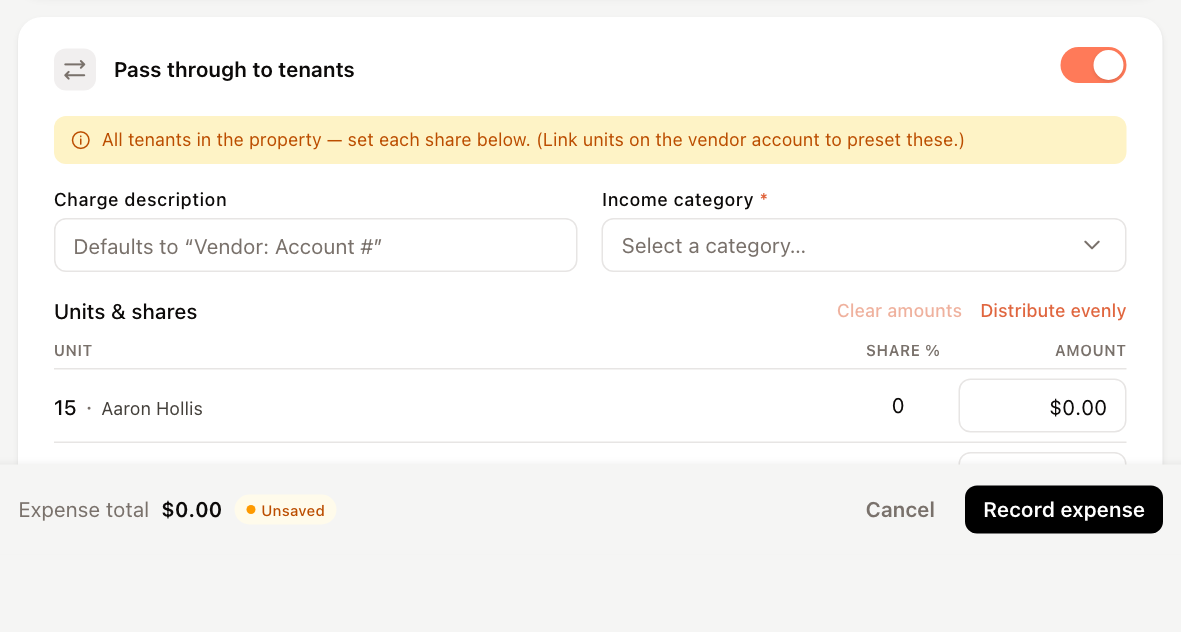
If the shares don't add up to 100%, a warning says tenants will be under- or over-allocated. You can still save.
The footer shows how many units will be charged. After saving, the charges appear on the tenants' invoices for the chosen cycle.
Add or change a passthrough later
- Open the property's Expenses tab.
- Click ⋮ on the expense row and choose Pass through (or Manage passthrough if it is already passed through).
- In Manage passthrough, turn on Pass this expense through to tenants, then set the Charge description, the Income (recovery) category, the Invoice cycle and each linked unit's Share. Use Distribute evenly or Clear amounts as needed.
- Click Apply passthrough.
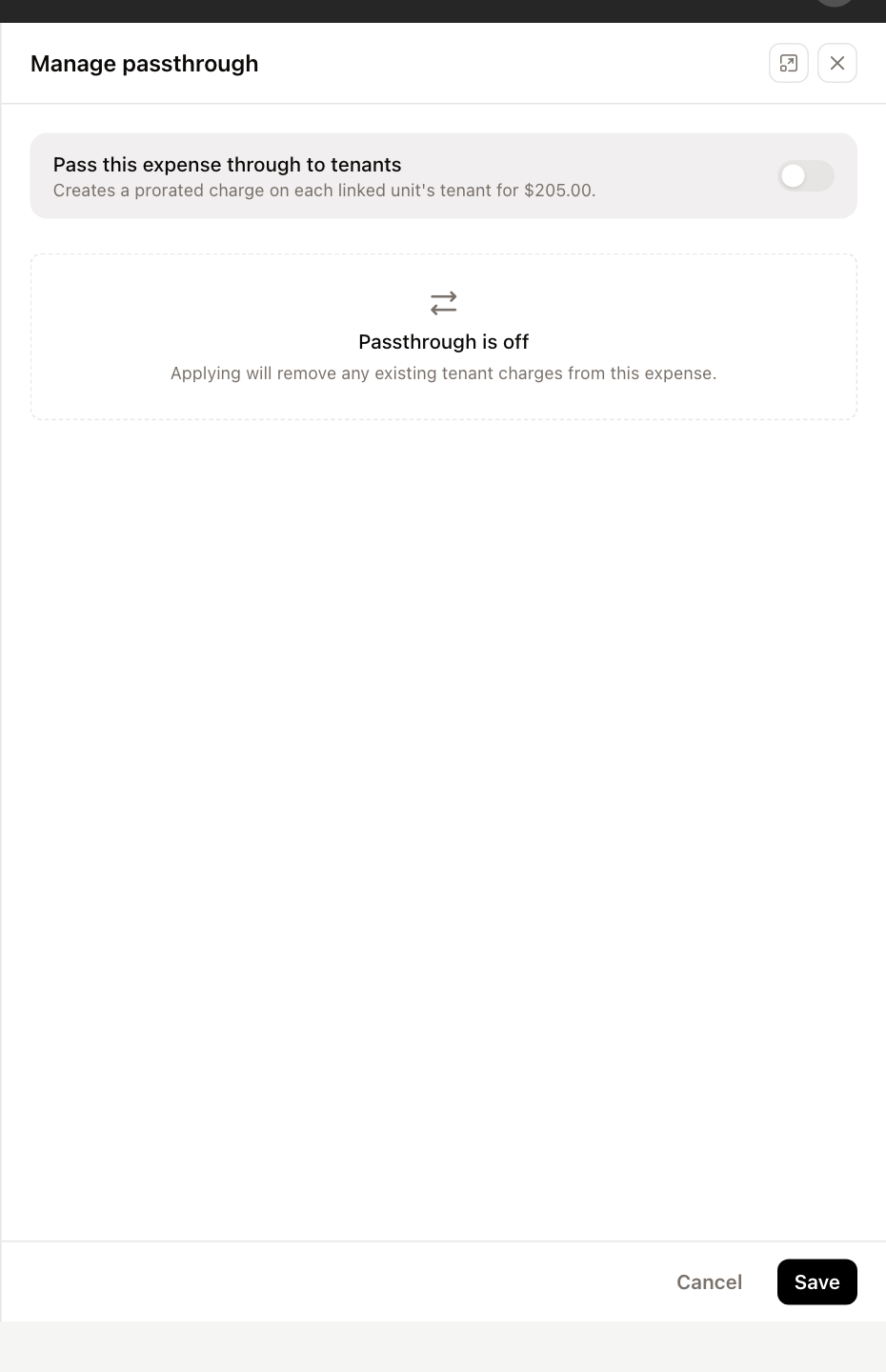
To stop passing an expense through, turn the switch off and click Save. This removes the tenant charges created from the expense.
You can also change the passthrough by editing the expense (Edit in the expense view).
Changing a passthrough needs permission to edit bills. Deleting a passed-through expense takes its unpaid tenant charges off their invoices.