
Expenses (in the sidebar) is where you work with vendor bills across every property: the list on the left, the selected expense on the right. Expenses are also called bills.
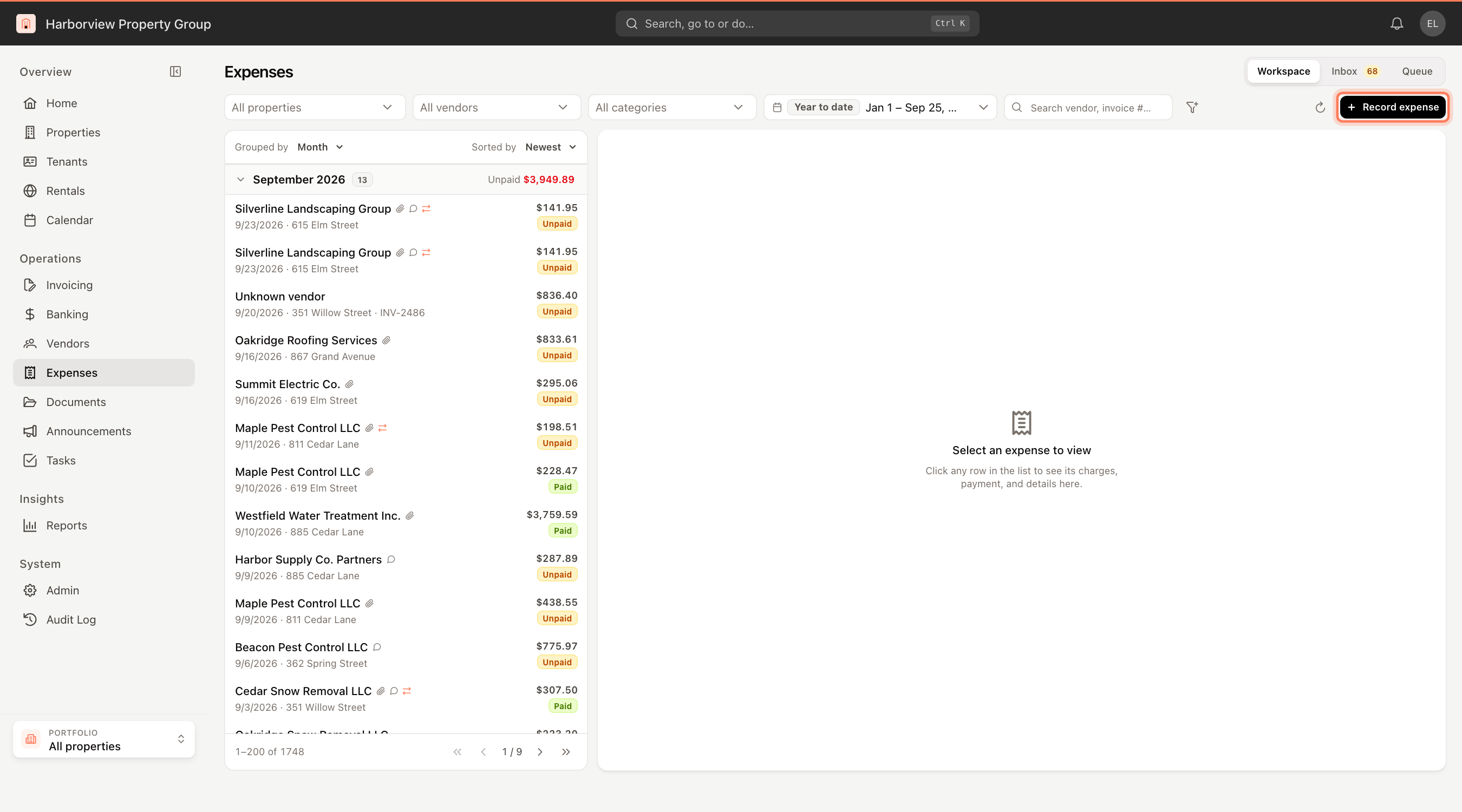
You need permission to view bills to open Expenses, and permission to create bills to see Record expense. If your company uses the enhanced accounts payable workflow, Workspace, Inbox and Queue appear at the top right; see The expense inbox and approval queue.
Filter the list
The toolbar filters apply together:
- All properties, All vendors, All categories — pick one or more of each.
- The date range — the list opens on Year to date. Each expense is dated by its paid date, or its due date, or its bill date, whichever it has first.
- Search vendor, invoice #… — type part of a vendor name or invoice number.
- The filter button — Status: Unpaid, Scheduled, Paid or Overdue.
Click Clear to remove all filters. The refresh button reloads the list.
Group and sort
Above the list, use Grouped by to group expenses by Property, Vendor or Month. Each group header shows the count and the group's Unpaid total (or Paid in full). Click a group header to fold it.
Use Sorted by to order the list by Newest, Oldest, Highest amount, Lowest amount, Vendor or Status. The list shows 200 expenses per page; use the arrows at the bottom to page.
Icons next to a vendor name show that the expense has attachments, internal comments, or has been passed through to tenants.
What the statuses mean
| Status | Meaning |
|---|---|
| Unpaid | Recorded, but no payment is recorded yet. |
| Scheduled | A payment is recorded with a paid date in the future. |
| Paid | A payment is recorded with a paid date today or earlier. |
| Overdue | Unpaid and past its due date. |
Open an expense
Click a row to open the expense on the right. It shows:
- the vendor, total and status, and flags such as Operating, Pass-through or Prepaid;
- the Property, Payee account (the vendor account), Bill date and Invoice #;
- the Categories the amount is split across;
- the payment: Method, Check #, Paid date and Bank account;
- Pass through to tenants — the units charged, if any;
- Documents, the Memo, Internal comments and Activity.
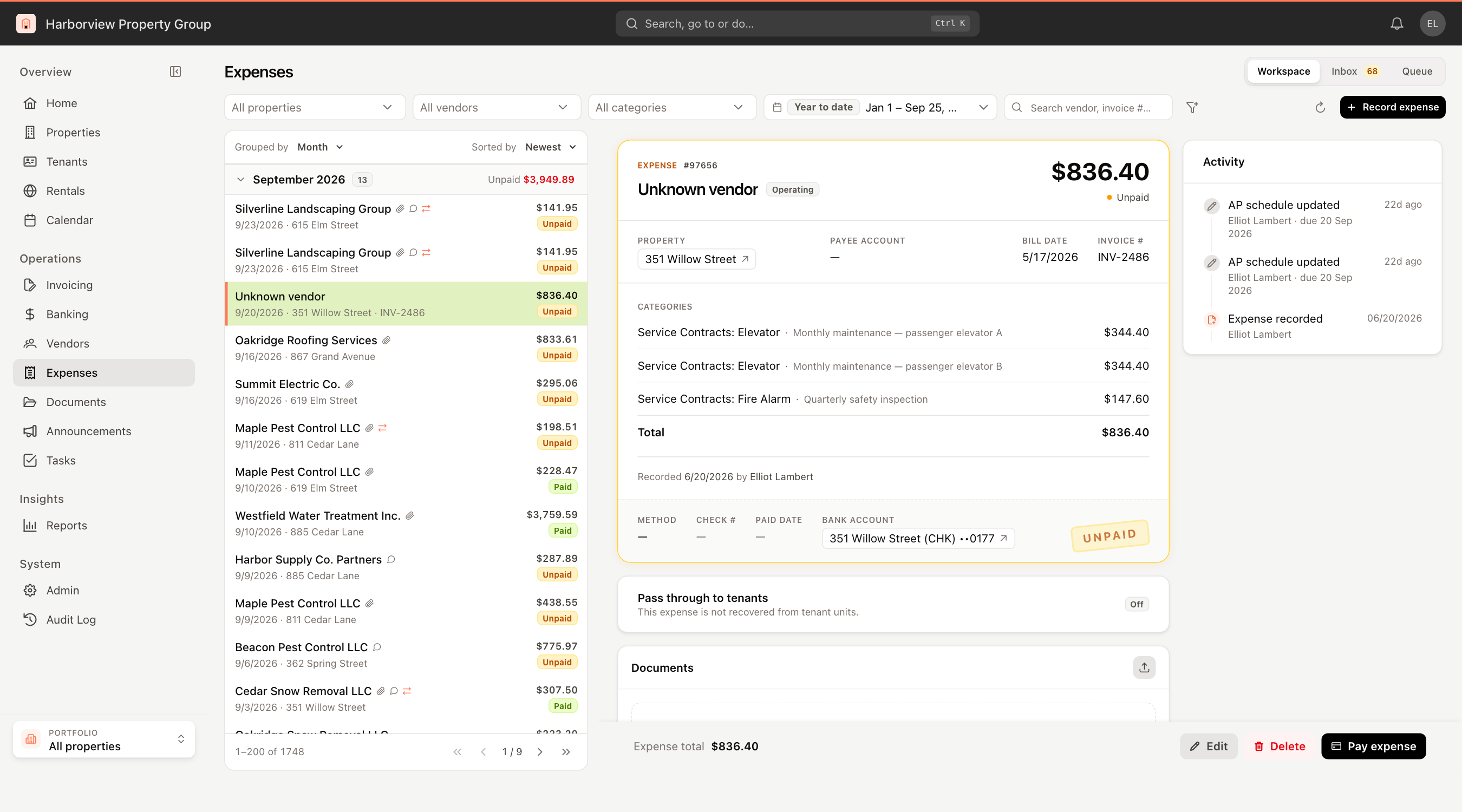
At the bottom of the expense:
- Edit opens the same form used to record it; change what you need and save.
- Delete removes the expense and reverses its ledger entries. If the expense was passed through, unpaid tenant charges from it come off their invoices. An expense can't be deleted while a tenant payment on it still stands.
- Pay expense records the payment; see Pay an expense and print checks. It is shown only while no payment is recorded.
Use Add internal comment to leave a note for your team. Internal comments are staff only — tenants never see them.