
UnitConnect can send a vendor's payment by ACH, straight from a property's bank account to the vendor's. You enter the vendor's bank details once (or ask the vendor to), then choose ACH when you pay an expense. The payment goes out through the bank account's DirectPay merchant account.
Vendor payments by ACH appear only when UnitConnect has turned them on for your company. Entering, replacing or removing a vendor's bank details needs the Manage Vendor Bank Details permission; sending, cancelling and resending payments needs Send ACH Payments.
Before you start
- The bank account pays from DirectPay. The money leaves through the account's DirectPay merchant account, so DirectPay must be active on it; see Accept electronic payments with DirectPay. Vendor payments are on for every DirectPay account unless someone turned them off for that account.
- Each payment stays within the account's DirectPay withdrawal limits — per payment and per month.
Set up bank details
Open the vendor, go to Details, and find the Payments card. It shows where the vendor stands:
| Badge | What it means | What you can do |
|---|---|---|
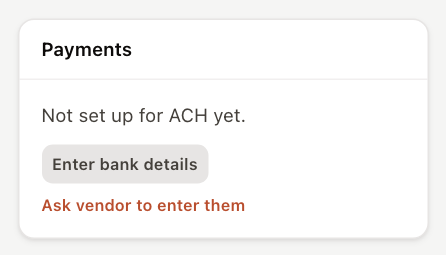
| (none) — Not set up for ACH yet. | No bank details. | Enter bank details or Ask vendor to enter them |
| Waiting on vendor | A link was emailed to the vendor. | Resend link or Enter them myself |
| One quick check | The bank couldn't confirm the name on the account. | Call the vendor on a number you already have, then click I confirmed by phone, or Email a link for them to confirm |
| On hold | New details: the first payment waits a few business days. | I confirmed by phone lets it go now |
| Paused | A payment to this account came back. | Enter new details or Ask vendor |
| Ready for ACH | The vendor can be paid by ACH. | Replace or Remove under the card's options |
Enter the details yourself
Use the vendor's ACH letter or a voided check.
- Click Enter bank details.
- Choose Business or Individual, then enter the Name on the account, Routing number, Account type (Checking or Savings), Account number and Account number again.
- Optionally fill in Send payment notices to — each ACH payment emails a notice there. Leave it empty to send none.
- Click Save bank details. UnitConnect checks the account with the bank (Checking with the bank…). When the name matches, the vendor is Ready for ACH straight away; otherwise the card shows the one quick check left.
Replacing existing details emails the vendor about the change, and the first payment to the new account waits 3 business days unless you confirm the change by phone.
Ask the vendor to enter them
Click Ask vendor to enter them, check the Send to address and click Send link. The vendor gets a secure link to a page with your company's branding, where they enter their own details. The link works once, for 14 days, and you get an email when they're done.
Send a payment
- Open the expense and click Pay expense.
- Choose ACH. The choice shows the vendor's account (for example To checking ••6789), or why ACH can't be used yet.
- Pick the bank account it comes From and the day to Send on. The panel shows when it should arrive (two business days after it is sent) and who gets the payment notice.
- Click Send $… by ACH, or Schedule $… by ACH for a later date.
A payment sent today marks the expense paid once the payment is accepted for processing, usually within a minute. A scheduled one leaves the expense unpaid until it goes.
You can also send by ACH when you record a new expense (choose ACH under Payment; see Record an expense), or for several expenses at once (see Pay an expense and print checks).
If your company requires approval for ACH payments, the button reads Request approval to send $… by ACH and nothing is sent until an approver approves it; see Approve payments.
When ACH can't be used
The ACH choice says what is in the way, and once you pick it the panel explains and offers the fix (Open vendor payments or Open bank account):
- No bank details yet — enter them, or ask the vendor to.
- Bank details need a check — finish the one quick check on the vendor's Payments card.
- Bank details paused — a payment came back, or the details have to be entered again.
- Turned off for this account — vendor payments by ACH are turned off for the bank account.
- Not on for this account — DirectPay isn't active for the bank account.
- Over the ACH limit — the payment is above the account's per-payment limit, or the monthly limit is used up. Pay this one by check.
Follow the payment
Once sent, the expense shows an ACH payment card with its status, a progress line (sent, processing, the expected arrival) and History.
| Status | Meaning |
|---|---|
| Scheduled | Waiting for its send date. |
| Sending, Confirming | Being handed to the processor. Confirming means UnitConnect is checking with Forte before doing anything else; nothing is sent twice. |
| Processing | Accepted; on its way to the vendor's bank. |
| Settled | The bank reports it settled. |
| Returned | The vendor's bank sent it back. |
| Declined | The bank declined the payment. |
| Not sent | Forte never confirmed the payment and can't find it. |
| Canceled | Canceled before it was sent. Nothing was paid. |
- Cancel payment is available while a payment hasn't gone yet. The expense goes back to unpaid.
- Confirm and send again appears on a Not sent payment. Use it only if nothing left the bank account; it goes under the same reference, so Forte refuses it if the first one turns up.
When a payment comes back
A Returned payment shows why and that the money is coming back to the bank account. The expense counts as unpaid again:
- Pay by check pays it another way.
- Ask for new details opens the vendor, whose bank details are now Paused until new ones are entered.