
An expense recorded as Unpaid stays open until you record its payment. Recording the payment posts it to the bank account, and you can print a check for it at the same time.
Paying expenses and printing checks need permission to pay bills. If your company requires approval before paying (Admin › Accounts payable), an expense has to be approved first; see The expense inbox and approval queue.
Record a payment
- Open the expense — in Expenses, or from a property's Expenses tab.
- Click Pay expense at the bottom of the expense. (On a property's Expenses tab you can also click ⋮ on the row and choose Record payment.)
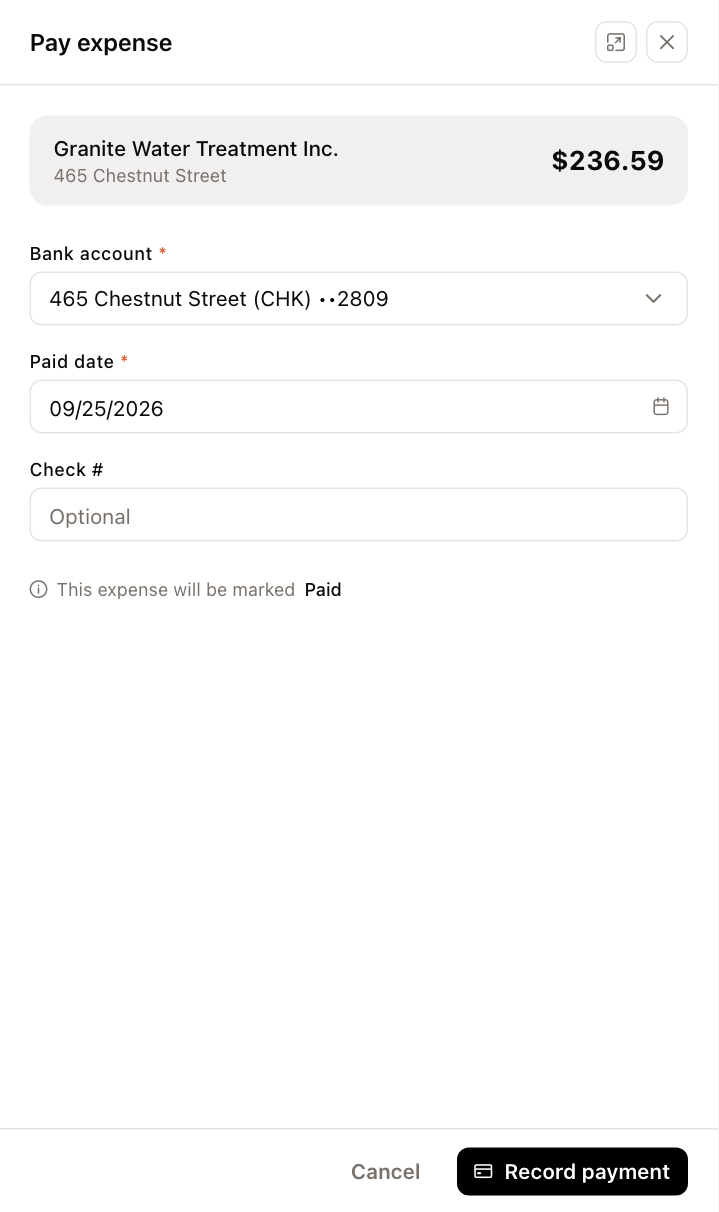
- Check the vendor, property and amount at the top, then enter:
- Bank account (required) — the account the money leaves from.
- Paid date (required) — starts at today. If the property's books are closed for that date, a hint tells you.
- Check # — optional.
- The panel tells you the status the expense will get: Paid, or Scheduled if the paid date is in the future.
- Click Record payment.
Pay expense only appears while no payment is recorded. To correct a recorded payment — a wrong check number or date — click Edit on the expense and change the Payment fields.
Print a check
Checks are printed from a property's Expenses tab.
- Open the property and click the Expenses tab.
- Click ⋮ on the expense's row and choose Print check.
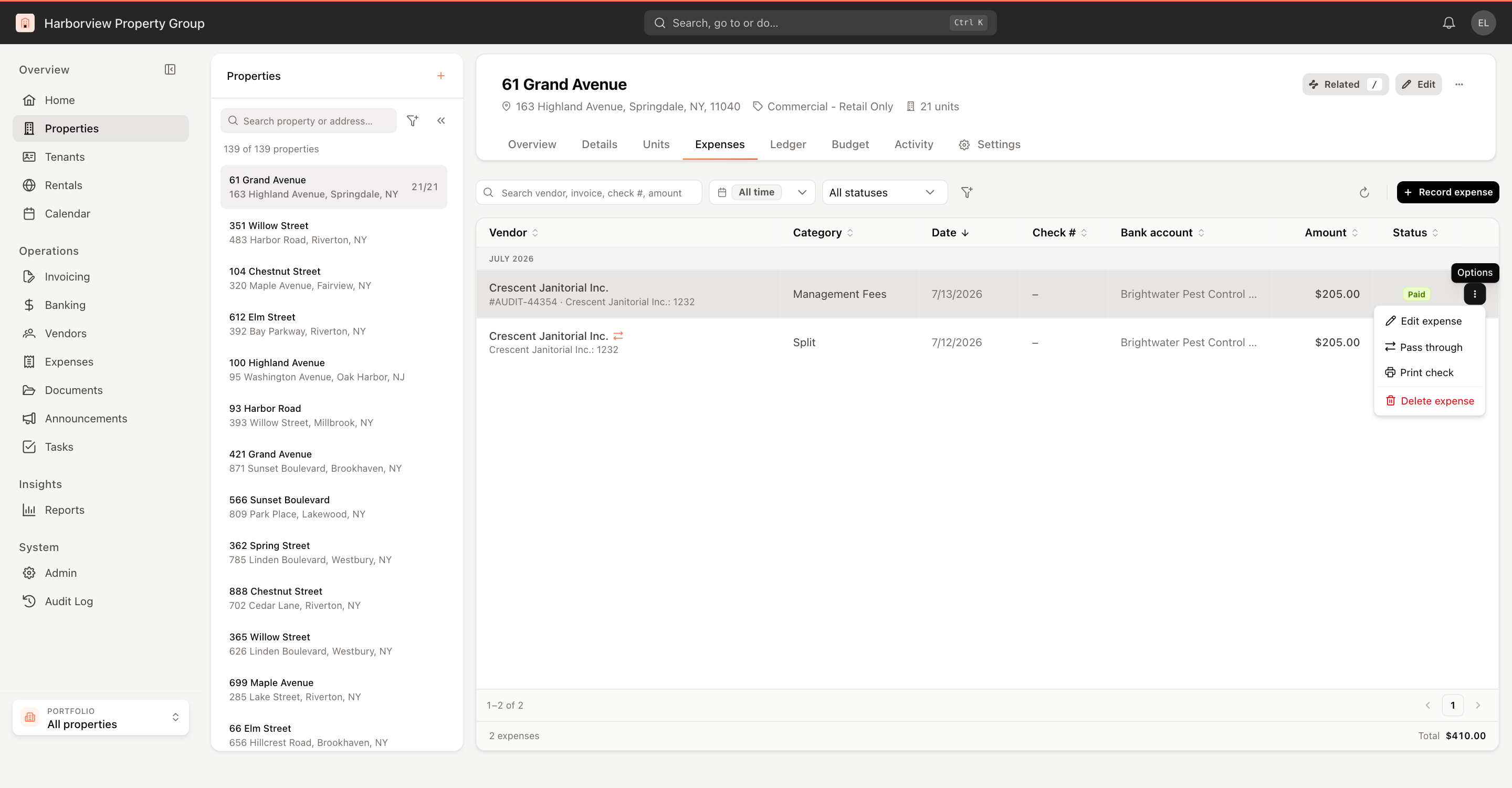
What happens next depends on the expense:
- The payment is recorded with a check number — a PDF of the check downloads straight away (Generating check PDF… shows while it is prepared).
- No payment or no check number yet — the Record payment and print check panel opens. Enter the Bank account, Paid date and Check # (required, it is printed on the check), then click Record payment and print. The payment is saved and the check PDF downloads.
Load your check stock in the printer and print the PDF. The check layout is designed for DLT104-style check stock.
Before a run of checks, print one on plain paper and hold it against a blank check to confirm the alignment and your printer's scaling settings.
UnitConnect never prints a check for an expense without recording its payment first, so what you print always matches your books.