
Each property has an Expenses tab listing that property's expenses. It is the place to review a property's spending and to act on individual expenses.
To open it, click Properties in the sidebar, select the property, and click the Expenses tab.
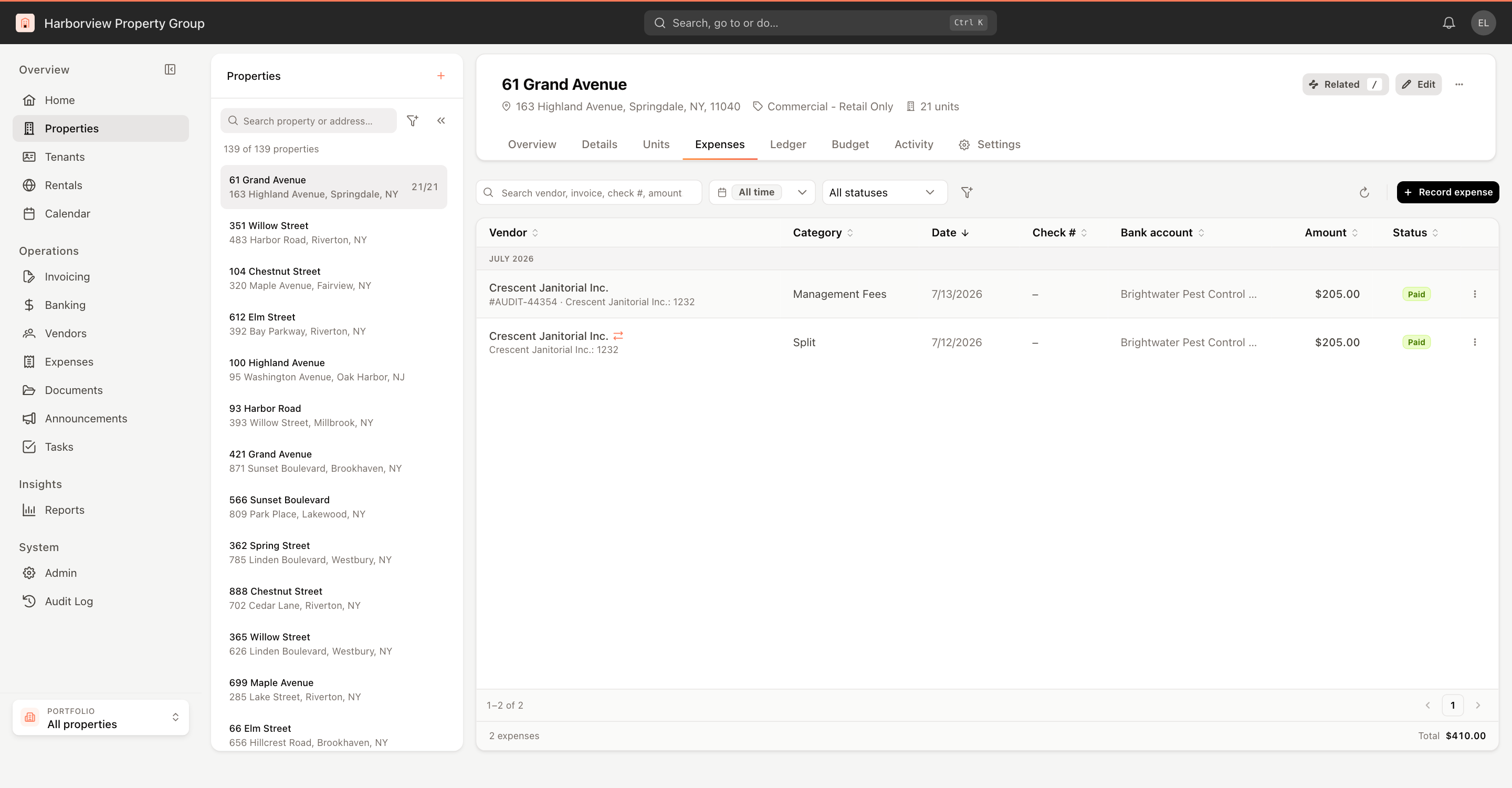
Find expenses
- Search vendor, invoice, check #, amount — type and the list narrows.
- The date range — the tab opens on Last month to today; choose All time for the full history.
- All statuses — show Open (unpaid and scheduled), Unpaid, Scheduled or Paid only.
- The filter button:
- Bank account — expenses paid from one bank account.
- Scope — All, or Operating only.
- Amount — a preset range, or Custom range with From and To.
Active filters from the filter button show as chips under the toolbar; click a chip's × to remove it. Expenses are grouped by month when sorted by date. Click a column header to sort by Vendor, Category, Date, Check #, Bank account, Amount or Status. The footer shows how many expenses match and their Total.
Open an expense
Click a row. The expense opens in a panel on the right, with Edit, Delete and Pay expense at the bottom. Use the button at the top of the panel to switch between the side panel and a full-screen view. See The Expenses workspace for what the expense view shows.
Row actions
Click ⋮ at the end of a row (or right-click the row) for:
- Edit expense — open the expense in edit mode.
- Pass through / Manage passthrough — see Pass an expense through to tenants.
- Record payment — for unpaid and scheduled expenses; see Pay an expense and print checks.
- Print check — download a check PDF.
- Delete expense — removes the expense and reverses its ledger entries, after you confirm.
The actions you see depend on your permissions.
Record an expense for this property
Click Record expense. The form opens with the property already chosen. When you're done, click Record expense, or Back to expenses after saving. See Record an expense.
Attach the vendor's invoice and receipts to the expense itself — they appear under Documents on the expense and can be added to tenant invoices when the expense is passed through.