
After a cycle's invoices are created, you can add one-off charges to them — a water bill, a repair the tenant is responsible for, a key replacement. You can add a charge to a single invoice, or split one charge across every tenant in a property.
Charges added here apply to one invoice only. For a charge that repeats every month, add it to the tenant's lease instead so it appears on every new invoice.
Add a charge to one invoice
In Invoicing, click the invoice to open it in the preview panel.
At the bottom of the panel, click Charges, then Add charge. You can also click + at the right of the charges table heading.
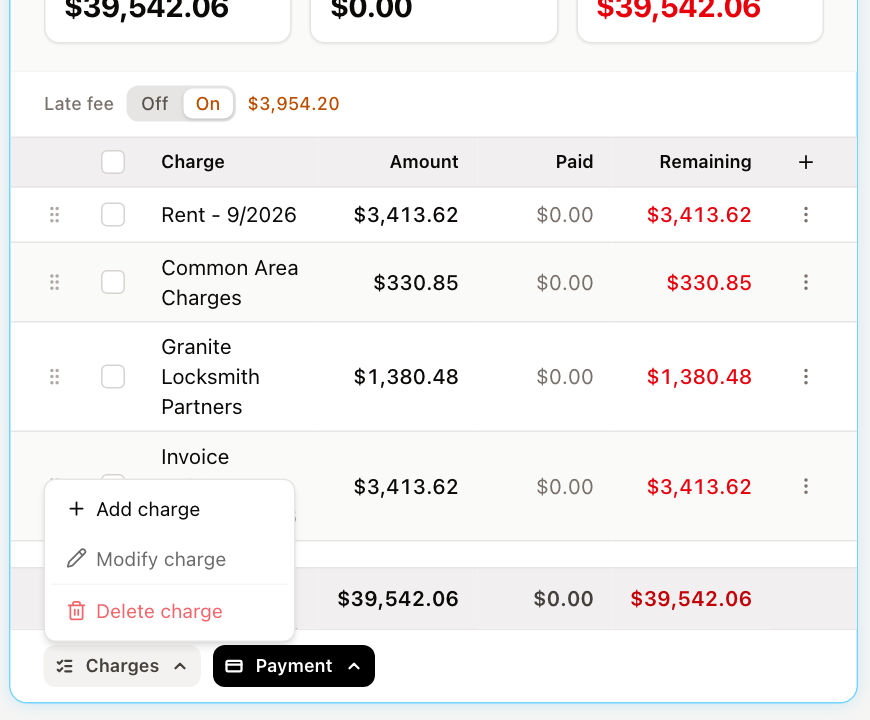
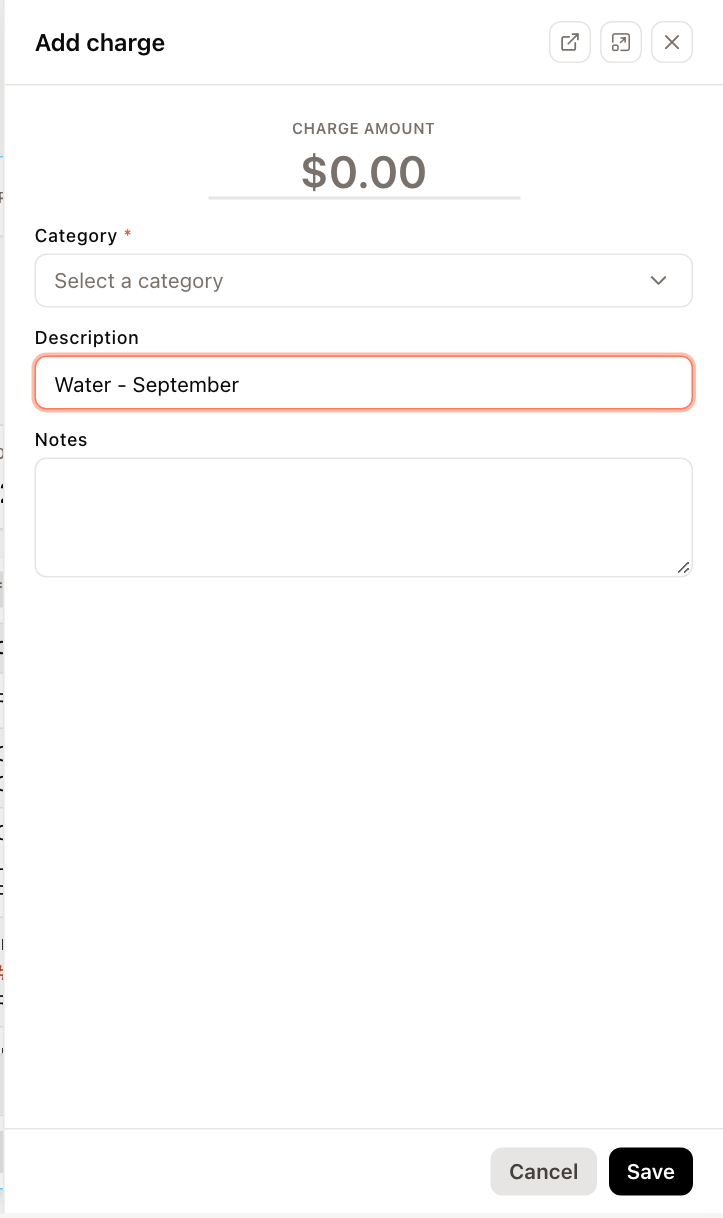
Charges › Add charge Enter the Charge amount.
Choose a Category (required). Type to search the list.
Optionally enter a Description — this is the text the tenant sees on the invoice — and Notes.
Click Save.
The charge is added to the invoice and its total updates.
The pop-out buttons at the top of the form switch between showing it as a side panel and as a window. UnitConnect remembers your choice.
Add a charge to every tenant in a property
Use this to bill a shared cost, such as a building's water bill, to all of a property's tenants in one step.
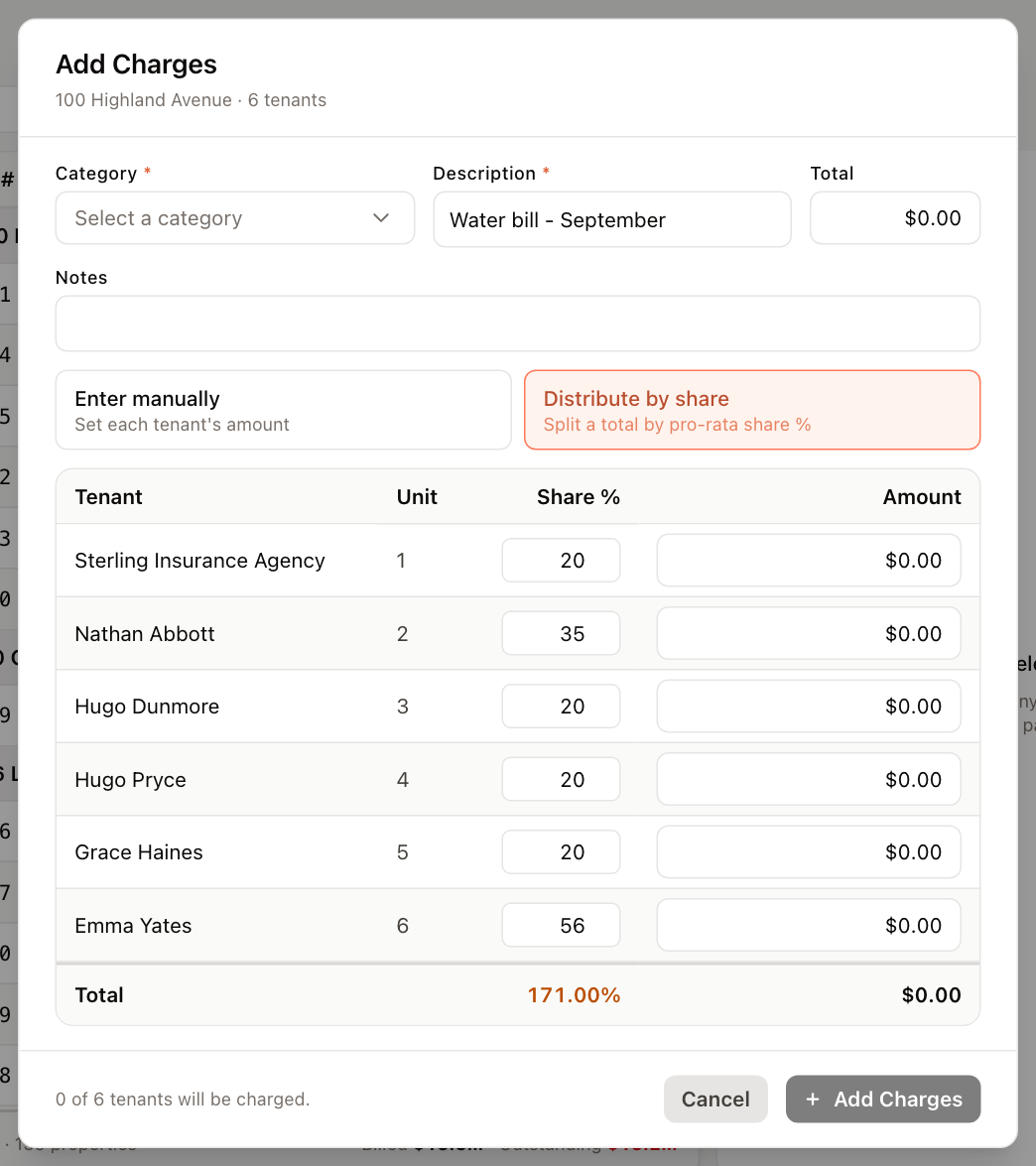
- In Invoicing, click ⋮ on the property's header row and choose Add Charge(s).
- Choose the Category and enter a Description. Both are required. Add Notes if you like.
- Choose how to set each tenant's amount:
- Enter manually — type an Amount for each tenant.
- Distribute by share — enter a Total, and UnitConnect splits it by each tenant's Share %. You can adjust the share percentages in the table. The Total row shows the share percentages added up and the total amount.
- Check the line at the bottom, for example 5 of 6 tenants will be charged. Tenants with no amount are skipped.
- Click Add Charges.
When it finishes, the dialog tells you how many invoices were charged and why any could not be. Click Done to close it.
Change or remove charges
- Open the invoice.
- Tick the checkbox next to one or more charges, or click a charge to select it.
- Click Charges, then:
- Modify charge (or Modify charges for several) to change the amount, category or description, then click Save. When you modify several charges at once, you edit them all in one form and can click the revert icon next to a charge to undo your changes to it.
- Delete charge (or Delete charges), then confirm. The charges are deleted and their ledger entries reversed. This can't be undone.
You can also click ⋮ at the end of a charge row, or right-click it, for Modify charge, Pay charge, Apply credit and Delete charge.
Drag a charge by the handle at the left of its row to change the order charges appear in on the invoice.
Charges can only be changed on an invoice that is open for editing. An older invoice is locked once a newer one exists for the tenant, and an invoice with a payment still processing can't be edited. See Work with a single invoice.