
Each month you create a new billing cycle of invoices for your tenants. UnitConnect builds each tenant's invoice from their lease — rent and recurring charges — and carries forward anything left unpaid on the previous invoice. You can create invoices for all your properties at once, for a few, or for one.
Before you start
- Set up your properties and tenants, including each tenant's rent and recurring charges.
- Invoices are created per property and per cycle. Each property has its own Last cycle and Next cycle.
Open the Generation dashboard
- In the sidebar, click Invoicing.
- At the top right, click Generation.
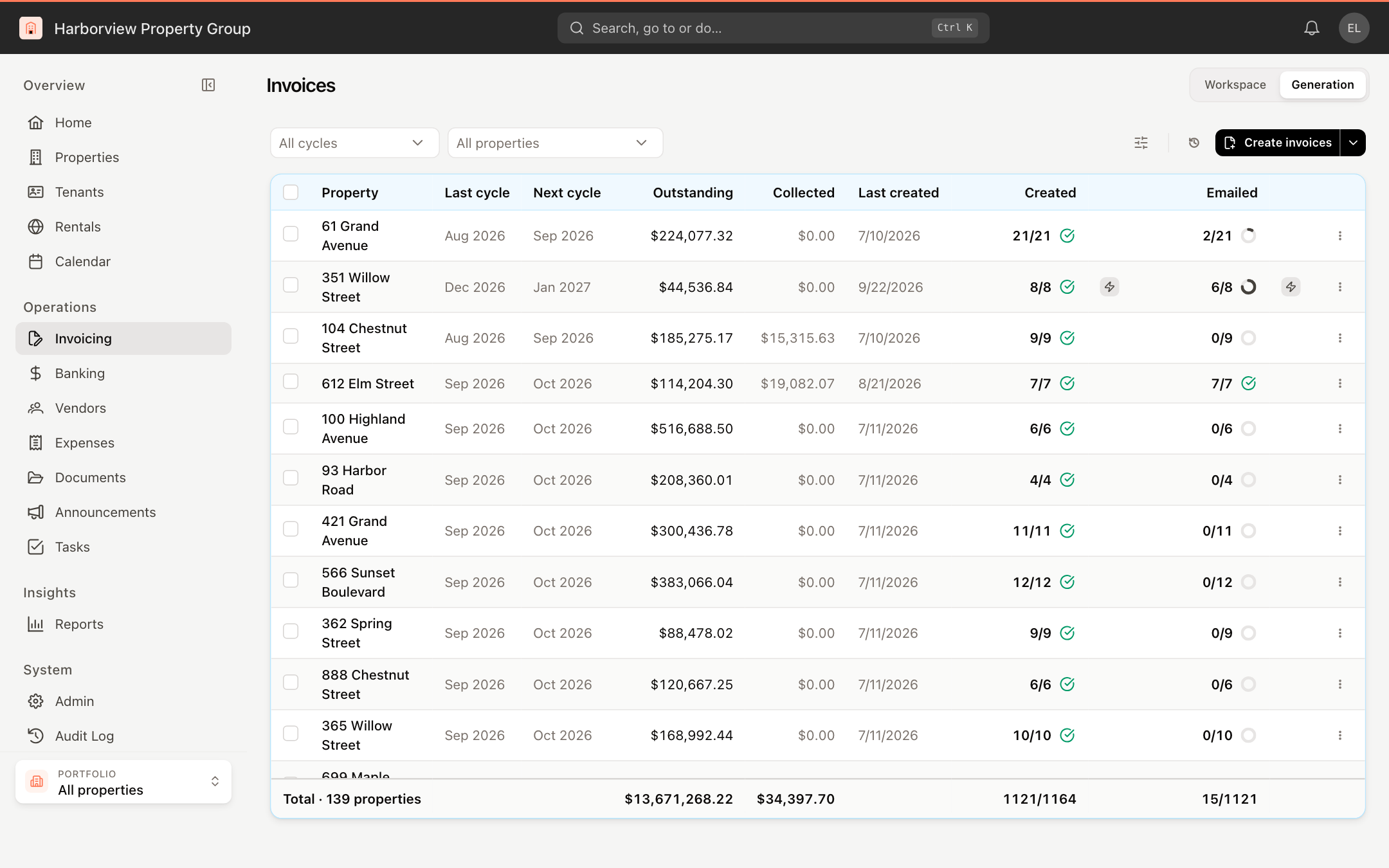
Each row is a property:
| Column | What it shows |
|---|---|
| Last cycle / Next cycle | The most recent cycle created and the one that comes next |
| Outstanding / Collected | The property's open balance and what has been collected |
| Last created | When invoices were last created for the property |
| Created | Invoices created out of the number of tenants. A tick means every tenant was invoiced |
| Emailed | Invoices emailed out of invoices created this cycle |
A lightning icon beside Created or Emailed means that step runs automatically for the property. See Automate invoice generation and emailing.
Use All cycles and All properties at the top to narrow the list. Click Display settings to show a summary strip with the Current cycle, Unpaid invoices, Open balance and Collected balance.
Create invoices
Tick the checkbox next to each property you want to invoice. Tick the checkbox in the header row to select every property.
Click Create invoices at the top right, or Create invoices in the bar that appears at the bottom of the table.
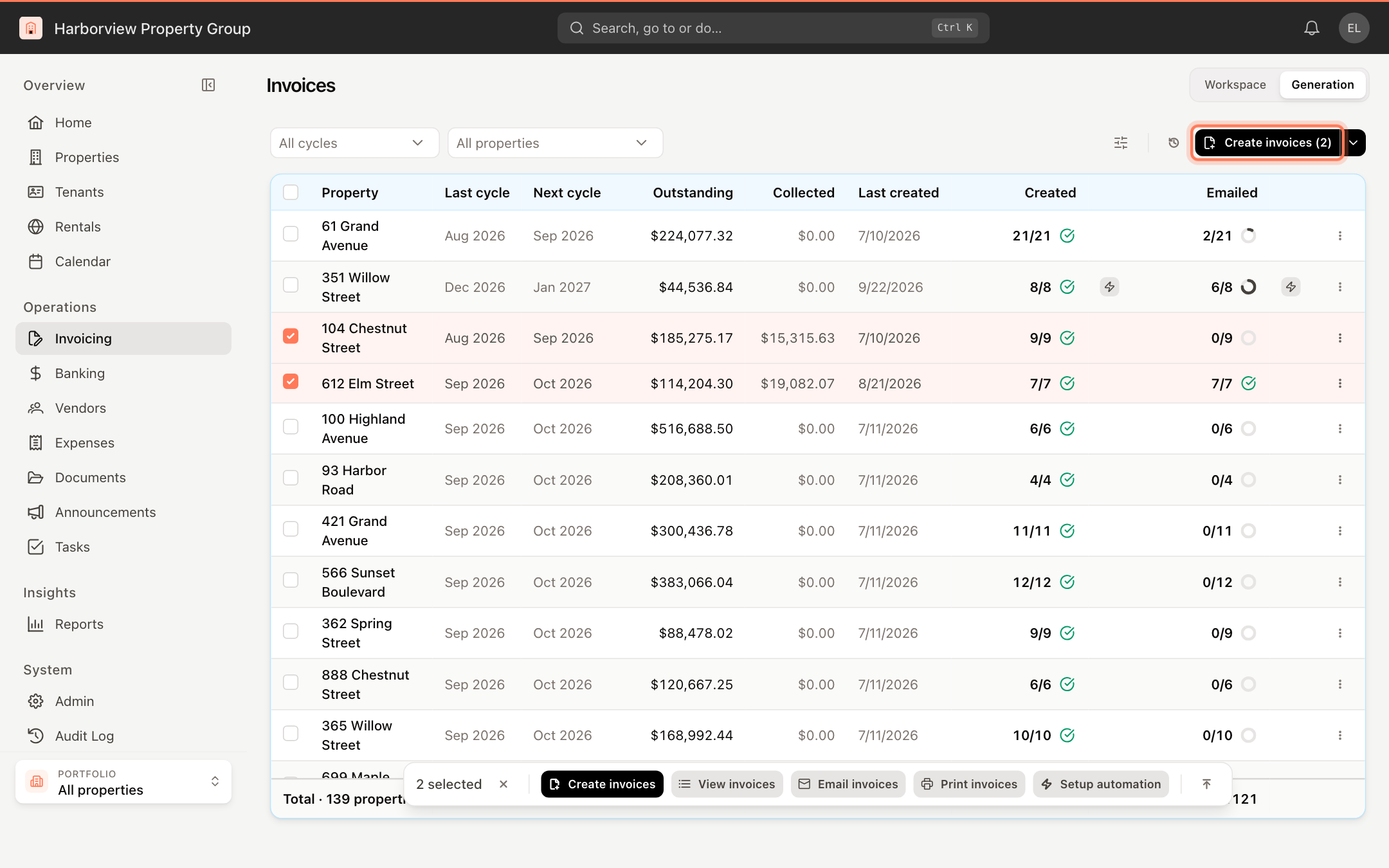
The button shows how many properties are selected In the Create Invoices dialog, check the Invoice cycle. It defaults to each property's next cycle.
Review the figures:
- Unpaid in month — how many invoices from the current cycle are still unpaid. Their balances carry forward into the new invoices.
- Invoices to create — how many new invoices will be created.
- Properties selected — shown when you selected more than one property.
Click Create Invoices.
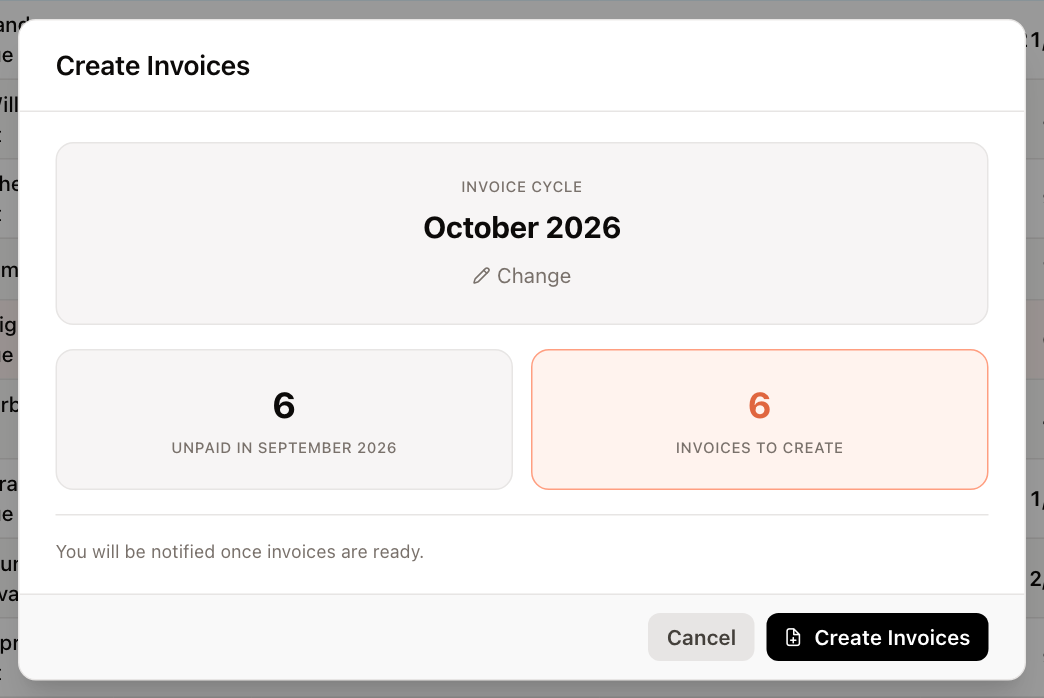
Invoices are created in the background. The Created column shows progress, and you are notified when the invoices are ready. You can keep working in the meantime.
If some tenants already have an invoice for the cycle you chose, the dialog says Some invoices already exist for this cycle. Only tenants without an invoice for that cycle are included, so nobody is invoiced twice.
You can also create invoices for a single property from the Workspace: click ⋮ on the property's header row and choose Generate Invoices. Right-click a row on the Generation dashboard for the same actions as the bottom bar.
Create invoices for a different cycle
- In the Create Invoices dialog, click Change under the cycle.
- Pick the month and year, or use the arrows to step one cycle at a time.
- Click Use default next cycle to go back to the default.
Catch up on missed cycles (backfill)
If you pick a cycle earlier than the property's next cycle, the dialog offers to backfill a range of cycles at once.
- Change the Invoice cycle to the first cycle you missed.
- Under Past cycle selected, click Backfill.
- Under Backfill range, choose the last cycle to create.
- Under How to handle past invoices?, choose one:
- Unpaid with carry-over — past invoices are created unpaid, and what they owe rolls forward into the next cycle's opening balance.
- Paid sequentially — each cycle is created and marked as paid before the next one is created. Use this when those months are already settled and only need to be on record.
- Check the Cycles and Invoices to create figures, then click Start Backfill.
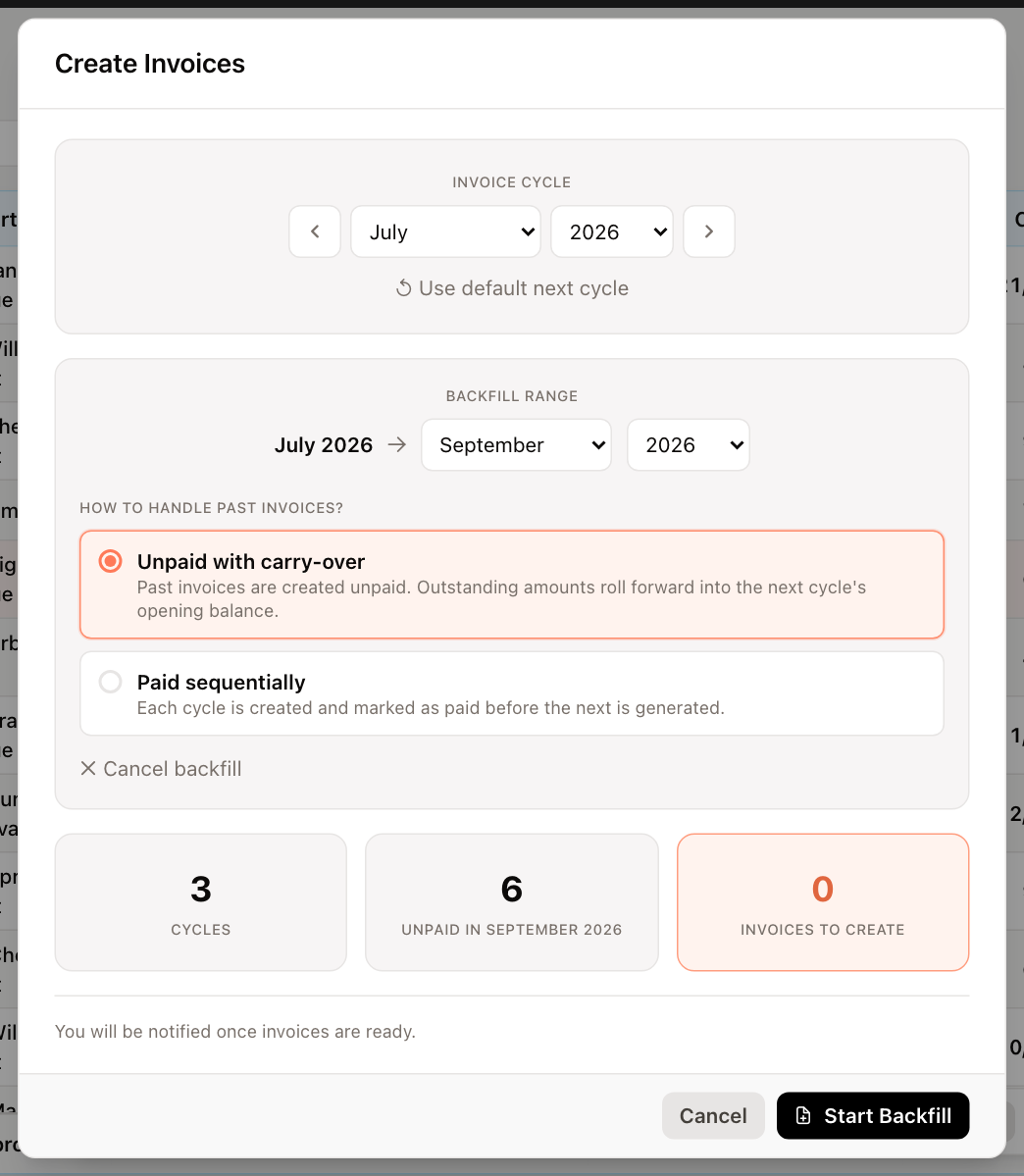
Click Cancel backfill to go back to creating a single cycle.
Check the results
- Click the tick or ring in the Created column to open Generation detail. It lists every tenant in the property's current cycle as Invoiced or Not invoiced, with the reason a tenant was skipped or failed. Click Retry next to a failed tenant, or Retry n failed to retry them all.
- Click View activity (the clock icon next to Create invoices) to open Generation Activity, a history of every run: who or what started it, when it finished, and its progress.
- Select properties and click View invoices to open them in the Workspace.
Next steps
- Add charges to invoices such as utilities or one-off fees.
- Email and print invoices to send them to tenants.