
Once invoices are created you can email them to tenants — right away, on a day you choose, or a set number of days before each invoice is due — or print them to mail. Each email contains a link the tenant opens to view the invoice and download a PDF copy.
Email invoices
- In Invoicing, choose what to send:
- One invoice — click ⋮ on the row and choose Email invoice, or open the invoice and click Email invoice (the paper-plane icon) in the panel's toolbar.
- Every invoice in a property — click ⋮ on the property's header row and choose Email Invoices.
- A selection — tick the invoices, click Actions at the bottom of the list and choose Email invoices.
- In Email invoices, check the Recipients. Each invoice is sent to the tenant's email address on file. You can change the address in Email to, or enter several addresses separated by commas.
- Under Delivery Schedule, choose when to send (see below).
- To copy someone on every email, turn on CC additional recipients and enter the addresses.
- Optionally type a Custom message. It appears in the body of each email.
- Check the Email preview on the right. Click a recipient row to preview that tenant's email. The subject line is shown under the preview.
- Click Send, or Schedule if you chose a later delivery.
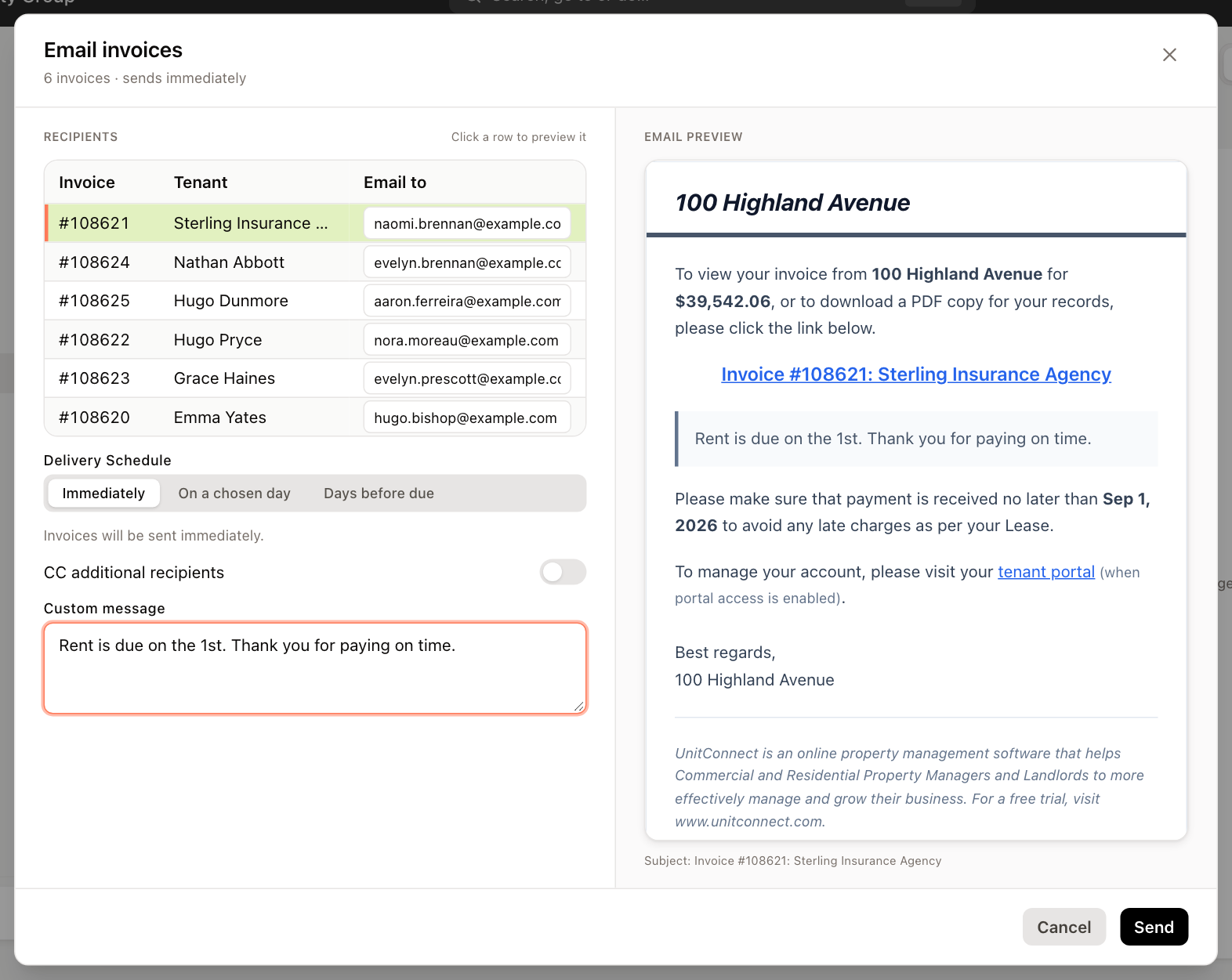
An invoice with no email address is skipped, and the dialog tells you how many will be skipped. The header shows how many invoices will actually be sent, for example 5 of 6 invoices.
Emailed invoices show an envelope icon next to the invoice number in the list. Hover over it to see when the invoice was emailed.
Choose when the emails go out
| Delivery Schedule | What happens |
|---|---|
| Immediately | The emails are sent as soon as you click Send. |
| On a chosen day | Enter a date in Send on. The emails go out that day, in your time zone. |
| Days before due | Enter a number from 1 to 24 in Days before the due date. Each invoice is sent that many days before its own due date. |
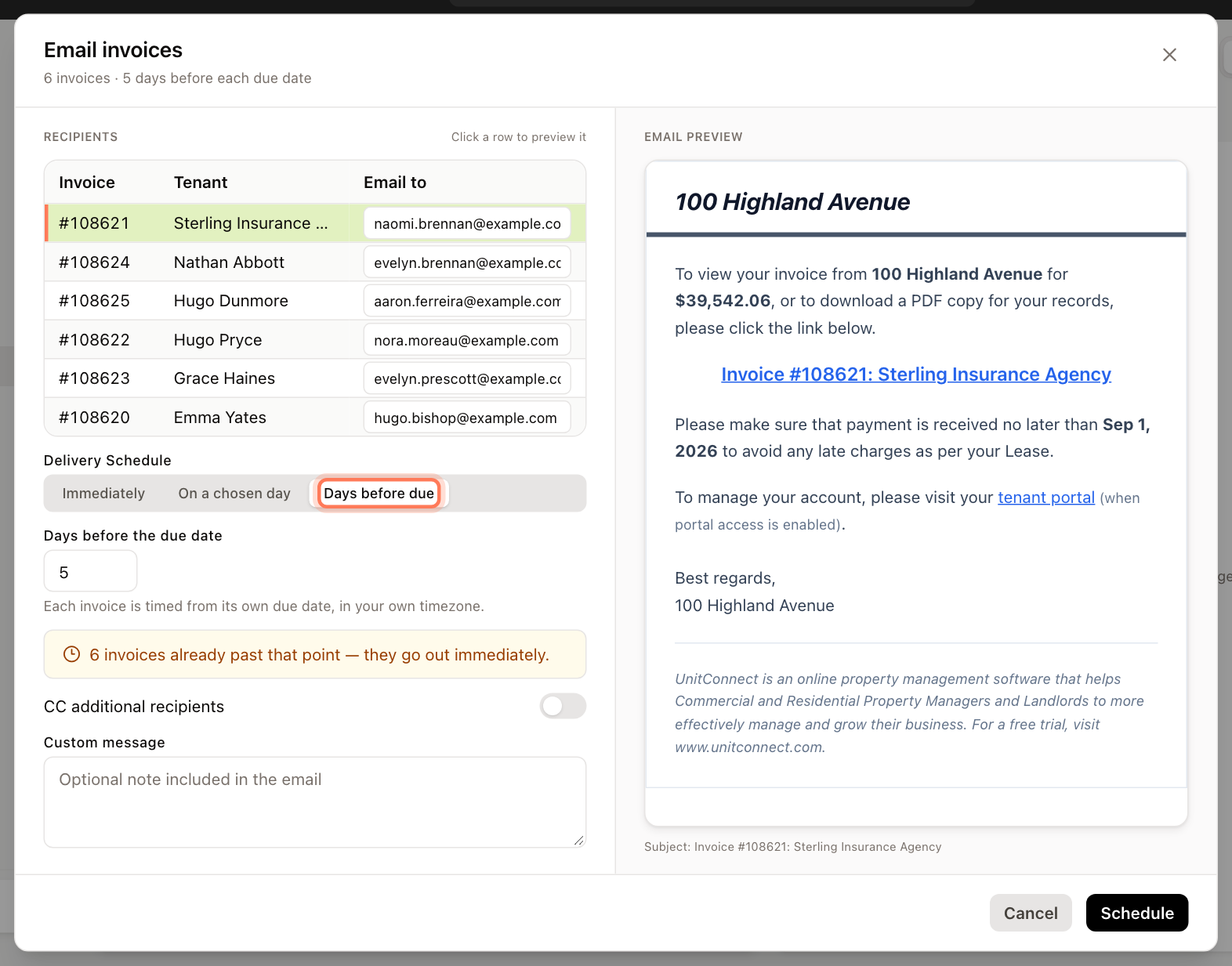
If an invoice is already closer to its due date than the number of days you chose, the dialog tells you, and that invoice is sent right away.
To email invoices automatically every month, set up automation for the property. See Automate invoice generation and emailing.
Print or download invoices
- One invoice — click ⋮ on the row and choose Print invoice, or open the invoice and click Print / download PDF (the printer icon) in the panel's toolbar. The PDF downloads to your computer.
- Several invoices — choose Print Invoices from a property's ⋮ menu, or tick invoices and choose Print invoices from Actions.
When you print more than one invoice, UnitConnect builds a single PDF in the background. A message tells you it is printing. When the PDF is ready it downloads automatically if you are still in Invoicing; otherwise you are notified and can download it from Invoicing or from the email you receive. The file is available for 7 days. You can run one multi-invoice print at a time.
Print the PDF and mail it in a standard invoice envelope.
From the Generation dashboard
On the Generation dashboard, select one or more properties and click Email invoices or Print invoices in the bar at the bottom of the table. This uses each property's current cycle. The buttons are unavailable for a property with no invoices yet for the cycle.
From a tenant's record
On a tenant's Financials tab, under Invoices, tick one or more invoices and use Email invoice or Print invoice from the actions menu, or right-click an invoice.
Share an invoice link
To send an invoice some other way, click ⋮ on the invoice's row and choose Copy invoice link. The link the tenant uses to view the invoice is copied, ready to paste into a message.