
Instead of creating each month's invoices by hand, you can enrol a property in automation. UnitConnect then creates the next cycle's invoices on the day of the month you choose, can email them to tenants a few days later, and can send a summary to the property manager.
Set up automation
- In the sidebar, click Invoicing, then click Generation at the top right.
- Tick the checkbox next to each property you want to automate.
- Click Setup automation in the bar at the bottom of the table. You can also open the arrow next to Create invoices and choose Setup Automation, or right-click a property and choose Setup Automation.
- In Configure Automation, turn on Generate invoices automatically.
- In Generate on day of month, enter a day from 1 to 28. Automation runs at 6:00 AM, in the time zone shown under the field, on that day.
- To email the invoices too, turn on Email invoices after generating and set:
- Email on day of month — the day the emails go out,
- CC (optional) — an address to copy on every email,
- Message (optional) — a note included in each email,
- Skip invoices under $1 — leave this on to avoid emailing tenants who owe nothing.
- To have a summary emailed after each run, turn on Send a summary to the property manager. Enter a Manager email (optional), or leave it blank to use your company's contact address.
- Click Save Automation.
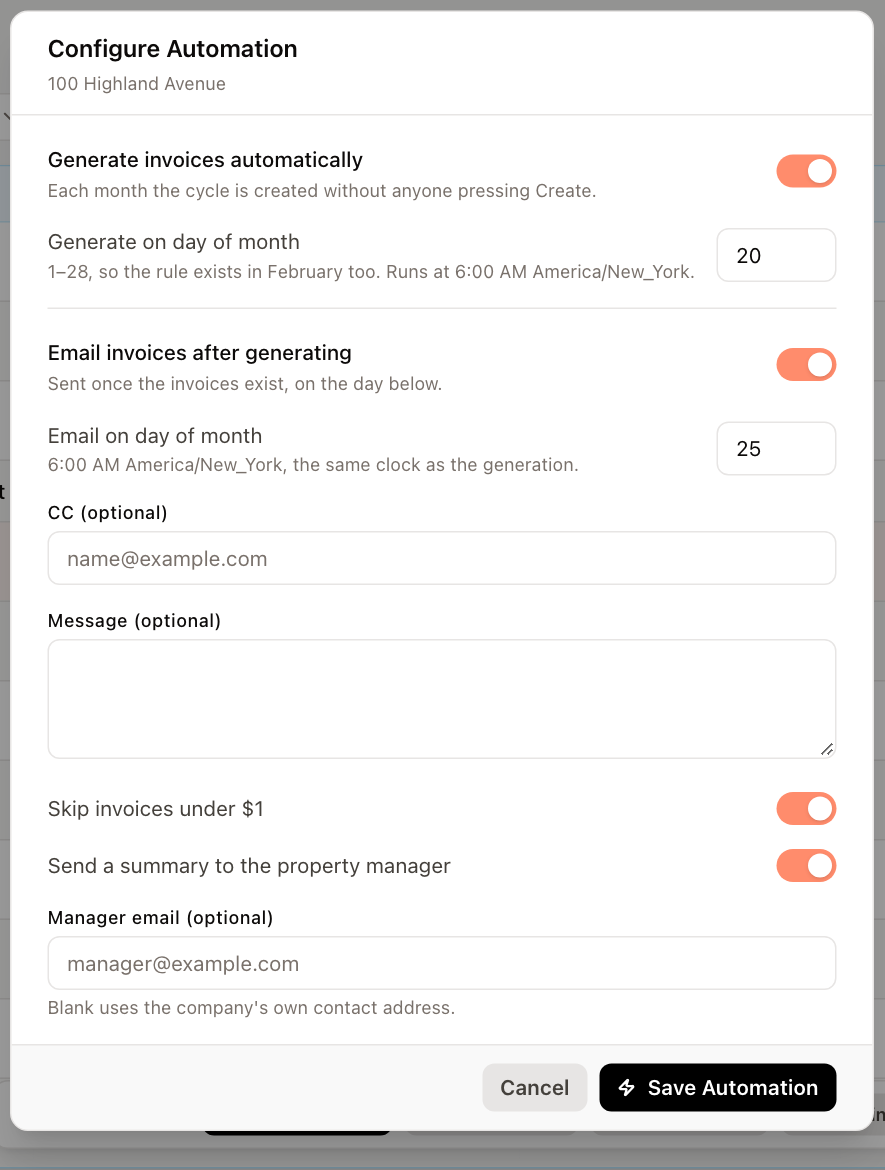
The settings in the dialog apply to every property you selected. If the selected properties already have different settings, the dialog warns you — saving replaces them all with the values shown.
See which properties are automated
On the Generation dashboard, a lightning icon appears in the Created column for properties that generate automatically, and in the Emailed column for properties that email automatically. Hover over the icon to see the day, and click it to open the property's Automation panel.
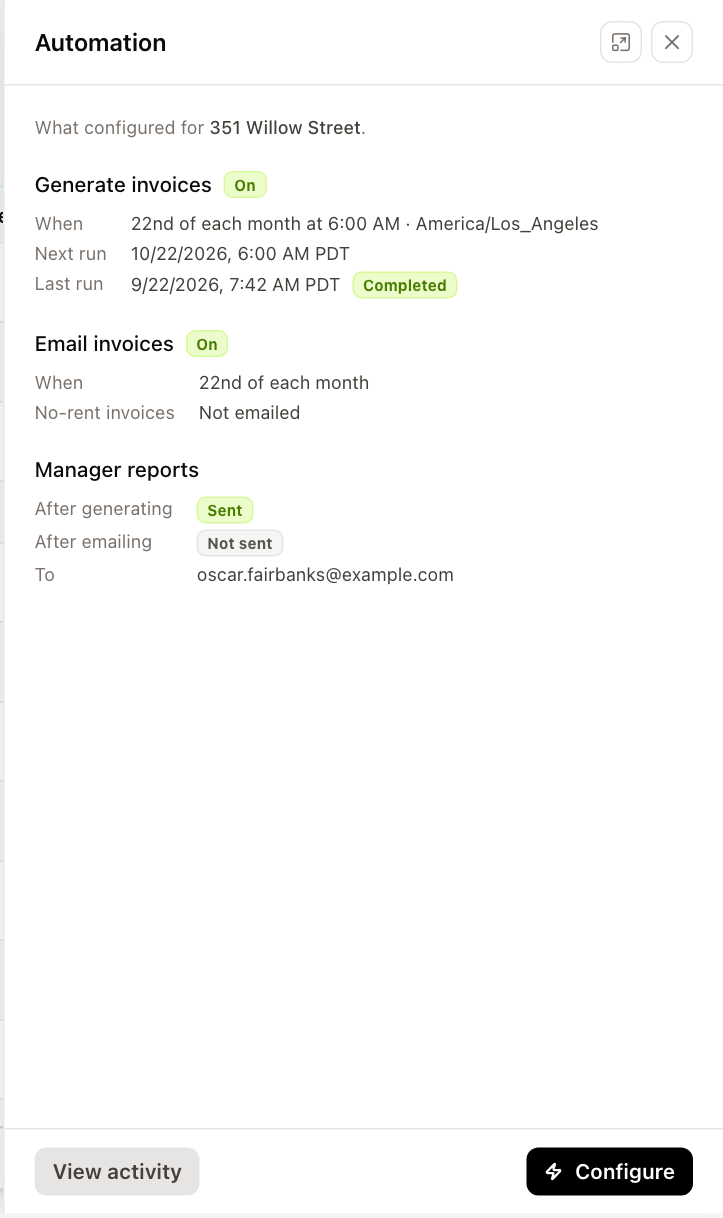
The panel shows, for Generate invoices and Email invoices, whether each is on, when it runs, the Next run and the Last run with its result, and whether Manager reports are sent. From the panel:
- click Configure to change the settings,
- click View activity to see the history of runs for the property.
Change or turn off automation
- Select the properties and open Setup automation again.
- Change the settings and click Save Automation, or turn off Generate invoices automatically and click Withdraw.
Withdrawing stops future runs. The property's run history is kept.
Automation creates the same invoices you would create yourself. You can still create a cycle by hand at any time; tenants who already have an invoice for a cycle are never invoiced twice. See Generate invoices.