
Click any invoice in Invoicing to open it in the preview panel. From the panel you can see what the tenant owes and why, change charges, pay, and keep notes and documents with the invoice.
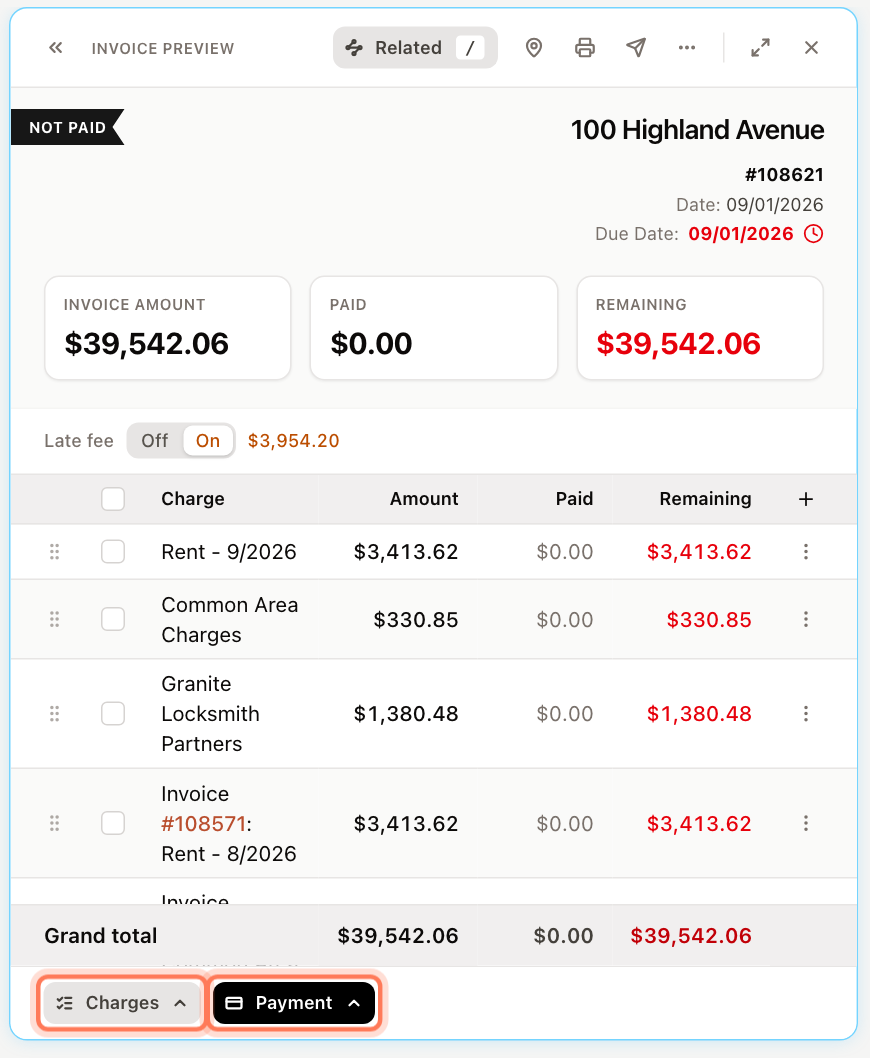
What the panel shows
- Status ribbon — Not Paid, Partial, Paid, Overdue or Carried Over. An invoice is Carried Over when its unpaid balance has moved onto the tenant's next invoice.
- Header — the property, invoice number, Date and Due Date. A clock icon next to the due date means the invoice is past due.
- Invoice amount, Paid and Remaining. A wallet icon next to Remaining means the tenant has credit available to apply.
- Charges — each charge with its Amount, Paid and Remaining, and a Grand total. A charge carried over from an earlier invoice names that invoice; click the invoice number to open it.
The toolbar at the top of the panel has:
- Related — a list of places this invoice leads to (the tenant, the property, their lease) and the actions you can take. Press / to open it from the keyboard.
- Available credit (wallet icon) — shown when the tenant has credit; click it to see the credit by category.
- Addresses and tenant contact (pin icon) — the recipient and send-to addresses, and the tenant's phone and email, which you can copy.
- Print / download PDF and Email invoice.
- More — Rent schedule opens a quick look at the tenant's rent schedule.
- Expand / Collapse to fill the screen, and Close.
Charges and payments
The two buttons at the bottom of the panel act on the invoice:
- Charges — Add charge, Modify charge and Delete charge. See Add charges to invoices.
- Payment — View payments, Pay charge, Apply credit and Pay invoice. See Record a tenant payment and Issue and apply tenant credits.
Tick the checkbox next to charges, or click a charge, to choose which ones Modify, Delete, Pay charge and Apply credit act on. With charges ticked, a row under the table shows their totals.
Late fee
The Late fee row shows whether a late fee applies to this invoice and how much it is.
- Click On or Off to turn the late fee on or off for this invoice.
- When it's on, click the amount to change it, then apply your change.
Hover over the amount to see the date after which it is charged. The late fee is added to the tenant's next invoice if this one is paid after that date.
Changing the late fee needs permission to edit invoices, and the invoice must not be locked.
Notes
Open the Notes section and click No notes — click to write (or the pencil next to existing notes). Type your note and click Save. Notes are for your team and are limited to 1,000 characters.
Payments
The Payments section lists every payment on the invoice with its amount, date, bank account, reference and method. Click Manage to open the full payments list, where you can review how each payment was split across charges, and change or delete it. See Review, change or delete a payment.
Attachments
Open Attachments to see the files attached to the invoice. Click Upload, or drag files onto the section, to attach supporting documents such as a utility bill. Attachments are included as download links when you email the invoice.
To attach the same file to several invoices, tick them in the list, click Actions and choose Upload attachments.
Uploading attachments needs permission to manage invoice documents. A locked invoice can't take new attachments.
Activity
The Activity section is a timeline of what has happened to the invoice — created, emailed or printed, payments and credits added or changed, late fees applied or removed — and who did it.
Lock and unlock an older invoice
Once a tenant has a newer invoice, the older one is locked: its charges and payments can't be changed, because any change would also affect the invoices that came after it. A padlock appears in the panel's toolbar.
To make a correction:
- Click the padlock (Locked — click to unlock).
- Read the warning and click Unlock. Changes you make to this invoice will be reflected in the tenant's other invoices.
- Make your changes.
- Click the padlock again (Unlocked — click to lock) to lock the invoice.
While a tenant's online payment is being processed, the panel shows Payment processing (with the amount, when known) instead of the padlock, and the invoice can't be edited or paid until the payment settles.