A credit reduces what a tenant owes without money changing hands — a concession, a refund for a service problem, or a prepayment the tenant made earlier. Credits are tracked separately from payments, by category, and appear on both the tenant's and the property's ledger.
Apply credit to invoice charges
- In Invoicing, open the invoice and tick the charges to credit.
- Click Payment, then Apply credit. You can also click ⋮ at the end of a charge row and choose Apply credit.
- At the top of the form, choose where the credit comes from:
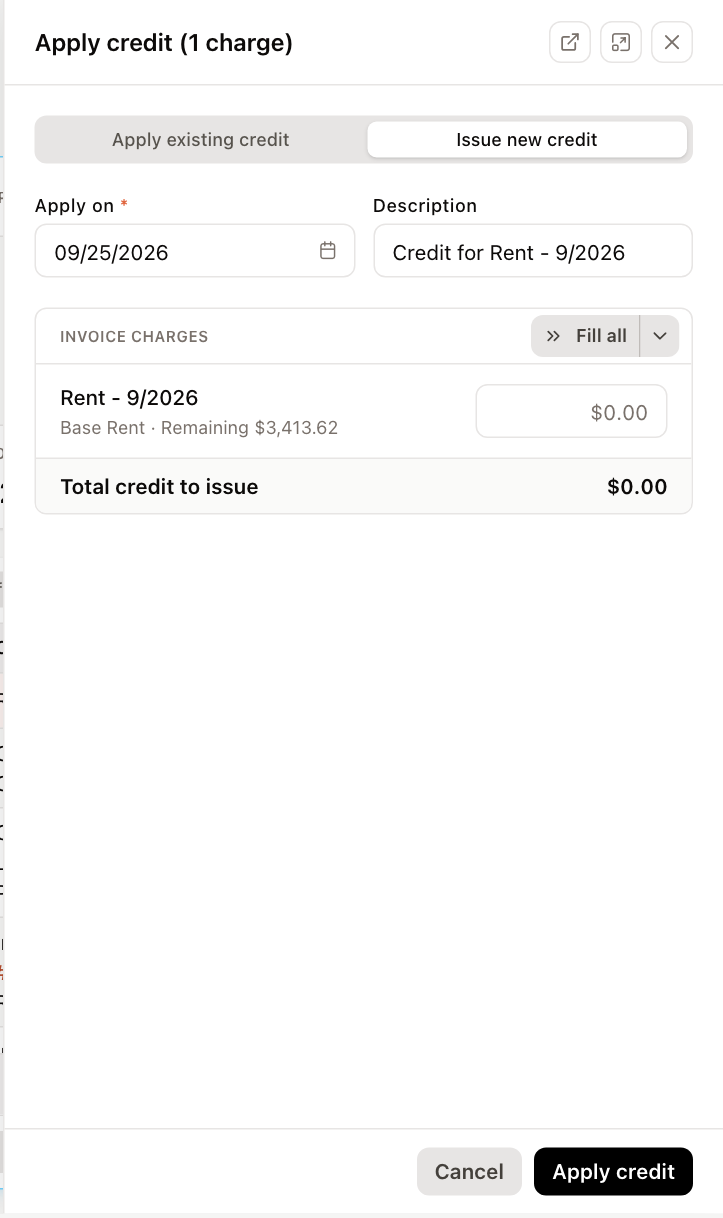
- Apply existing credit — use a credit balance the tenant already has. Under From · credit balance, choose the balance to draw from. This option is unavailable when the tenant has no available credit.
- Issue new credit — create a new credit and apply it in one step. Enter an optional Description.
- Enter the Apply on date and, for existing credit, an optional Reference.
- Enter the credit for each charge. To fill amounts for you:
- click the arrow next to a charge to fill it with its remaining amount (or with what's left of the credit),
- click Fill all to fill every charge in order, or open its menu and choose Distribute evenly.
- Check the totals — Total credit applied and Left in this credit after, or Total credit to issue — and click Apply credit.
Applied credits appear in the invoice's Payments list as Applied credit.
The wallet icon in the invoice's toolbar appears when a tenant has credit available. Click it to see the balance by category before you apply it.
See a tenant's credit balances
- Open the tenant and go to the Financials tab.
- Click Credits.
The list shows each credit Account and its Balance. Available at the bottom is the credit the tenant can spend on invoices. Security deposits are listed but aren't counted as available, because a held deposit isn't spendable.
Issue a credit from the tenant's record
- On the tenant's Financials tab, click Credits, then Issue Credit.
- The Account is always Tenant Credit (Income credit).
- Enter the Amount and Date, and optionally a Reference and Memo.
- Click Issue credit.
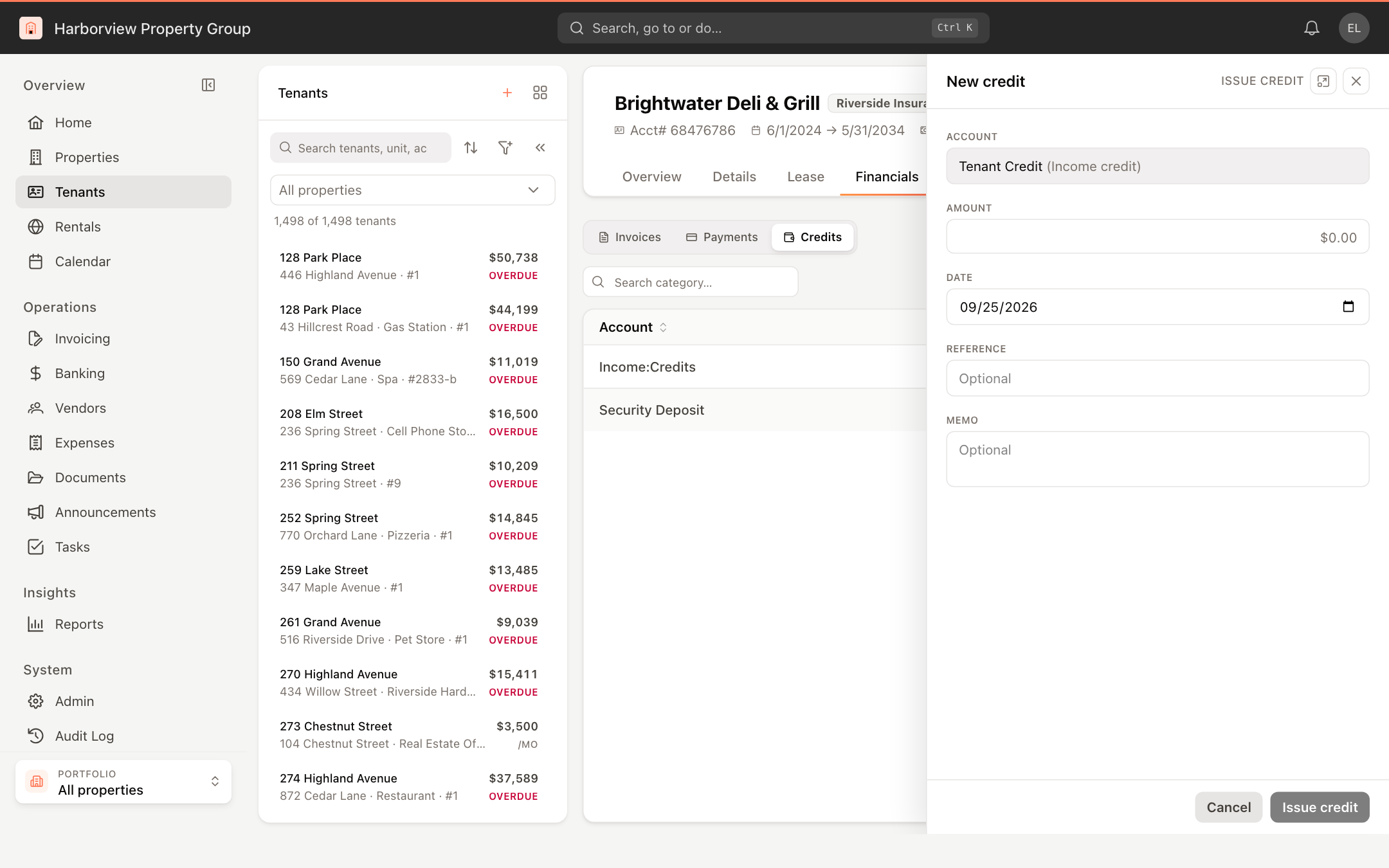
The credit is added to the tenant's balance, ready to apply to an invoice.
Adjust a credit balance
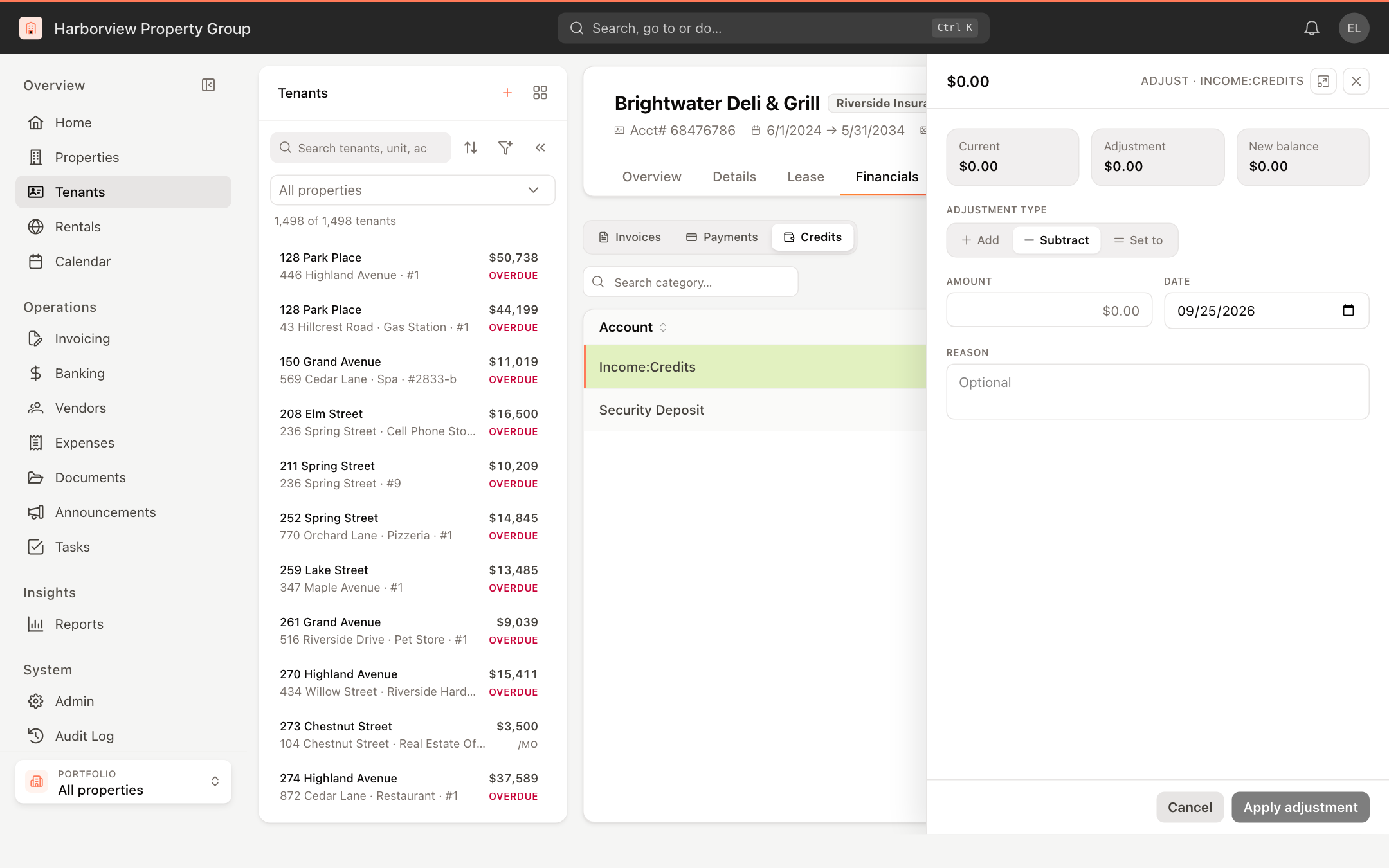
- On the tenant's Financials tab, click Credits, then click the balance you want to change.
- Under Adjustment type, choose:
- Add — increase the balance by the amount,
- Subtract — reduce it by the amount,
- Set to — make the balance exactly the amount.
- Enter the Amount, the Date and an optional Reason.
- Check Current, Adjustment and New balance at the top, then click Apply adjustment.