
When a tenant pays you by check, cash or another method outside UnitConnect, record the payment so the invoice, the tenant's balance and your books stay up to date. Choose the method that matches what you received:
| You received | Use |
|---|---|
| The full amount of one invoice | Pay an invoice in full |
| Part of an invoice, or payment for particular charges | Pay specific charges |
| Full payment of many invoices, for example a batch of checks | Pay many invoices at once |
| A payment not tied to an invoice, such as a security deposit or prepaid rent | Record a payment on the tenant's ledger |
Payments are deposited into the property's primary bank account. You don't choose a bank account.
Recording payments needs permission to pay invoices. A locked invoice can't be paid; see Work with a single invoice.
Pay an invoice in full
In Invoicing, click the invoice to open it.
At the bottom of the panel, click Payment, then Pay invoice.
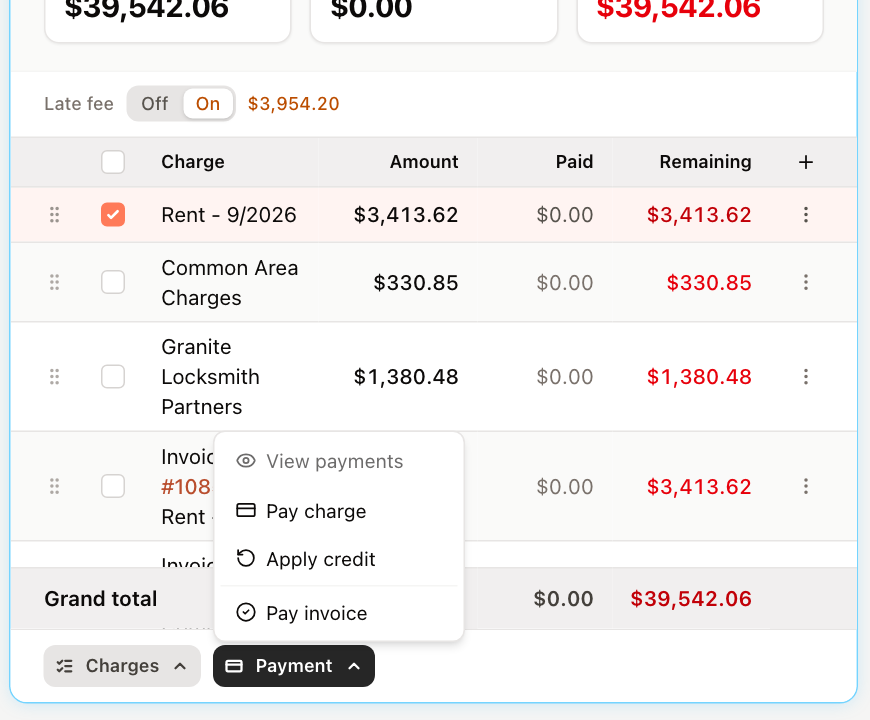
Payment › Pay invoice pays the whole remaining balance Check the Amount to pay — the invoice's remaining balance.
Enter the Paid on date, choose the Payment type (Cash, Check or Other) and, if you like, a Reference such as the check number.
Click Pay invoice.
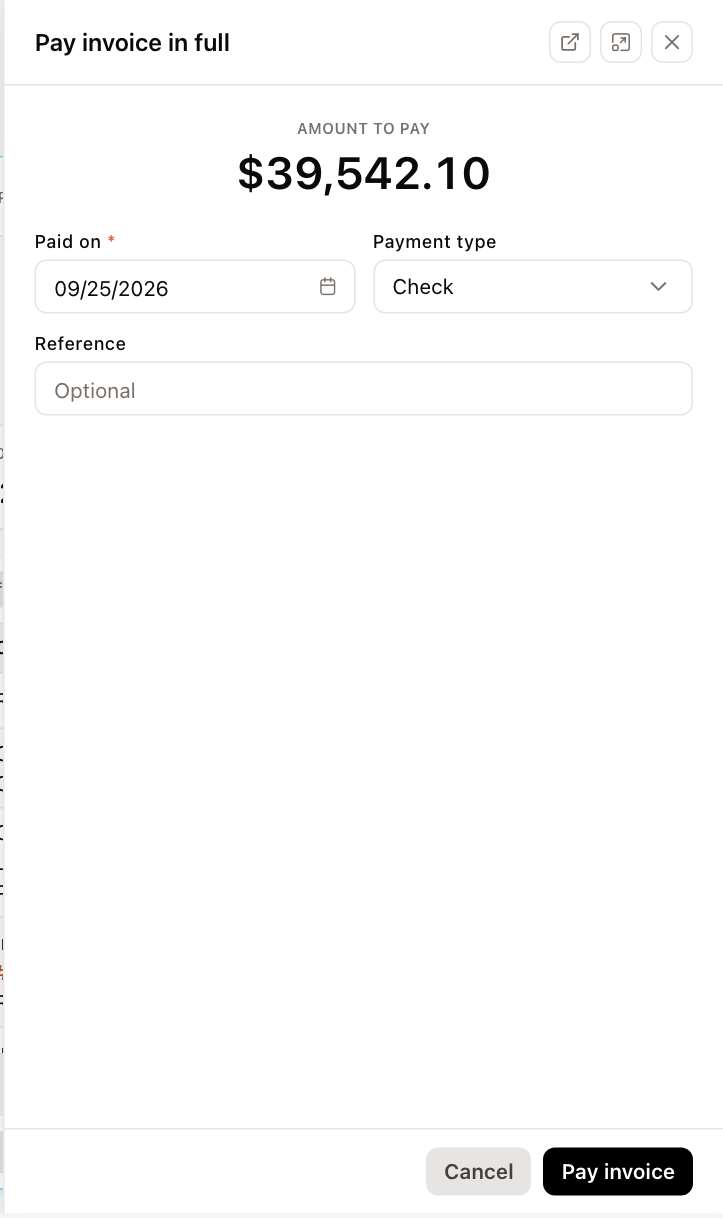
The invoice is marked Paid. You can also pay an invoice straight from the list: click ⋮ on the row and choose Pay invoice.
Pay specific charges
Use this for a partial payment, or when the tenant tells you what the payment is for.
- Open the invoice and tick the charges the payment covers.
- Click Payment, then Pay charge (or Pay charges for several).
- Each charge is filled in with its remaining amount. Change any amount to what was actually paid, or change the Amount paid at the top.
- Enter the Paid on date, Payment type and an optional Reference.
- Check the summary — Charges, Paid so far and This payment — and click Record payment.
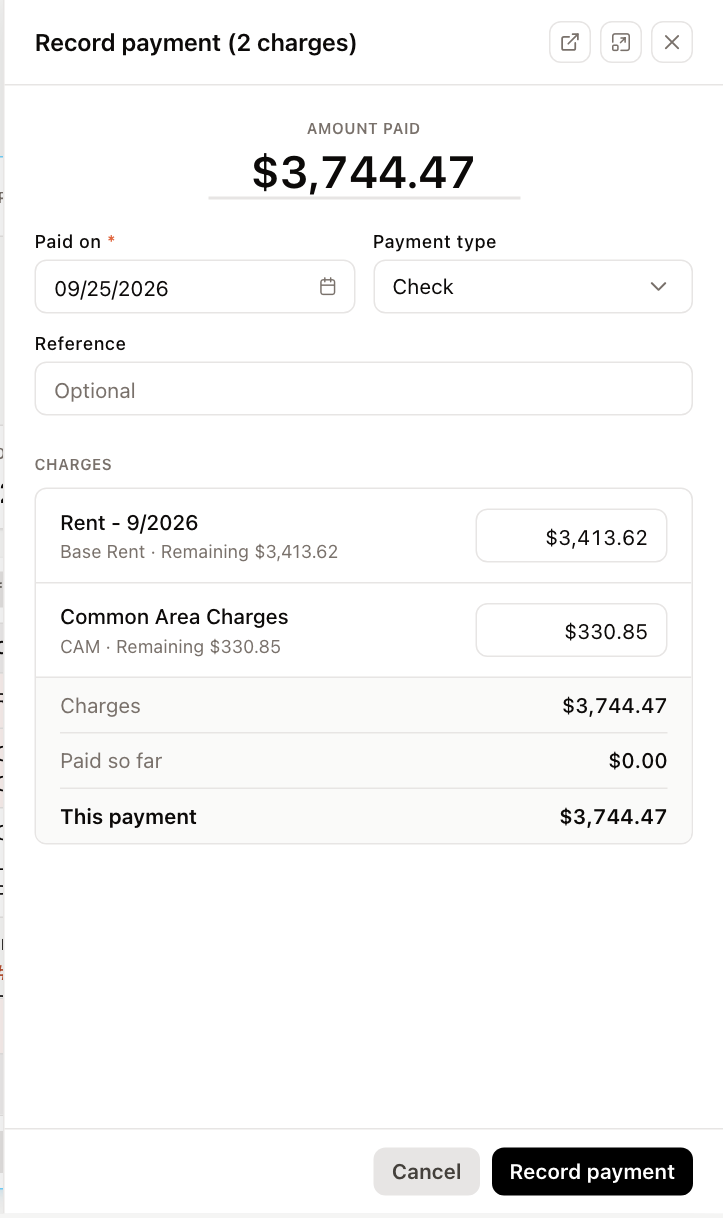
For a single charge, the form shows the Charge amount, what is already Paid and the Balance after this payment. You can also click ⋮ at the end of a charge row and choose Pay charge.
If charges are left unpaid, the invoice becomes Partial, and the balance carries forward to the tenant's next invoice.
Pay many invoices at once
- In Invoicing, do one of the following:
- Click ⋮ on a property's header row and choose Pay Invoices to pay that property's unpaid invoices.
- Tick the invoices you want to pay, click Actions at the bottom of the list and choose Pay.
- In Pay Invoices, enter Paid On, the Payment Type and an optional Reference. They apply to every invoice in the batch.
- All unpaid invoices are ticked. Untick any you don't want to pay. Total due updates as you go.
- Click Process Payments.
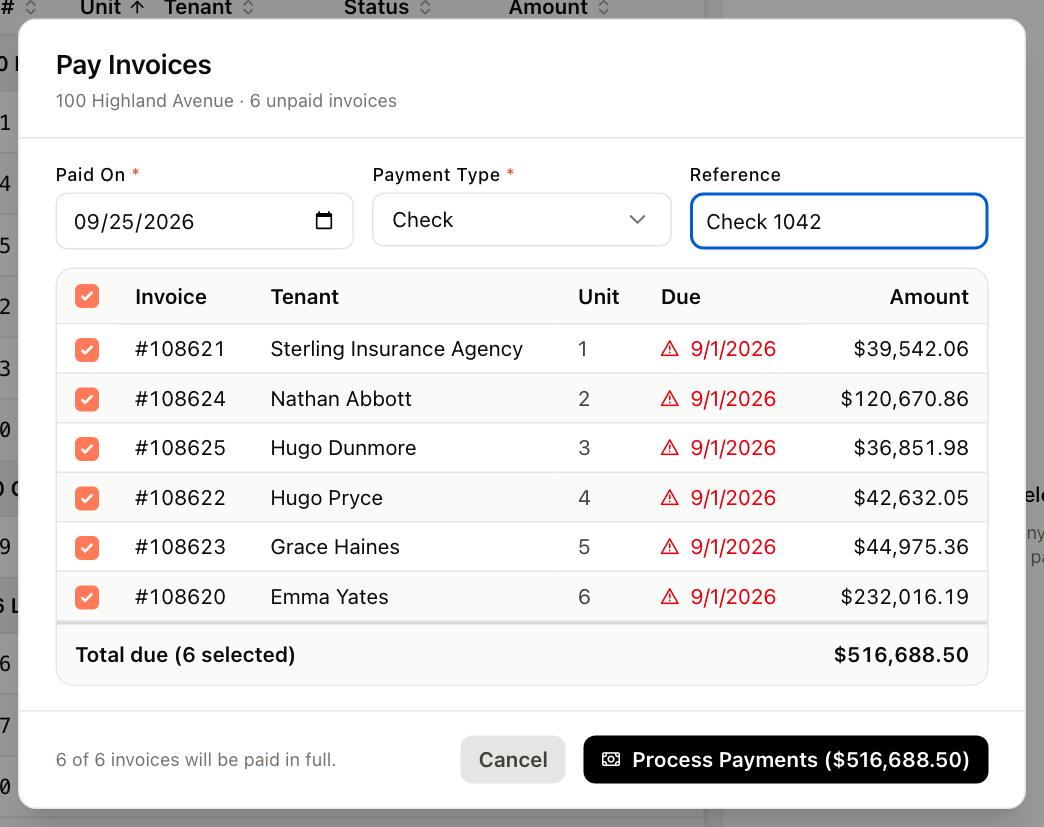
Each ticked invoice is paid in full. When the batch finishes, the dialog tells you how many invoices were paid and why any could not be. Click Done to close it.
Record a payment on a tenant ledger
Use this for money that isn't for an invoice — a security deposit, prepaid rent, or other income.
- Open the tenant and go to the Ledger tab, then click Record Payment. You can also click Record payment in the quick actions on the tenant's Overview tab.
- Enter the Payment date and an optional Reference.
- Under Payment lines, choose a category and enter an amount. Click Add line to split the payment across several categories, and the × to remove a line.
- Check the Total and click Record Payment.
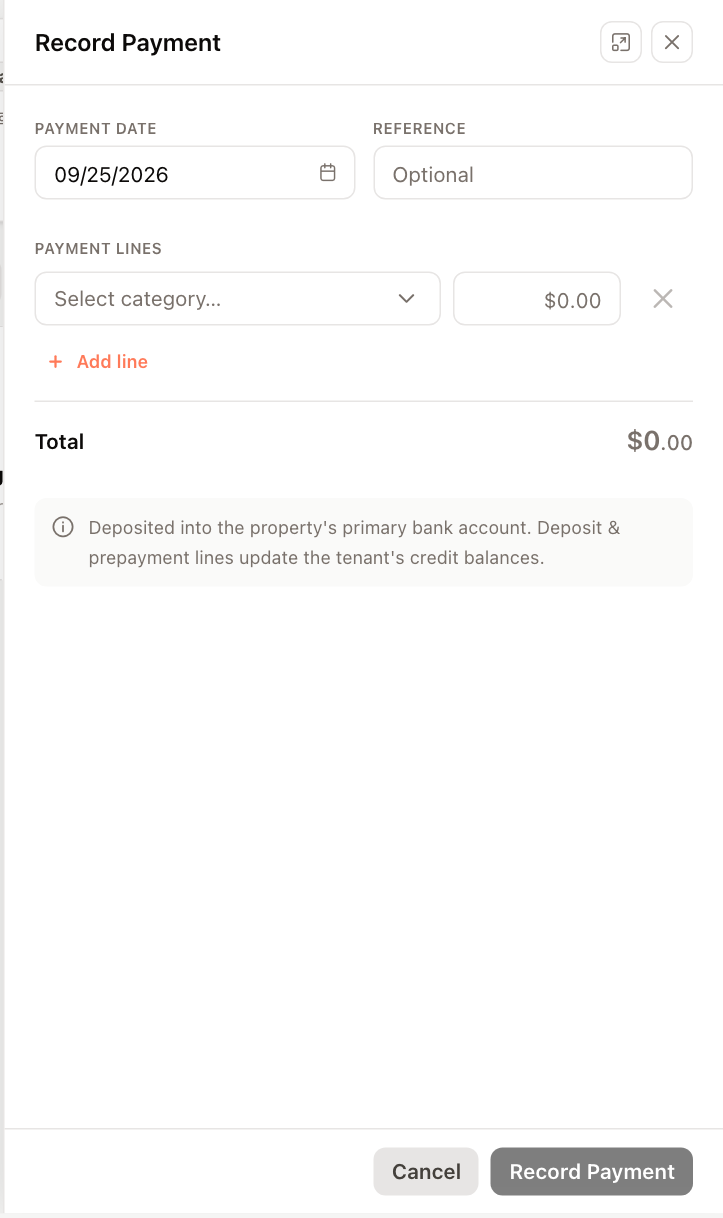
Deposit and prepayment lines add to the tenant's credit balances, which you can later apply to invoices. See Issue and apply tenant credits.
Online payments
While a tenant's online payment is being processed, the invoice shows Payment processing (hover over it to see when the payment was submitted). The invoice can't be edited or paid until the payment settles, so a payment is never recorded twice. To let tenants pay online, see Accept electronic payments with DirectPay.
Next steps
- To see, change or delete a payment you recorded, see Review, change or delete a payment.