
Two tabs on the tenant record show the tenant's money. Ledger is the running statement, with a balance after every transaction. Financials lists the tenant's Invoices, Payments and Credits separately.
The ledger
- Open the tenant and click the Ledger tab.
- Choose a date range with the date filter; the default is Last month to today.
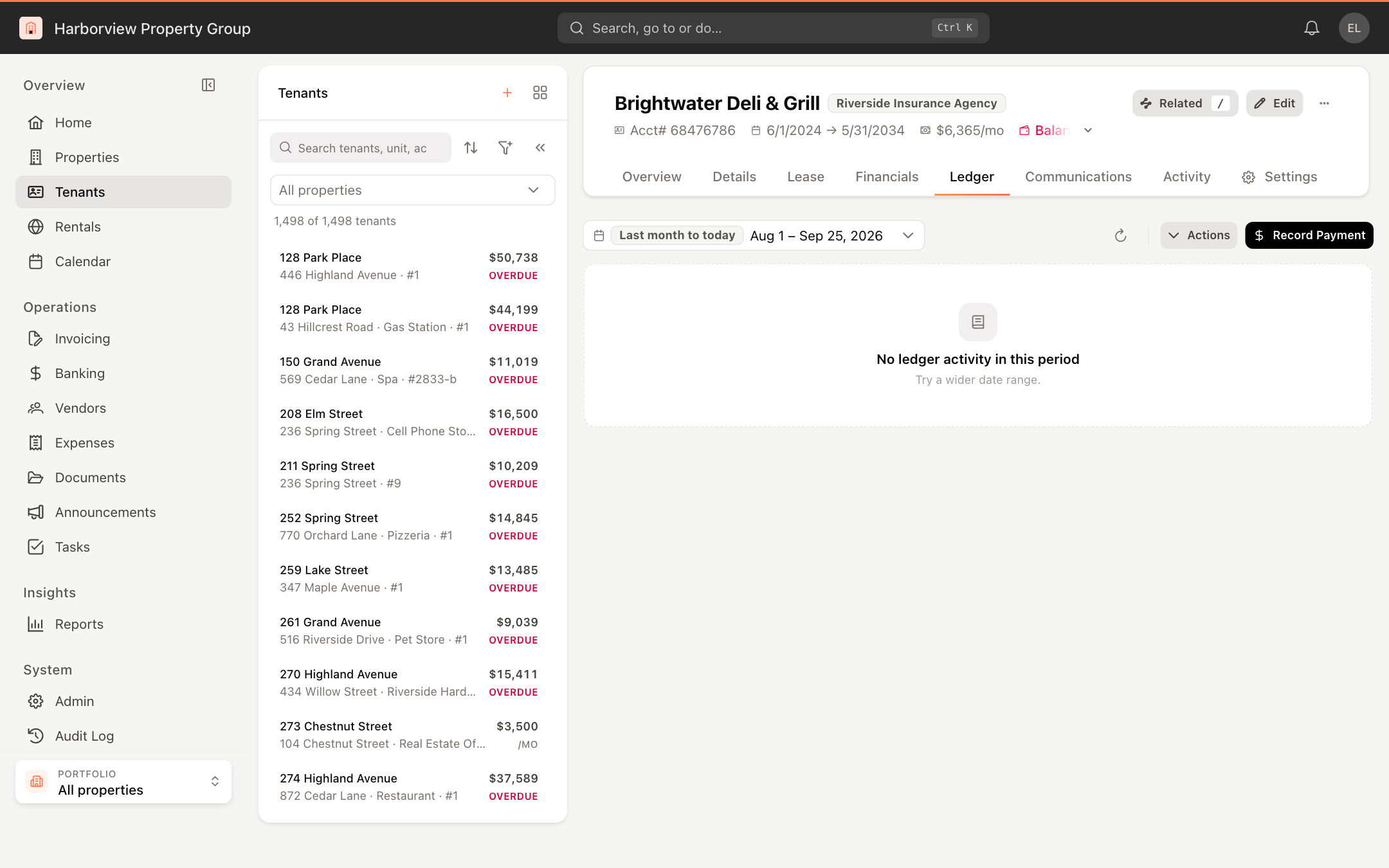
Each row shows the Date, Type, Description, Increase (charges), Decrease (payments and credits) and the running Balance. The footer shows the Grand Total for the period and the tenant's Available credits. Click the refresh button to reload.
To record a payment from here, click Record Payment. See Record a tenant payment.
Invoices
- Click the Financials tab. Invoices opens first.
- Search by invoice number or status, change the date range, or filter by status.
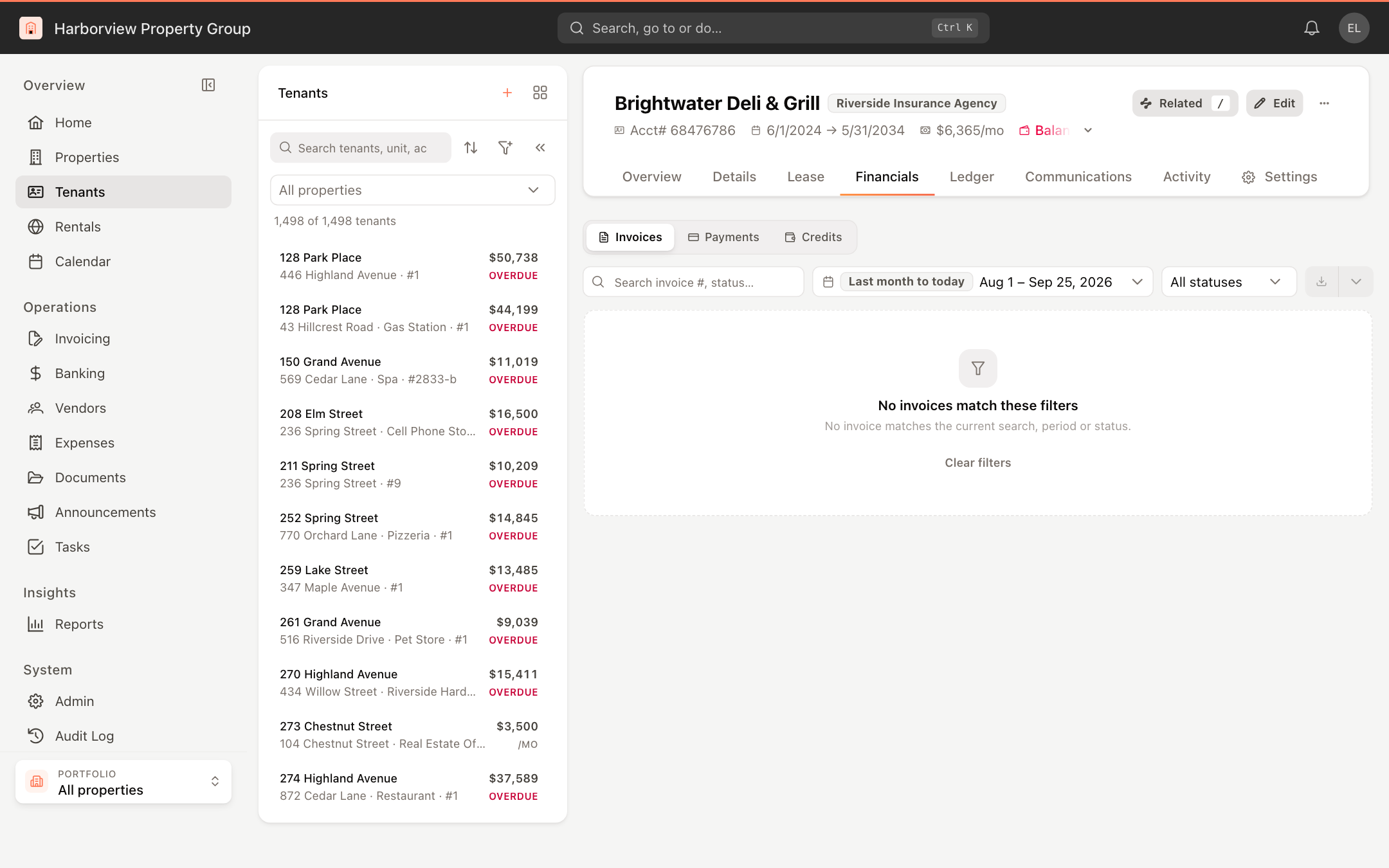
The list shows each invoice's Invoice #, Invoice Cycle, Total, Total Payments, Total Credits, Remaining and Status. Past-due invoices are flagged Past due.
Select one or more invoices with the checkboxes to Email invoice, Print invoice or, for a single invoice, View Invoice. See Email and print invoices.
Payments
Click Payments to see every payment recorded against the tenant's invoices, with its Payment Date, Invoice #, Reference, Paid Amount and Status. Filter by payment method or search by invoice number or reference. Select a payment and choose View receipt to open it.
To correct a payment, see Review and correct payments.
Credits
Click Credits to see the tenant's credit balances by account, including the security deposit, and the total Available. Click Issue Credit to give the tenant a credit. See Issue a tenant credit.