
Every tenant has a record with a header and a row of tabs. Overview is a dashboard of the tenant's situation. Details holds the tenant's stored information: name, contacts, addresses, documents, notes and custom fields.
Find a tenant
- In the sidebar, click Tenants.
- Type in Search tenants, unit, acct..., or pick a property in All properties to narrow the list.
- Use the sort button to order the list by Name, Unit, Balance, Lease expiry, Unit size or Pro-rata share, and Filters to show Expiring or Overdue tenants only, or Terminated tenants instead of active ones.
- Click a tenant.
With no tenant selected, the page shows the Tenants overview: active tenants, the rent roll, outstanding balances, collections, and lists of overdue tenants and leases expiring in 90 days.
The tenant header

The header shows the tenant's name, premise use, account number, lease period, monthly rent, balance and deposit. On the right:
- Related (or press /) lists the tenant's other pages, its property and unit, and actions.
- Edit opens Edit tenant info, where you change the Tenant name and Premise use.
- … offers Log communication, Add recurring charge and Edit lease terms.
The tabs are Overview, Details, Lease, Financials, Ledger, Communications, Activity and Settings.
Overview
Overview shows:
- Outstanding, Collected (12 mo), Monthly rent and Lease ends figures.
- Needs Attention — for example an overdue balance, a lease or insurance certificate about to expire, or an approaching option window.
- Recent Activity — invoices, payments and logged communications.
- Quick Actions — Record payment, Log communication, Add recurring charge, Edit lease terms and Upload document.
- Upcoming Charges — rent and recurring charges, with a link to View lease.
- Tenant Portal — the tenant's portal status and automatic payments. See Tenant portal access and notifications.
Details
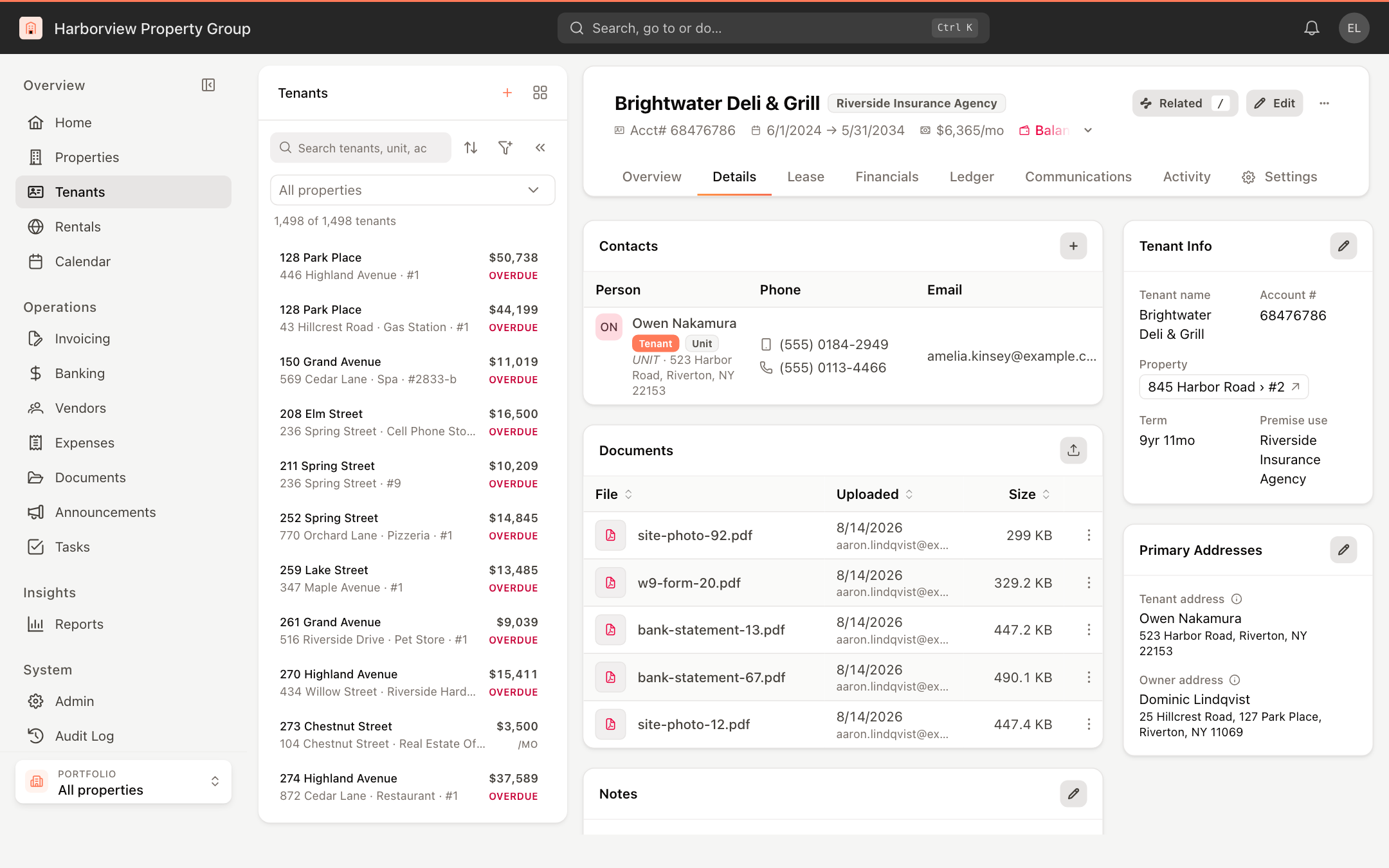
Tenant Info and primary addresses
- Tenant Info shows the Tenant name, Account # (click to copy), Property, Term and Premise use. Click the pencil (Edit tenant info) to change the name or premise use.
- Primary Addresses shows the Tenant address, where bills and notices are mailed, and the Owner address, where the tenant sends payments. Click the pencil (Edit primary addresses) and choose a Primary tenant address from the tenant's contacts and a Primary owner address from the landlord, owner or contacts. Click Save changes.
The tenant portal invitation is sent to the email address of the primary tenant address's contact. Keep it current.
Contacts
- Click + in the Contacts header to add a person. Enter their First name, Last name, Contact type (for example Owner, Manager), Mobile, Other phone, Fax, Email and address, then click Save.
- Click ⋮ on a contact to Edit or Remove it, or choose Set as tenant's primary to make it the primary tenant address.
Documents, notes and custom fields
- Documents — click the upload button to add the lease, insurance certificates or correspondence. Each document's ⋮ menu lets you preview, download or delete it.
- Notes — click the pencil, type your notes, and click Save.
- Custom Fields — click the pencil (Edit custom fields) to add or change fields, each a Label and a Value, then click Save changes.
Editing tenant information requires permission to edit tenants. Uploading and deleting documents requires permission to manage tenant documents.