
Click Properties in the sidebar to see every property in your current portfolio. Select one to open its workspace, which starts on the Overview tab.
The Properties list
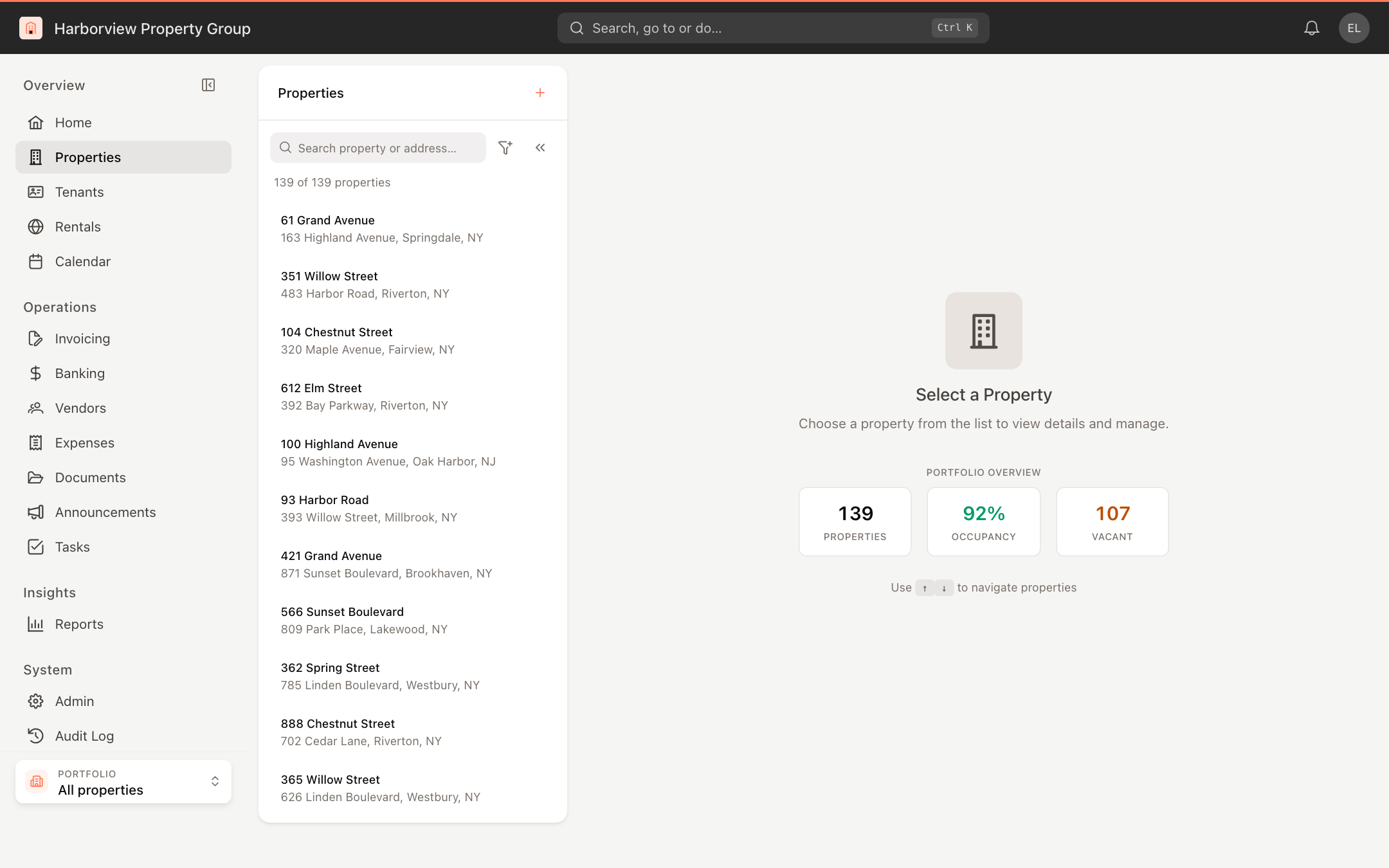
- The list on the left shows each property's name and address. Hover over a property, or select it, to see how many of its units are occupied (for example 18/20). The count is amber when there are vacancies.
- Use Search property or address… to narrow the list.
- To see properties that have been terminated, open the filter button and choose Terminated under View. Choose Active to go back.
- Click the double arrow to collapse the list and give the property more room.
- Before you pick a property, the page shows a Portfolio Overview with the number of properties, the overall occupancy and the number of vacant units. Use the ↑ and ↓ keys to move through the list.
The list follows the portfolio selected at the bottom of the sidebar. See Switch portfolios.
The property header and tabs
The header shows the property name, address, building type, number of units and number of vacant units. On the right:
- Related lists the property's other pages and common actions, such as its tenants, invoices and vendors.
- Edit opens the property's information for editing. See Review and update property information.
- The … menu holds Add Unit, Add Bank Account, Add Owner and Upload Document.
The tabs are Overview, Details, Units, Expenses, Ledger, Budget, Activity and Settings. When you switch to another property in the list, you stay on the same tab.
The Overview tab
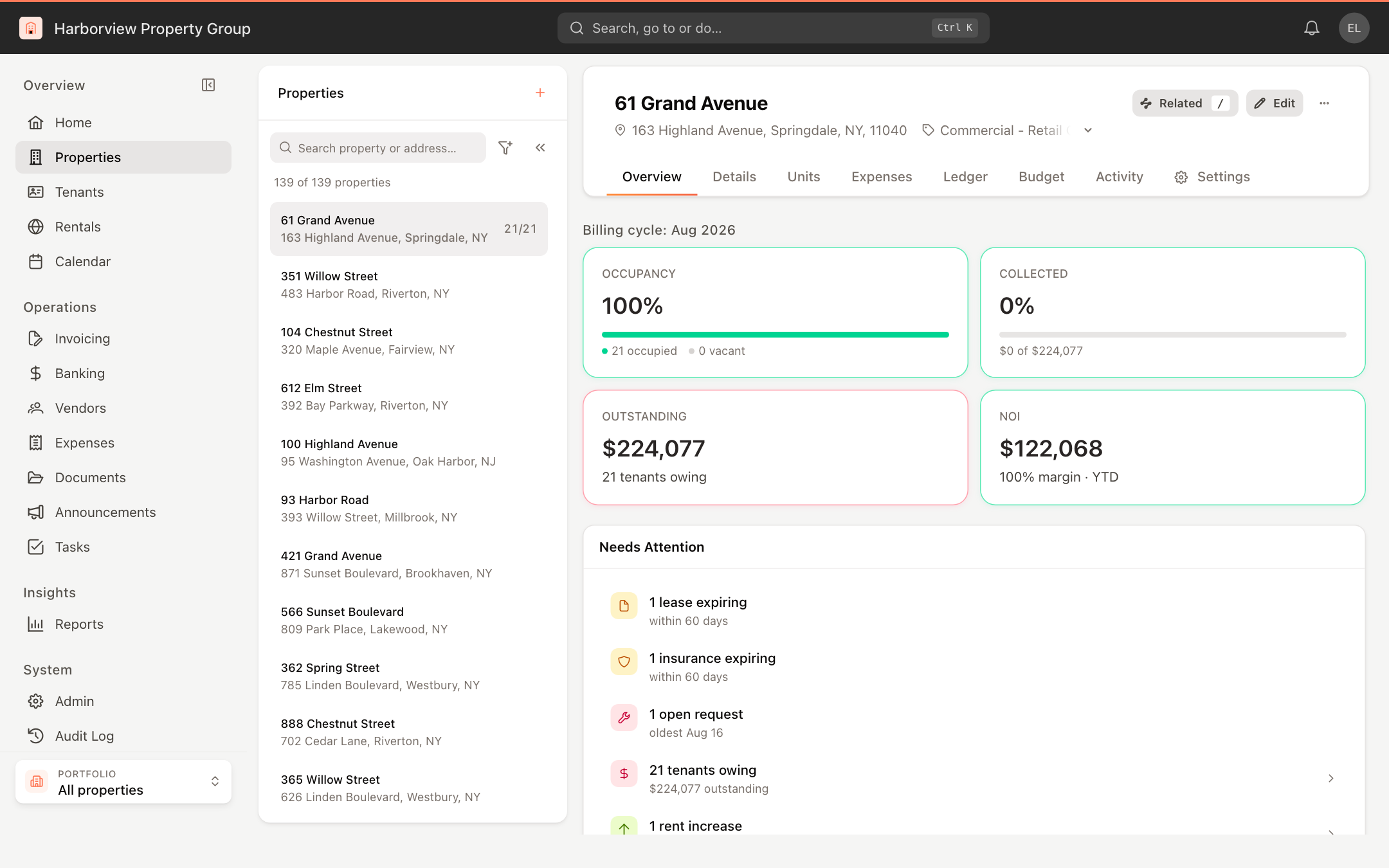
The top row covers the current billing cycle:
- Occupancy: the share of units that are occupied, with the occupied and vacant counts.
- Collected: how much of this cycle's billed amount has been collected.
- Outstanding: the unpaid balance and how many tenants owe it.
- NOI: net operating income for the year to date, with the margin.
Below that:
- Needs Attention lists what to follow up on, such as vacant units, expiring leases or insurance, open requests, tenants who owe money, upcoming rent increases, and setup gaps like No bank account on file or No units yet. Click an item to go to it.
- Recent Activity shows recent payments. Open it to see the full list.
- Quick Actions offers Generate Invoices, Add Tenant, View Tenants, View Vendors and Rent Roll (which opens the Units tab).
- Outstanding Balances lists each tenant who owes money, with their suite, monthly rent and balance. Use the row's options menu (⋮) to Open Tenant, Open Ledger or View Invoices. Click View all invoices to go to Invoicing filtered to this property.
- Automatic Payments summarizes the property's automatic (DirectPay) payment plans and payments for the cycle.
Quick actions and menu items appear only when your role can use them. For example, Generate Invoices needs access to invoicing.
The Activity tab
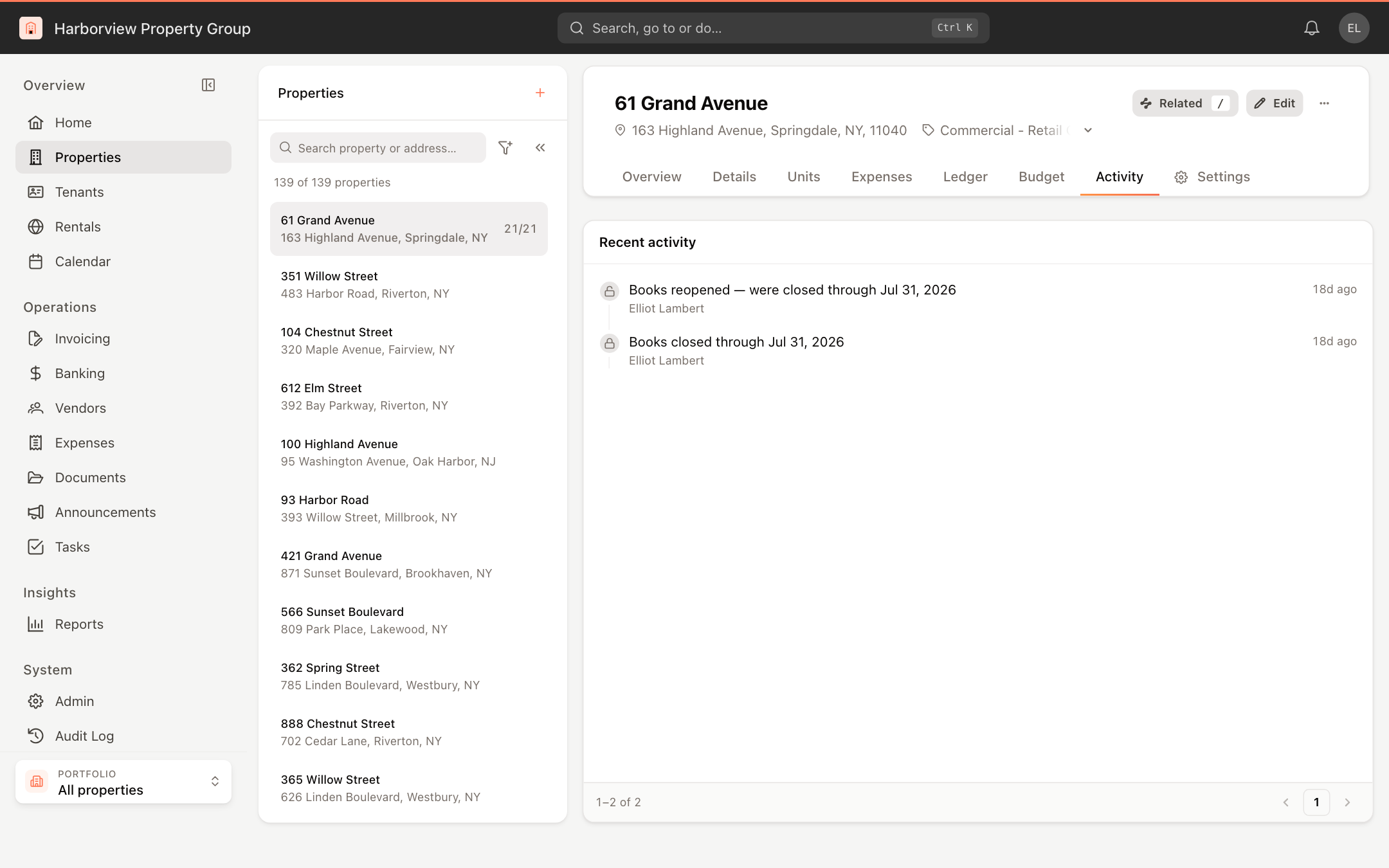
The Activity tab is a timeline of changes to the property: its details, units, owners, budget and bank accounts, and period closes. Each entry shows what changed, who changed it and when.
For a history across all records, see the audit log.