
When you stop managing a property, for example after it's sold, terminate it. UnitConnect first ends every remaining tenancy and settles each tenant's credits and balance, then removes the property from the active list. A terminated property keeps its history and can be reactivated later.
Before you start
- Every tenant has to be terminated before the property can be. You can end them one at a time or all at once inside the wizard.
- Decide what should happen to tenants' credits and open balances.
- If the property's bank accounts are used only by this property, decide whether to close them.
Terminating a property requires permission to deactivate properties. Terminating individual tenants from the wizard requires permission to deactivate tenants.
Terminate a property
- Open the property and click the Settings tab.
- In the Danger Zone section, click Terminate.
- The Terminate property wizard opens. The steps it shows depend on the property: its tenants, their credits and balances, its bank accounts and DirectPay.
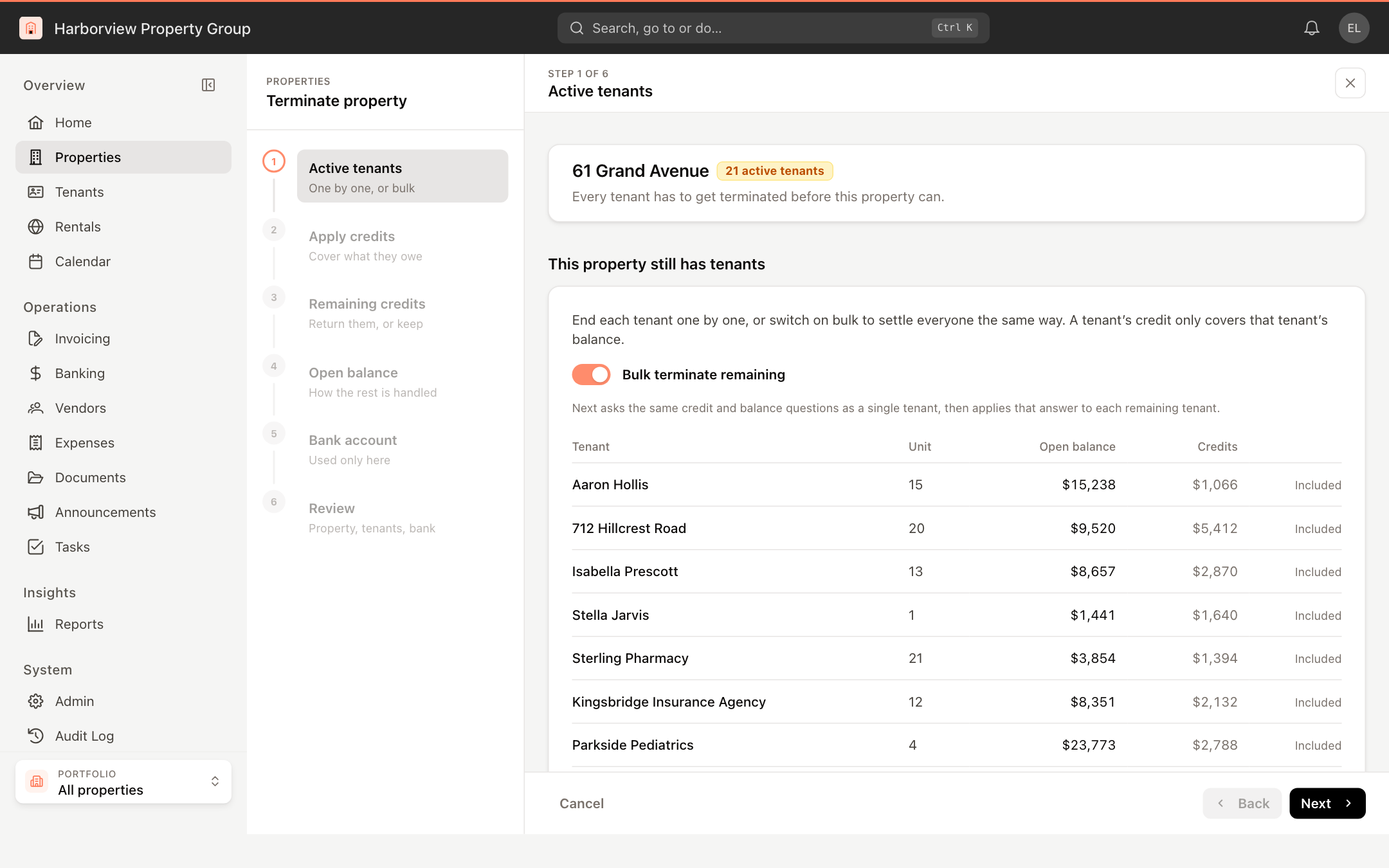
Active tenants
The first step lists the property's remaining tenants with their unit, open balance and credits.
- To end tenants one at a time, click Terminate tenant on a row. This opens the tenant termination wizard for that tenant. When you're done, the tenant drops off the list.
- To settle everyone the same way, turn on Bulk terminate remaining. The following steps then ask the credit and balance questions once and apply your answers to every remaining tenant.
Until every tenant is handled or bulk is on, the button reads Settle remaining first.
Apply credits, remaining credits and open balance
These steps appear only when they're needed:
- Apply credits: turn on Apply each tenant’s credits to that tenant’s open balance. A tenant's credit only ever covers that tenant's own balance.
- Remaining credits: turn on Return leftover credits to each tenant to pay the leftovers back out of the property's bank account. Leave it off to keep them as other income.
- Open balance: choose how the remaining balances are handled:
- Turn on Are tenants paying the remaining balance now? and enter Paid On, Payment Type and an optional Reference to record the payment.
- Or turn on Do the tenants promise to pay later? to keep the balances open.
- Leave both off to write the remaining charges off.
If a tenant already paid in a different way, end that tenant separately with Terminate tenant first.
Bank account and DirectPay
- Bank account: for accounts used only by this property, turn on Close for each one you want to close. Accounts that other properties also use are listed with the properties that use them and stay open.
- DirectPay: if an account you're closing takes online payments through Forte, only Forte can close that side. Enter Why you’re closing it and click Open Forte’s close form. The form opens in a new tab with the account details filled in; finish it there. The property is terminated either way.
Review
The last step lists what will happen, for example:
- Terminate every remaining tenant
- Stop automatic invoices
- Pause Autopay and stop new card or bank payments from the tenant portal
- Stop tenant reminder emails
Click Terminate property and tenants (or Terminate property when no tenants remain) to finish.
Find a terminated property
In the Properties list, open the filter button and choose Terminated under View. Terminated properties show the date they were terminated, and their header shows a Terminated badge.
Reactivate a property
- Open the terminated property and click the Settings tab.
- In the Danger Zone section, click Reactivate.
- Read the note and click Reactivate.
The property returns to the active list. Automatic invoices and Autopay stay off until you turn them back on.