
A property's fixed details live on its Details tab. To open it, click Properties in the sidebar, select the property, and click the Details tab.
The Property Info card shows the property's Name, Tax ID, Address, Block / Lot, Building type, FAR, Property size, Land size, Billing day and Payment due day. Click the copy icon next to the address or tax ID to copy it.
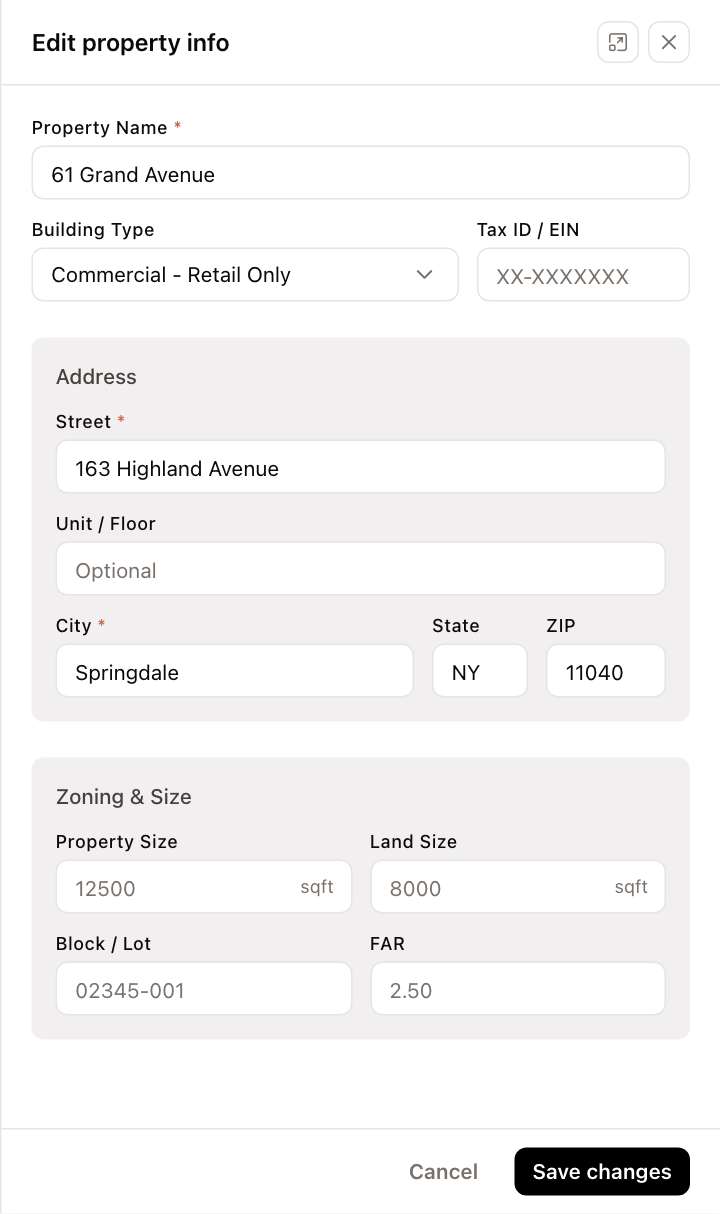
Edit the property information
- Click Edit at the top of the property, or the pencil icon on the Property Info card.
- Update any of these fields:
- Property Name and Building Type
- Tax ID / EIN
- Address: Street, Unit / Floor, City, State and ZIP
- Zoning & Size: Property Size, Land Size, Block / Lot and FAR
- Click Save changes.
Editing property information requires permission to edit properties. Without it, the Edit button and the pencil icons are hidden.
The other parts of the Details tab have their own articles: contacts, owners and bank accounts, and the Units card, which links to the Units tab. Sales tax, fiscal years and notifications are on the Settings tab.
Documents
The Documents card holds files for this property, such as leases, inspection reports, certificates and bills.
- Click Upload document to add a file. You can also choose Upload Document from the … menu at the top of the property.
- Click a document to preview it. Use the row's options menu to Preview, Download or Delete it.
The same documents also appear in the company-wide library. See Organize documents in the library.
Notes
The Notes card is free text about the property. Click its pencil icon, type your notes, and click Save.
Custom fields
Custom fields are label and value pairs of your own, such as a zoning class or a parking permit number.
- On the Custom Fields card, click the pencil icon. A property can have up to five custom fields.
- Click Add custom field (or Add field when some already exist).
- Enter a Label and a Value. Each can be up to 50 characters.
- Click Save changes.
To remove a field, click the × next to it before you save.