
A property's Details tab holds the people and accounts connected to it: Contacts, Ownership and Bank Accounts. To open it, click Properties in the sidebar, select the property, and click the Details tab.
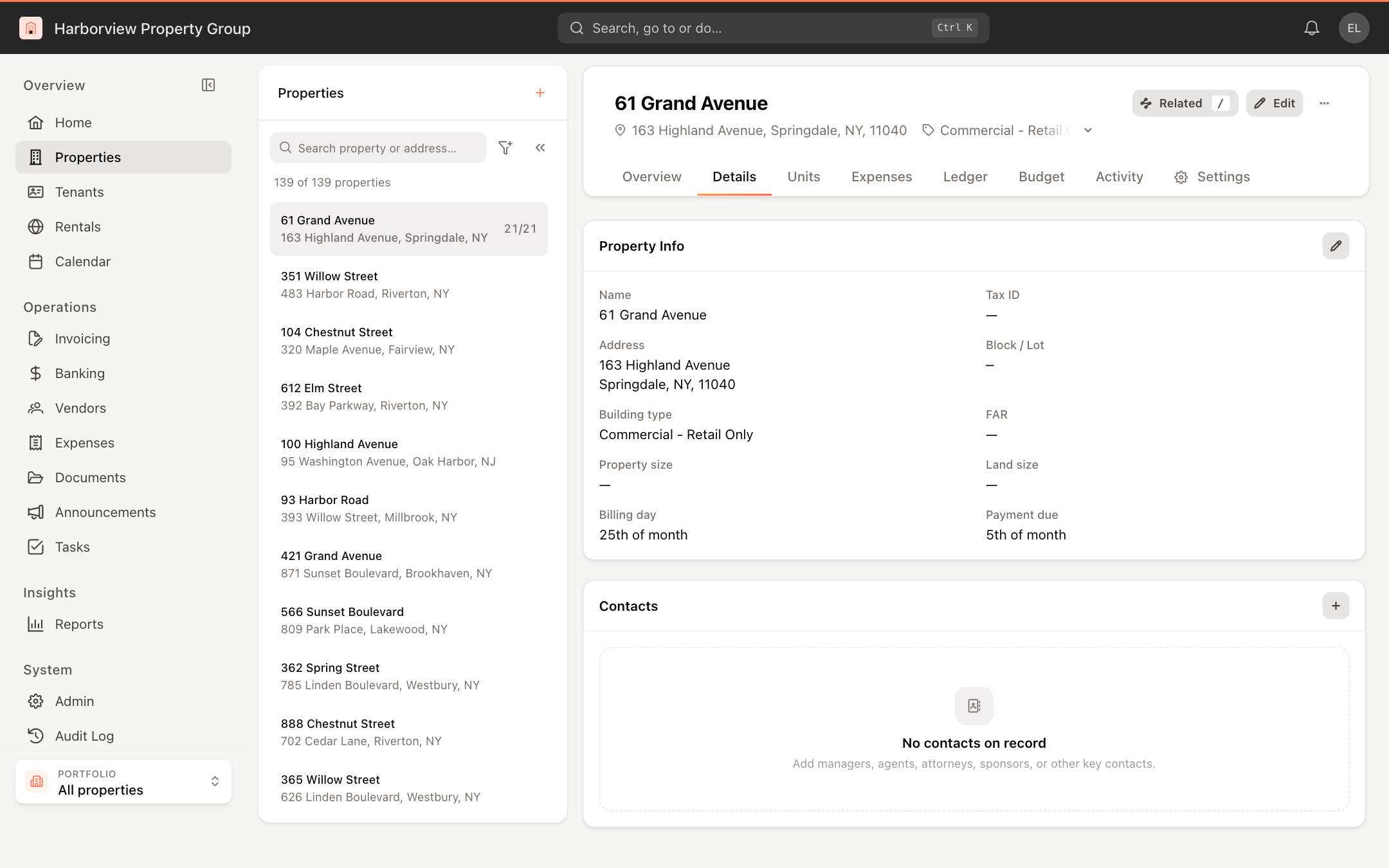
Contacts
Contacts are the managers, agents, attorneys, sponsors and other people you deal with for this property.
- In the Contacts card, click + (Add contact).
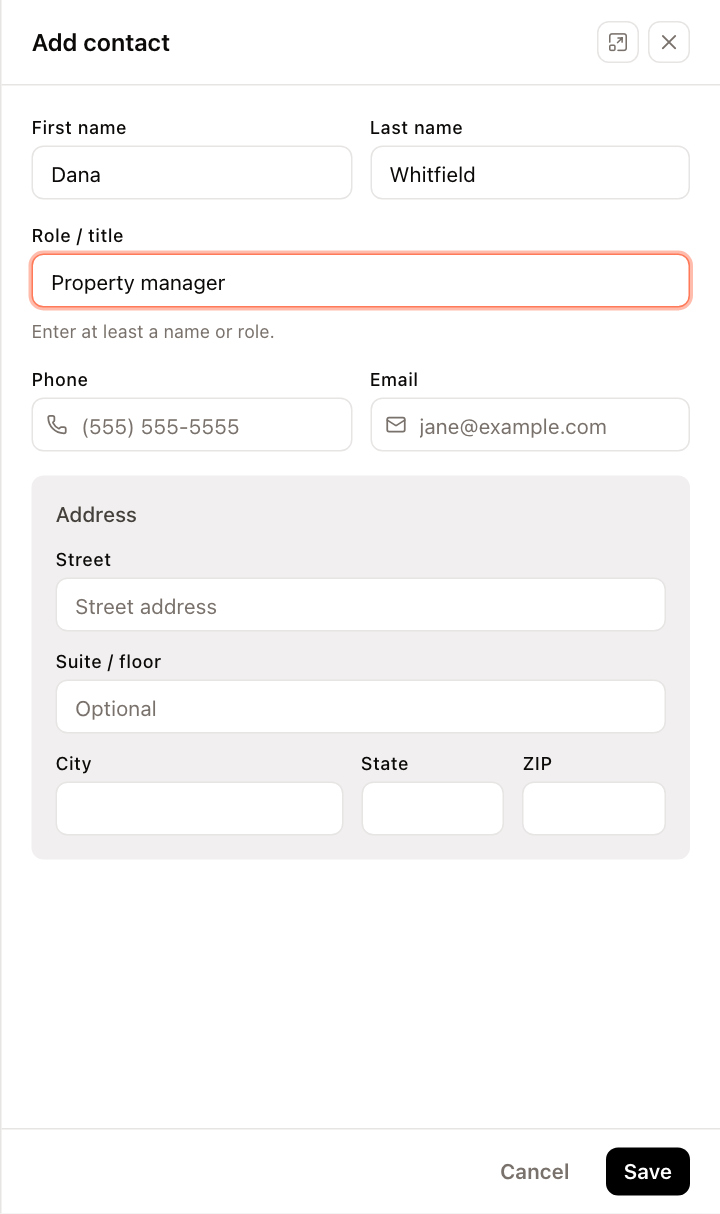
- Enter a First name and Last name, a Role / title, or both. At least a name or a role is required.
- Optionally add a Phone, Email and Address.
- Click Save.
To change or delete a contact, click the options menu (⋮) on its row and choose Edit or Remove.
Owners
The Ownership card lists each owner with their title, ownership share and start date.
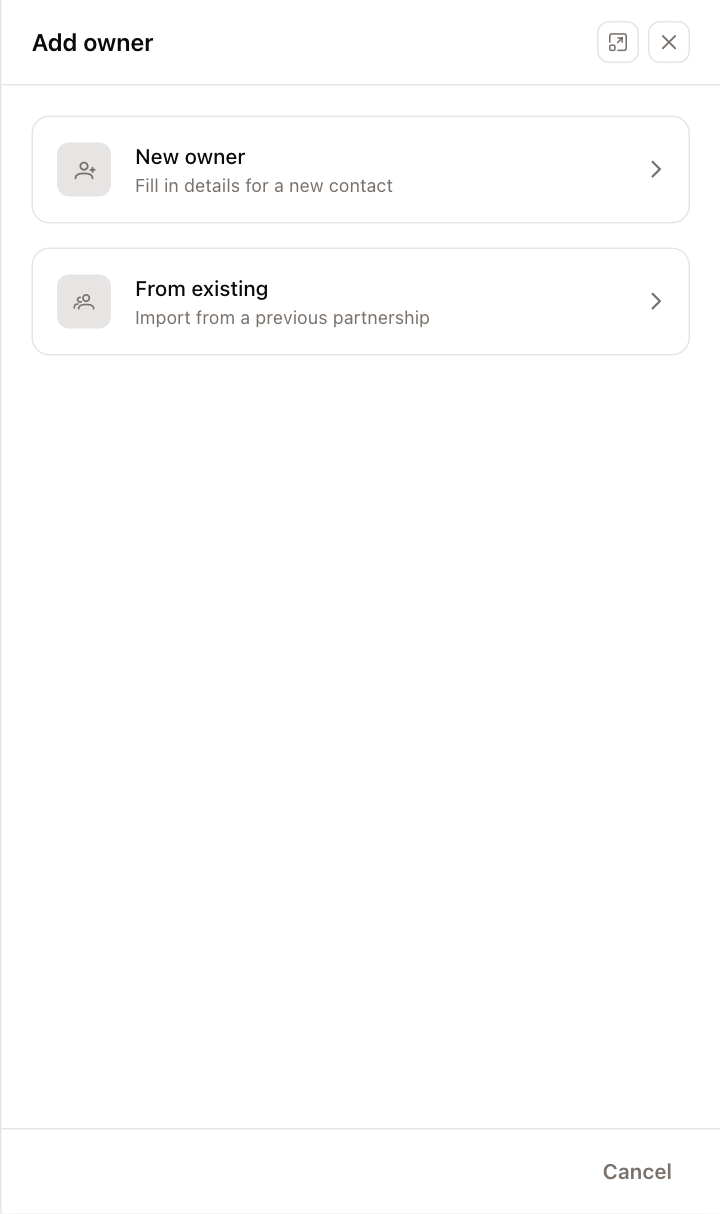
- In the Ownership card, click + (Add owner). You can also choose Add Owner from the … menu at the top of the property.
- Choose New owner to enter someone new, or From existing to reuse an owner you have already set up on another property.
- For a new owner, enter the First Name, Last Name and an optional Title / Role. Under Contacts, you can add a phone, email and address.
- Enter the Ownership Share (%) and the Start Date.
- Click Add owner.
To change an owner's details or share, click the options menu (⋮) on their row and choose Edit. Choose Remove to take them off the property.
Condominium and Cooperative properties don't show an Ownership card.
Bank accounts
The Bank Accounts card lists every account linked to the property with its bank, the last four digits of the account number and its balance. The account that receives tenant payments is marked Primary. If DirectPay is set up, a badge shows its status.
Add a bank account
- In the Bank Accounts card, click + (Add bank account), or choose Add Bank Account from the … menu at the top of the property.
- Choose New account to enter a new one, or Existing account to link an account that is already in UnitConnect.
- For a new account, enter the Bank, Type and Account Name. Nickname, Account Number, Balance and Description are optional.
- Click Add account. To add it and make it the primary account in one step, open the arrow next to the button and choose Add as Primary.
Manage an account
Click the options menu (⋮) on an account to:
- Open in Banking: go to the account in the Banking area, where you work with its transactions, reconciliation and statements.
- Set as Primary: make this the account that receives the property's payments.
- Edit: change its details.
- Remove: unlink the account from the property.
For everything else about bank accounts, see Set up and manage bank accounts.
Adding and editing owners and bank accounts requires the matching property permissions. Open in Banking is available to anyone who can see the property.