
UnitConnect shows vendor activity at two levels: the Vendors overview for all vendors, and each vendor's own Overview and Transactions tabs.
The Vendors overview
Click Vendors in the sidebar without selecting a vendor to see the Vendors overview:
- Totals for Total vendors, Active vendors, Inactive vendors and YTD spend. Click Active vendors or Inactive vendors to filter the list to them.
- Recent payments and Coming up — the latest paid expenses and the next unpaid ones. View all opens them in Expenses.
- By type — how your active vendors split across vendor types.
- Top vendors · YTD spend — the vendors you have paid the most this year.
To find a vendor, use the search box above the list (it matches the vendor name, type and code), or narrow the list with the All properties and All types filters. To see deactivated vendors, click the filter button next to the search box and choose Inactive under View.
A vendor's Overview tab
Select a vendor. The Overview tab opens first.
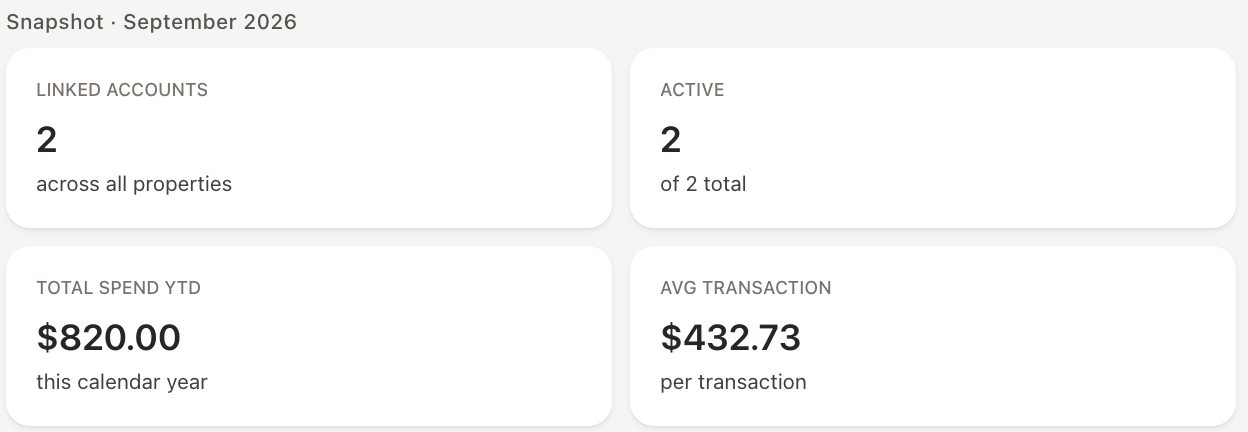
- Snapshot — Linked accounts, how many are Active, Total spend YTD and Avg transaction. If a property is selected in the property filter above the vendor list, the figures cover that property only.
- Needs Attention — for example, a vendor that is inactive, has no linked accounts, or has open follow-ups in its communication log. Click an item to go where it is dealt with.
- Recent Activity — the latest payments and log entries.
- Quick actions — Record expense, Log communication, Link account, Edit vendor and Upload document, depending on your permissions.
- Linked Accounts — the vendor's accounts by property. Click View all accounts to open the Accounts tab.
A vendor's Transactions tab
Click the Transactions tab to see every expense recorded against the vendor.
- Narrow the list with:
- the property picker (shown when no property is selected in the vendor list filter),
- the date range — it starts at Last month to today; choose All time for the full history,
- Check # starts with… to find a particular check,
- the filter button for Account, Bank account and Amount.
- Click a column header to sort. The footer shows how many transactions match and their total.
- Click a row to open the expense beside the list. Click ⋮ on a row for View expense or Edit expense.
The display settings button on the right lets you show or hide columns (Account #, Bank account, Check #, Description, Invoice #, Memo) and the summary strip with Transactions, Total amount and Avg transaction.
Filters on the Transactions tab are kept in the page address, so leaving the tab and coming back — or sharing the link — keeps them.
Activity
The Activity tab lists changes made to the vendor record: who changed what, and when.