
Vendors are never deleted — their expenses and history stay on record. Instead, you can merge a duplicate into another vendor, or deactivate a vendor you no longer use. Both are on the vendor's Settings tab, under Danger Zone.
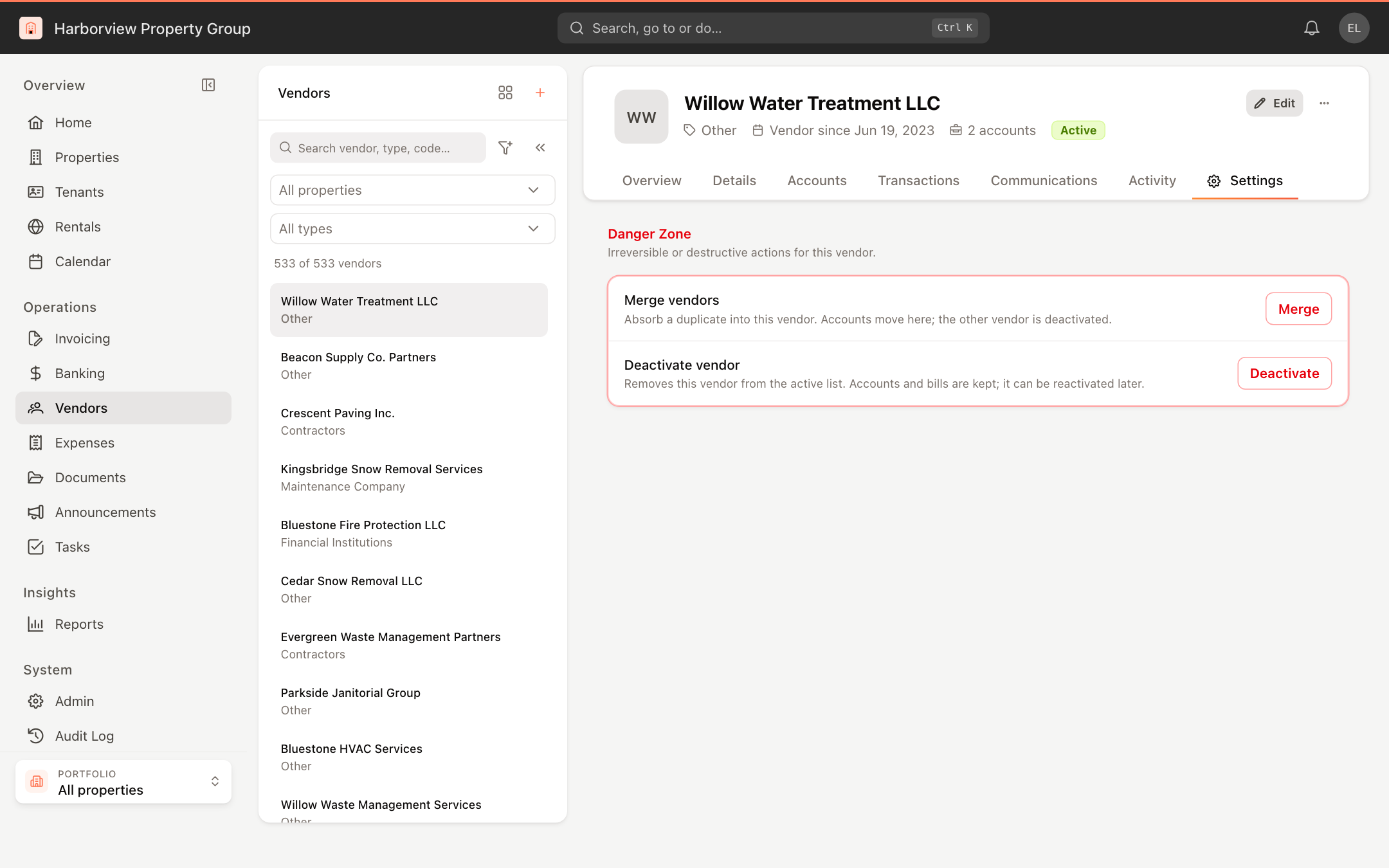
These actions need permission to edit vendors. Without it, the buttons are shown but disabled.
Merge a duplicate vendor
Merging moves everything from a duplicate vendor into the vendor you are on. The duplicate is then deactivated. A merge can't be undone.
Open the vendor you want to keep and click the Settings tab.
Next to Merge vendors, click Merge.
Choose vendor — pick the duplicate to absorb. Vendors with the same name are listed first under Suggested — same name; search to find a duplicate with a different name. Click Next.
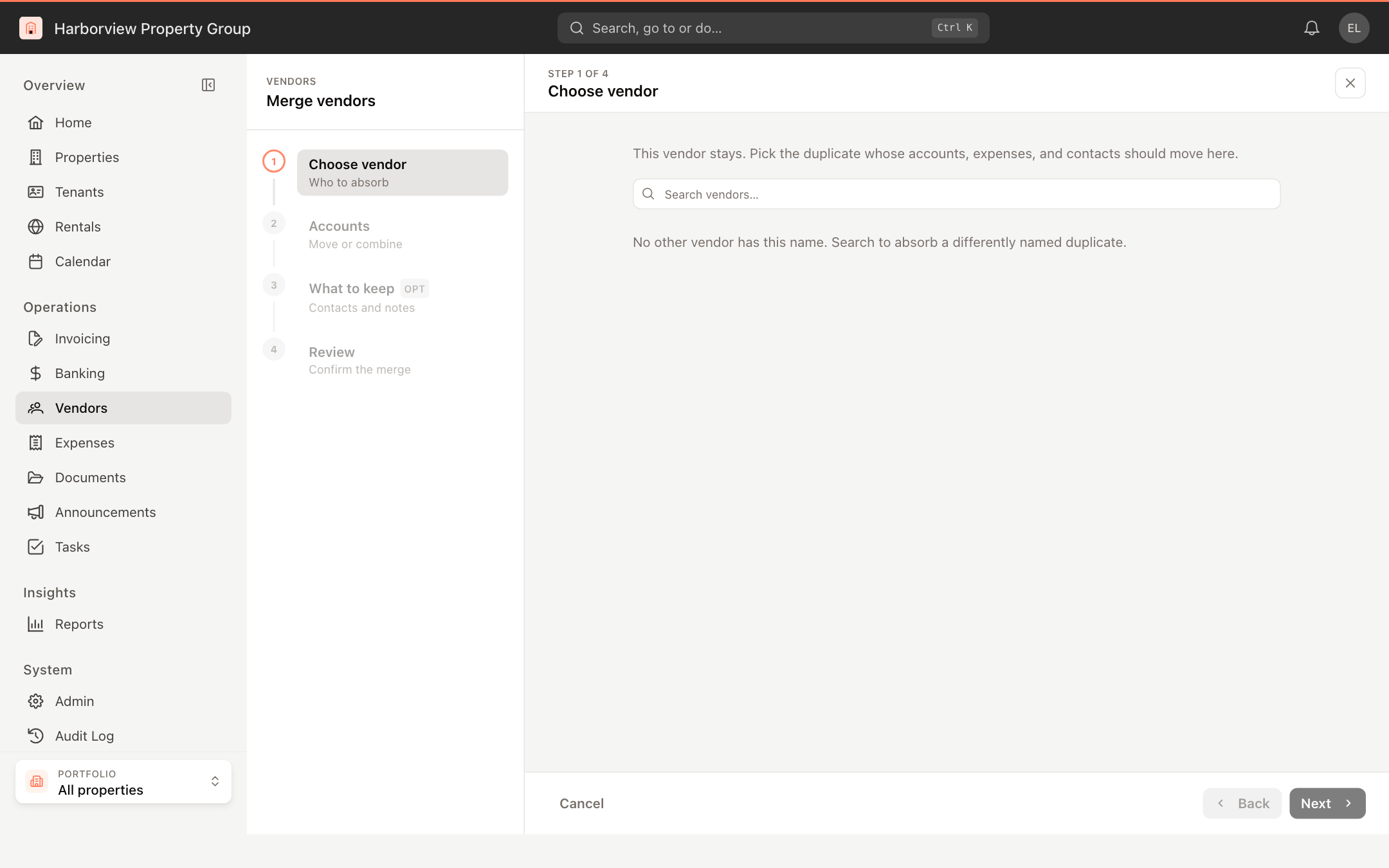
Step 1 — Choose vendor Accounts — see which of the duplicate's accounts Will move and which Must combine. An account must be combined when both vendors have the same account number at the same property; its expenses then follow the account you keep. If there are accounts to combine, tick the confirmation box. Click Next.
What to keep — choose whether to move the duplicate's contacts and communication-log entries, and whether to append its notes under a "Merged from …" heading. The name, type and tax ID of the vendor you keep don't change. Documents always move. Click Next.
Review — check the counts of accounts moved and combined, expenses retargeted, documents and contacts moved. Type the name of the vendor you keep to confirm, then click Merge vendors.
Deactivate a vendor
A deactivated vendor leaves the active list and can't be used on new expenses. Its accounts and expenses are kept.
- Open the vendor and click the Settings tab.
- Next to Deactivate vendor, click Deactivate, then confirm with Deactivate.
To find deactivated vendors, click the filter button above the vendor list and choose Inactive, or click Inactive vendors on the Vendors overview.
Reactivate a vendor
Open the inactive vendor, click the Settings tab, and next to Reactivate vendor click Reactivate. The vendor can be used on new expenses again.
To stop using just one of a vendor's accounts, deactivate the account instead; see Link a vendor to a property.