
Owners see only the documents you share with them. Sharing doesn't copy a file: it stays on the property's Documents tab, and the board's library shows it from there.
Note
Sharing needs the Publish to Owner Portal permission.
Share documents
- Open the property, click the Owner Portal tab, then Documents.
- Click Share documents.
- Choose the Section they go under: Minutes, Budgets, Insurance, Governing Documents or Other.
- Tick the documents and click Share (for example Share 3 documents). To share a file that isn't on the property yet, click Upload to property first.
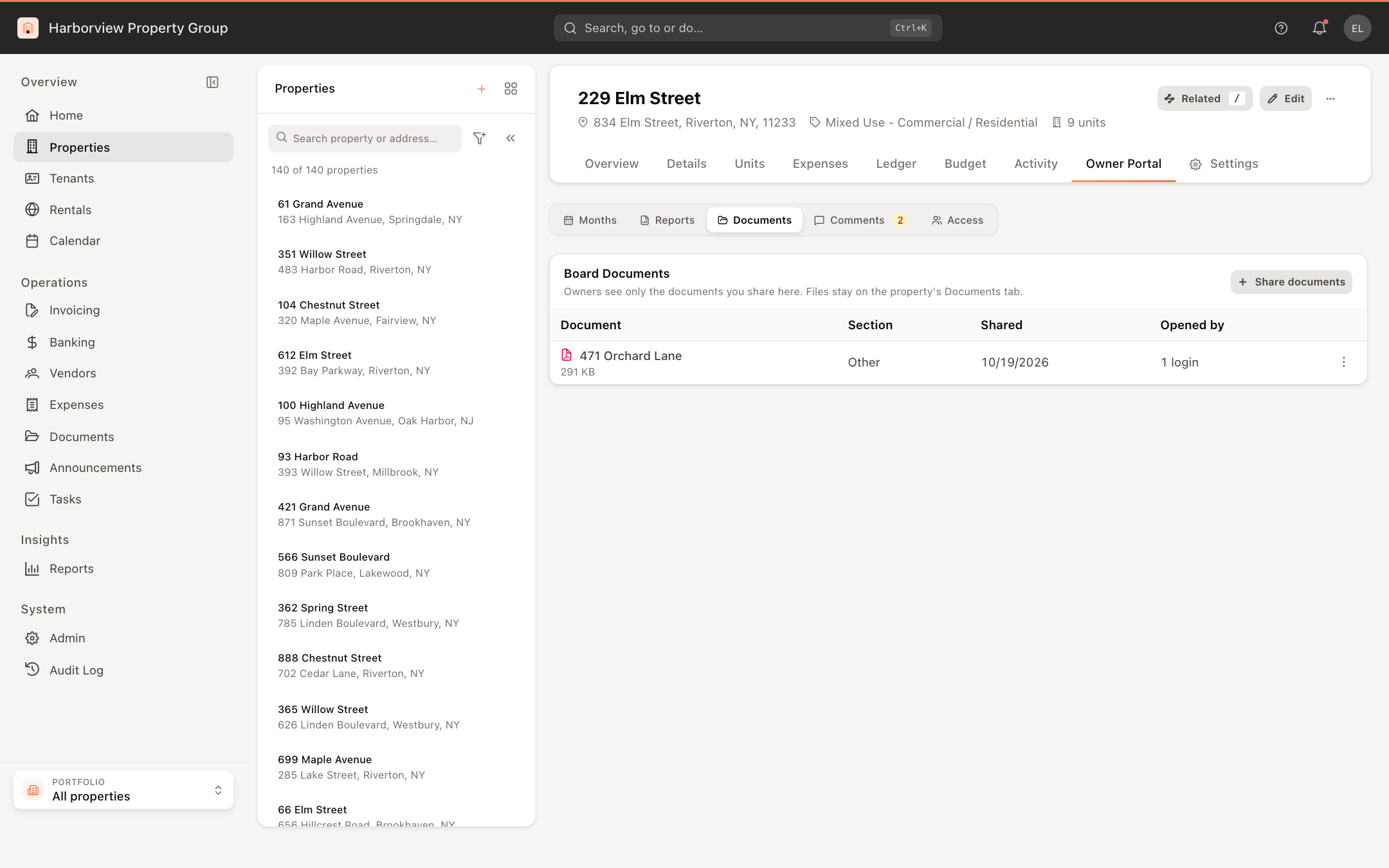
Board Documents lists what's shared, under which section, when, and how many logins opened it. In the portal, a document a login hasn't opened yet is marked New.
Move or stop sharing a document
Click ⋮ on its row:
- Move to puts it under another section.
- Stop sharing takes it out of the portal straight away. The file stays on the property.
Deleting a file on the property's Documents tab removes it from the board too; until you stop sharing it, the list marks it as deleted from the property.