
Owners see nothing of a property until you publish a month. Publishing opens the month to them — its income, expenses with receipts, bank statements and open bills — saves the month's reports and its management report, and emails everyone with a login.
Publishing needs the Publish to Owner Portal permission. Months are published in order, once each month has ended: you choose the first one, and after that the next month in line is the only one you can publish.
Check the month and publish it
- Open the property, click the Owner Portal tab. Months opens.
- The Next card names the month to publish (the first time, choose it under First month owners see) and lists checks: whether the books are closed, whether every bank statement is in, how many paid bills have no receipt, bills unpaid for more than 90 days, and hidden shared accounts. None of them stops you publishing; fixing them first saves the board's questions.
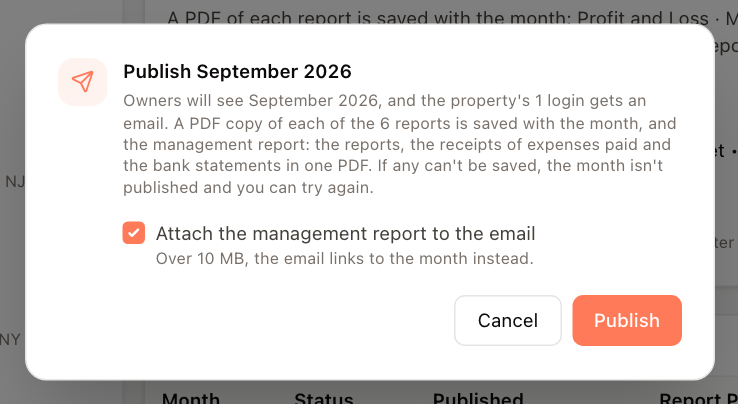
- Click Publish and the month's name, for example Publish September 2026.
- To send the management report with the owners' email, tick Attach the management report to the email (shown when someone has a login).
- Click Publish.
The reports are saved first, then the month opens and the owners are emailed. If a report can't be saved, the month isn't published: the card says which report and why, and Try again publishes it again.
The management report
Each published month has a management report: one PDF, put together as the month is published and kept with it, so everyone gets the month exactly as it was presented. It contains:
- A cover with the month's income collected, expenses paid, net and open bills, the months around it and a contents list.
- Each report on the property's list, as published. See Choose the reports owners can run.
- Expense receipts — a page listing every expense paid in the month (date, vendor, invoice number, amount and the page its receipt is on), then the receipts. Photos of receipts become pages of their own. A file that can't be printed, such as a Word document or an iPhone HEIC photo, is named on the list as not included; owners can still open it from the month in the portal.
- Bank statements — a page listing the month's statements, then the statements, for the accounts owners see.
Receipts and statements added after publishing show on the month in the portal, but not in its management report until you publish the month again.
Downloading it: on the Published Months list, click the month's link under Report PDFs (for example 6 reports, with a download icon), then Management report (one PDF). Owners download the same file with Download management report on their home page and on the month.
In the email: when you tick Attach the management report to the email, a report of 10 MB or less is attached to each owner's email. A larger one isn't: the email says it's too large to attach and links to the month. The message after publishing tells you which happened.
Published months
Published Months lists every month with its status (Published, Publishing, Not published or Unpublished), who published it, its saved reports, Changes since publishing and who opened it (Viewed by). Click ⋮ on a published month for:
- Email owners again — sends the "month is ready" email again, with the management report attached if you chose that when publishing.
- Unpublish — only for the latest published month. Owners stop seeing it; publishing it again sends a new email.
Changes since publishing opens a list of what owners now see differently from the day you published — expenses, payments, open bills and statements added, changed or removed. Check the reports re-runs each saved report and says whether its totals still match.
Publish automatically
After the first month, Automatic Publishing can publish each month for you:
- Turn on Publish each month automatically.
- Choose the Day of the month. On that day at 8:00 AM, last month is published and the owners are emailed.
- Leave Wait until the books are closed for that month ticked to hold the month until its books are closed; it checks each morning and notifies you once.
- Tick Attach the management report to the email to attach it, as the publish dialog does.
- Click Save.
The card shows when it runs next and how its last run went.
What owners can see
- Owners Can See From sets how far back owners can look. Starting in January lets reports show year-to-date figures.
- Shared Bank Accounts lists accounts this property shares with other properties. Their statements show the other properties' activity, so they stay hidden from owners until you turn them on.