
Each property's owner portal has its own logins. A property can have one Board login, shared by the whole board through a group email, and any number of Individual logins, one per person.
Inviting and removing logins needs the Publish to Owner Portal permission. To invite many properties' boards at once, use Admin > Owner portal > Boards: see Set up the owner portal.
Invite a board or a board member
- Open the property, click the Owner Portal tab, then Access.
- Click Invite.
- Under Who is it for, choose:
- Board login (shared) — one login the whole board shares, usually a group email. Members type their name when they comment. A property can have only one.
- Individual — a login for one person. You can add a Title, such as Treasurer.
- Enter the Email and click Send invitation.
They get an email with a link to set a password. The link works for 14 days.
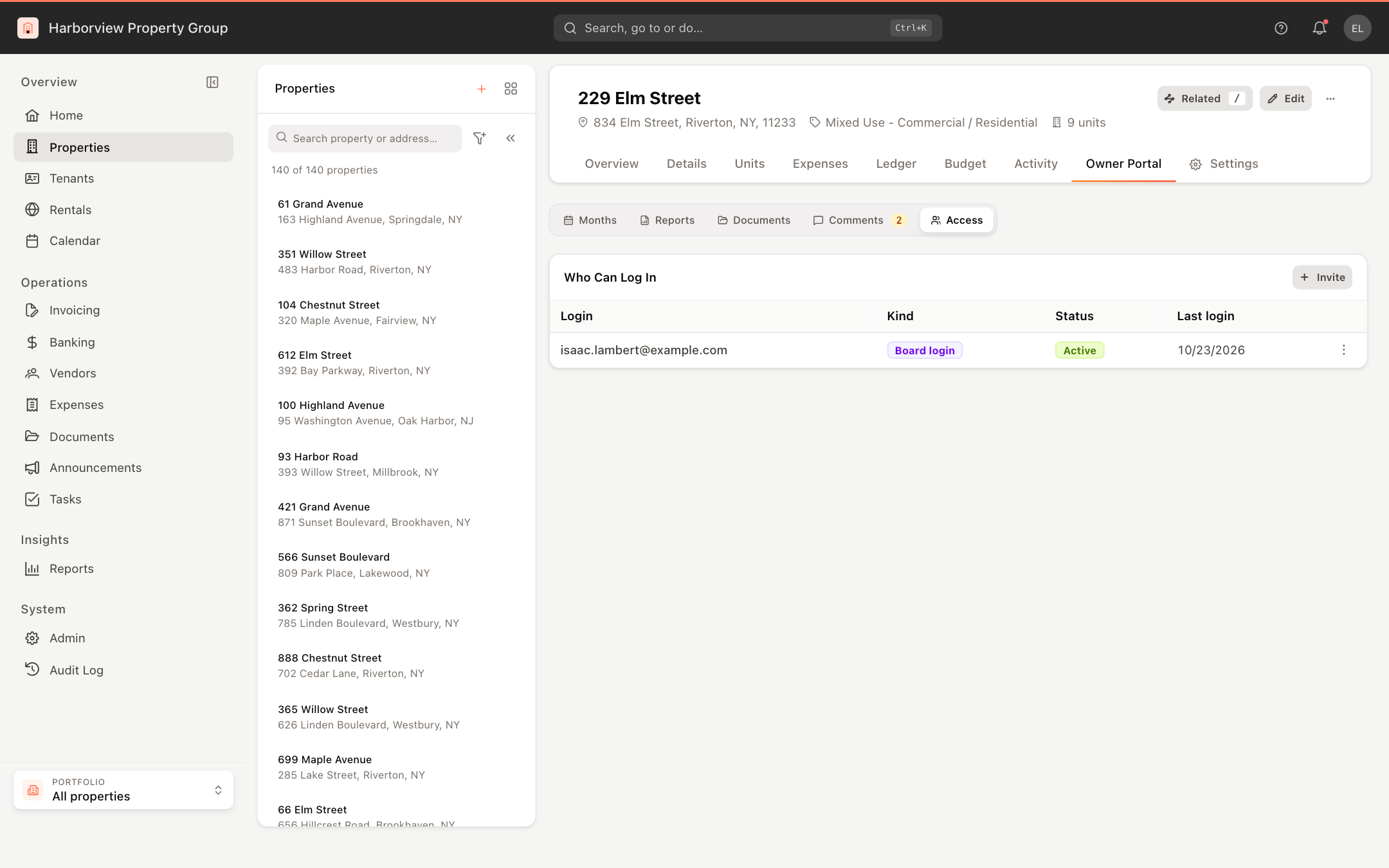
Who can log in
Who Can Log In lists each login with its kind and status:
- Active — they have signed in. Last login says when they last did.
- Invitation sent — waiting for them to use the link.
- Invitation expired — the link wasn't used within 14 days.
Resend an invitation or remove access
Click ⋮ on a login's row:
- Resend invitation sends a new link (for a login that hasn't signed in yet).
- Remove access stops that login from signing in to this property's portal, and any link already emailed stops working. Confirm with Remove access.
What owners see
Once signed in, owners see Home, Months, Reports, Documents and Comments for the months you publish. An owner invited to several properties switches between them from the property name at the top. Nothing shows until you publish a month: see Publish a month to owners.