
The owner portal is where a property's board, or its owners, review each month you publish: the income collected, the expenses paid with their receipts, the bank statements, the bills still open, the reports you share, the documents you share with them, and their questions to you. They see only the months you publish, and only for the properties they were invited to.
The owner portal is a feature UnitConnect turns on for your company. Once it's on, managing it needs two permissions on your role: View Owner Portal to see a property's Owner Portal tab and Admin > Owner portal, and Publish to Owner Portal to invite owners, publish months and change settings.
How it fits together
- Admin > Owner portal holds the company-wide parts: the portal's sign-in address, the Boards list for inviting every board at once, the Reports owners can run, and every property's Comments.
- Each property's Owner Portal tab (between Activity and Settings) is where you publish months and manage that property's logins, reports, board documents and comments. See Publish a month to owners.
- Owners always see current figures for a published month. If you correct an expense later, they see the correction. The reports saved when you published stay as they were that day.
Share the portal's address
- Click Admin in the sidebar, then Owner portal (under Communications).
- Under Portal URL, click Copy URL to copy the sign-in address, or Open portal to see it.
The address uses your company web address. If there isn't one yet, the page says so: set it under Application details > Company web address first.
Invite every board at once
The Boards tab lists your properties with each one's board email and login status. It invites one shared board login per property. To invite board members one by one, use the property's Owner Portal tab instead: see Invite owners to the owner portal.
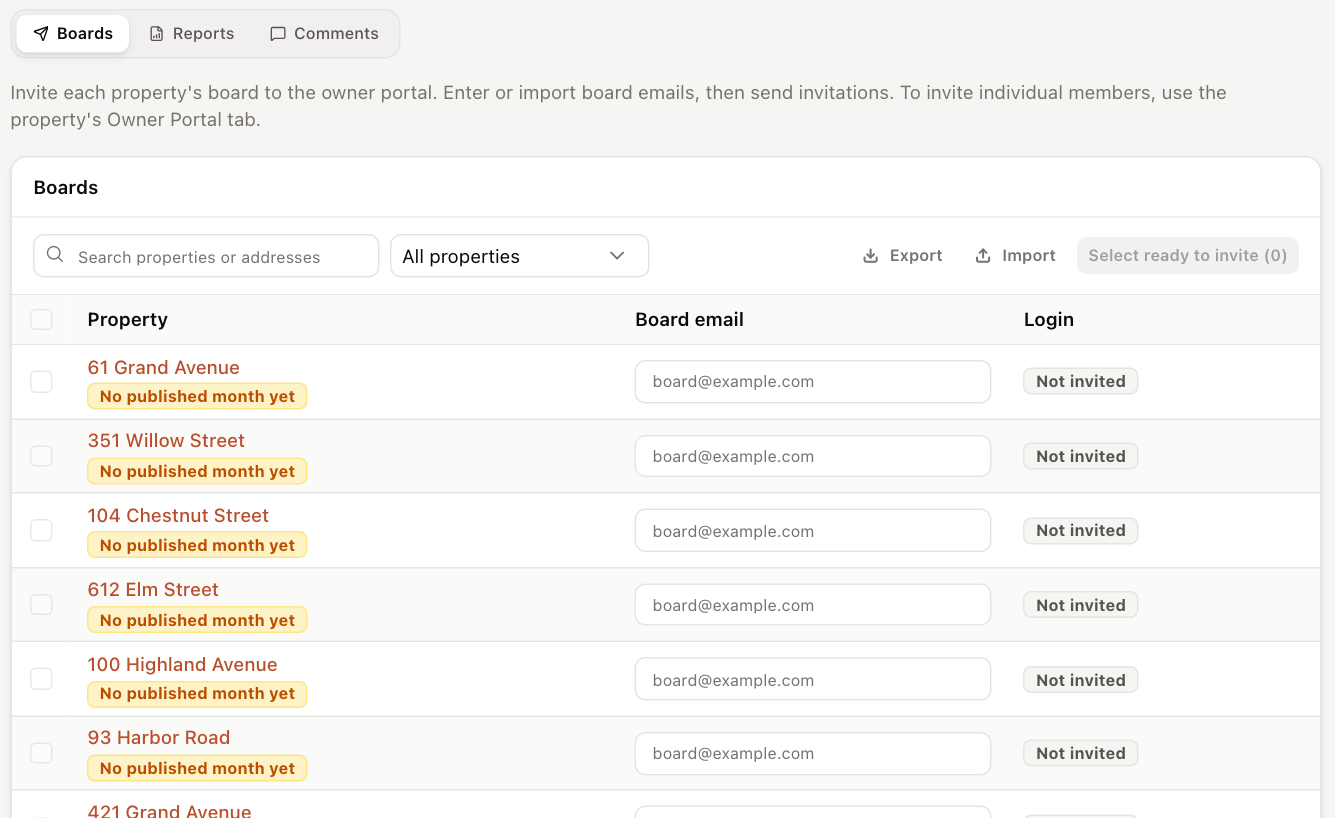
- On the Boards tab, type each property's address in Board email, usually the board's group email.
- To fill many at once, click Export, add the addresses to the file, then click Import and choose it. The file needs the Property ID and Board email columns; rows are matched by property ID, never by name. Imported addresses aren't saved yet: review them, then click Save (it shows the count, for example Save 12 addresses).
- Click Select ready to invite, which shows how many are ready. A board is ready when it has an address, its property has at least one published month, and it hasn't signed in yet.
- Click Invite (for example Invite 12 boards), fill in Note (optional) to go with every invitation, then click Send (for example Send 12 invitations).
Each board gets an email with a link to create a password. A board invited before gets a new link, and its old link stops working. Use Show to narrow the list, for example to Not invited or Invitation expired.
Publish a month before inviting a board. A property with nothing published shows No published month yet, and its board would open an empty portal.
What owners do with the invitation
The invitation's link opens a welcome page. The owner can click Set password and sign in, or Continue without a password, in which case each sign-in emails them a one-time code. Later they sign in at the portal's address with their email and password, or click Email me a sign-in code.