
A property budget sets the amount you expect to spend or earn in each category for a year. It feeds reports, and the Tax, CAM and Insurance totals are what tenants' NNN charges are calculated from. See Tenant charges from the budget.
To open it, click Properties in the sidebar, select the property, click the Budget tab, and make sure Property Budget is selected at the top.
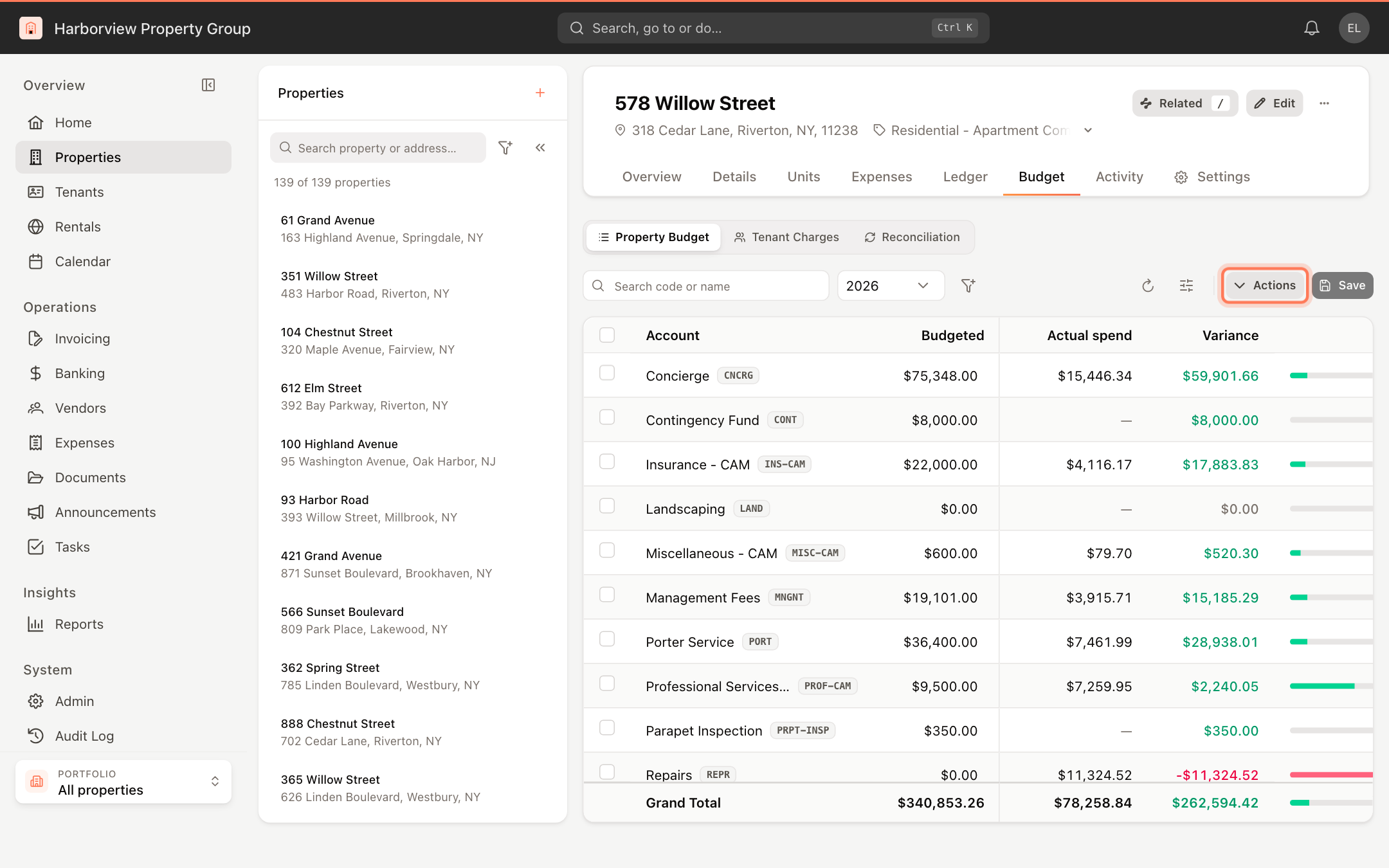
Creating and editing a budget requires permission to modify budgets. Without it, you can view the budget but the Actions menu, Save and the editable cells are hidden.
Create a budget for a new year
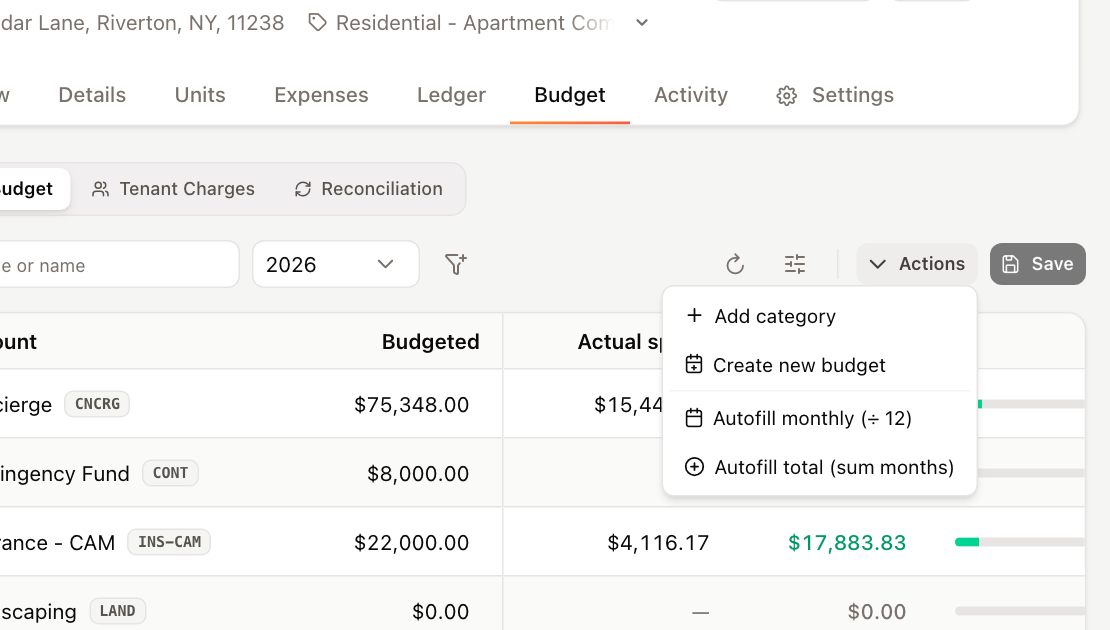
- Click Actions, then Create new budget.
- In New fiscal year, enter the year. If a budget for that year already exists, you're told so.
- Choose how to start:
- Copy budget data from a prior year: pick the year in Copy from. Select Suppress $0 items to leave out categories that had no amount. This option is available only when the property already has a budget for an earlier year.
- Create new budget by selection: select the categories to include. Use Search code or name… to find them.
- Click Create budget.
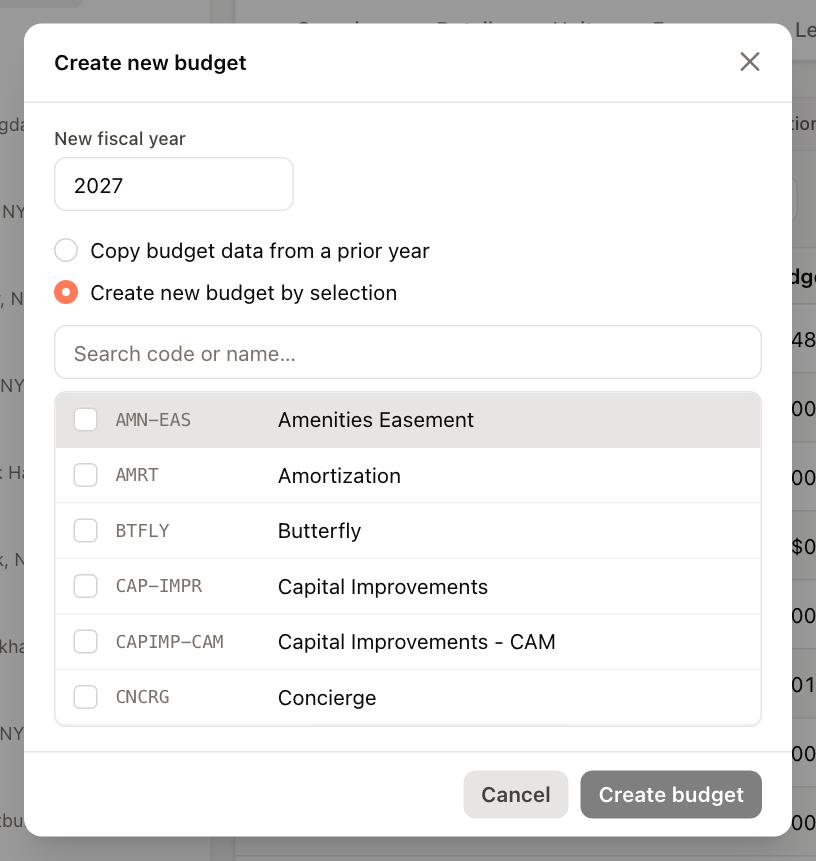
The grid switches to the year you just created.
Enter budget amounts
Each row is a category. The Account column shows its code and name, and Budgeted holds the annual amount.
- Click a Budgeted cell and type the annual amount.
- To budget month by month, switch to the monthly view: click Display settings and choose Extended under View Mode. A column appears for each month from Jan to Dec.
- Click Save. Until you save, Discard undoes your changes.
Fill months or totals automatically
- Actions > Autofill monthly (÷ 12) divides each category's annual amount evenly across the 12 months and switches to the Extended view.
- Actions > Autofill total (sum months) sets each category's annual amount to the sum of its months.
Both act on every category currently shown, so filter the grid first if you only want to change some. To do the same for a single row, hover over its Budgeted cell and click Split total evenly across 12 months or Set total from the sum of months.
Remember to click Save after autofilling.
Add or remove categories
- To add categories you left out, click Actions > Add category, select them, and click Add.
- To remove categories, select their checkboxes and click Remove in the bar at the bottom of the grid, then confirm. Their budgeted amounts are deleted; recorded actual amounts are not affected.
Compare the budget with actual spending
Next to the budget, the grid shows Actual spend (what's been posted for the category this year) and Variance (budget minus actual). A bar shows how much of each category's budget has been used and turns red when it's exceeded.
To see totals, click Display settings and choose Show under Summary. The cards show Annual budget, Actual spend, Under budget or Over budget, and Categories.
Find the categories you need
- Choose the year from the year list next to the search box.
- Search by code or name with Search code or name.
- The filter button narrows the grid by Category group, and Zero rows hides categories with no budget and no actual spending (Hide $0 rows).
- Click the refresh button to reload the budget.
The CAM, Tax and Insurance fiscal years set in Property settings determine how NNN budgets are split into periods.