
A special assessment is a one-off amount, such as a roof replacement, that a condominium or cooperative passes on to its unit owners. UnitConnect splits the total across the occupied units by each unit's pro-rata share, lets you adjust the split, and then writes the charges to each resident.
Assessments appears on the Budget tab only for properties whose building type is Condominium or Cooperative. Other properties show Reconciliation in its place.
Create an assessment
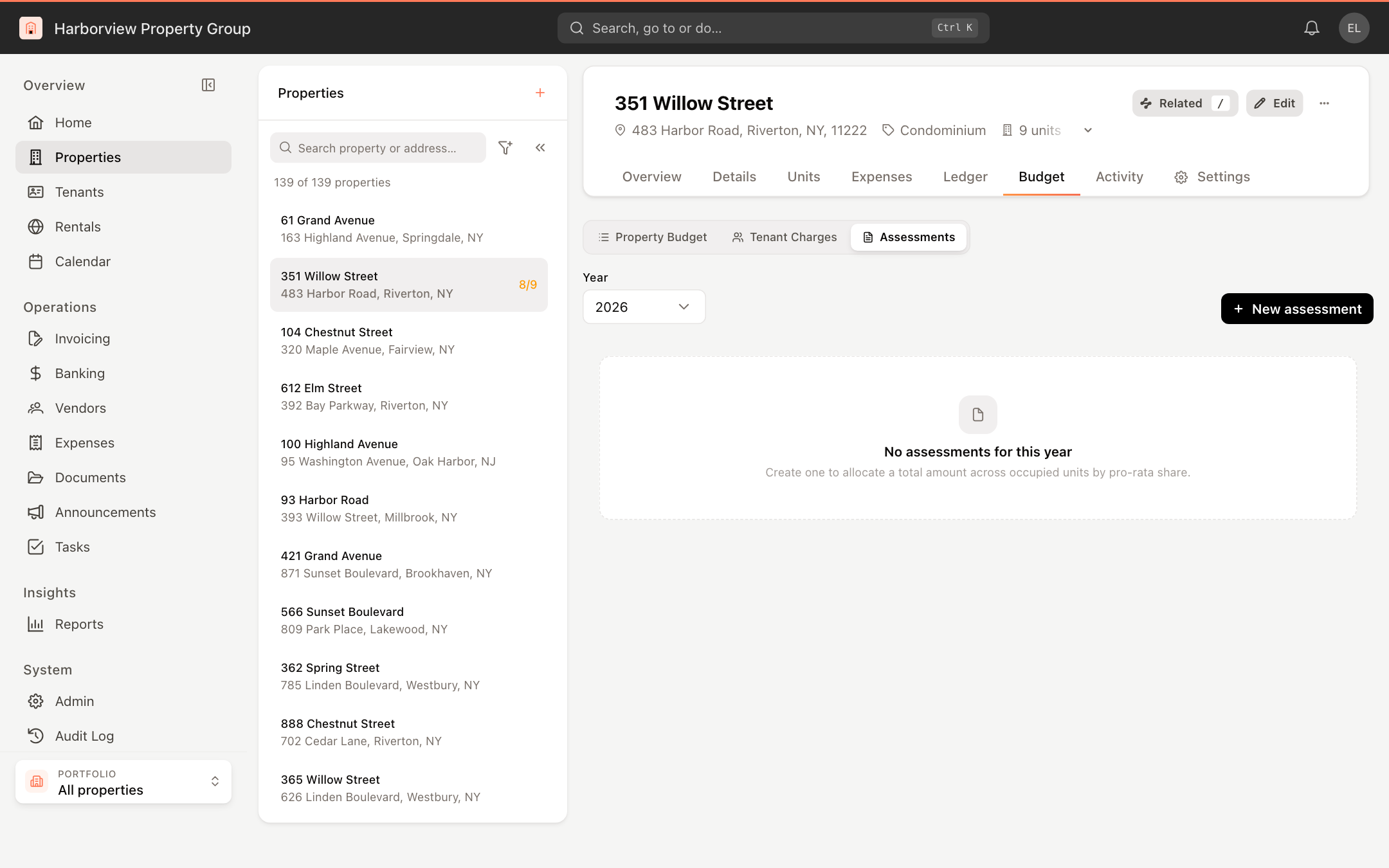
Open the property, click the Budget tab, and select Assessments at the top.
Choose the Year and click New assessment.
Under Assessment details, fill in:
- Assessment name, for example "Roof replacement"
- Total amount
- Charge category
- Frequency
- Start date
- Installments, when the frequency is paid in installments
Click Save and build allocation.
UnitConnect adds every occupied unit to the Unit allocation list, using each unit's current pro-rata share. The assessment's status is Draft.
Review and adjust the allocation
The Unit allocation list shows each Unit, its Tenant, Share %, the Calculated amount, and the Amount that will be charged.
- Change an Amount to override the calculated figure, then click Save changes.
- The badge at the top shows how much is allocated. If the allocation doesn't add up to the assessment total, the difference is shown under the list.
- If units or shares have changed since you saved, click Rebuild from units to recalculate the allocation from the current units.
Check the units' pro-rata shares on the Units tab before you build the allocation. They should total 100%.
Generate the charges
When the allocation is right, click Generate charges. UnitConnect writes the charges to each resident's recurring charges and confirms how many monthly and one-time charges it created. The Billing column marks each unit as Generated, and the assessment's status changes to Generated.
A generated assessment can't be edited. Click Back to assessments to return to the list, where each assessment shows its Total, Category, Frequency, Start date and Status.