
Tasks tracks maintenance requests and other work items across your properties. Tasks can be created by your team or submitted by tenants through the tenant portal. Every change and update is kept in the task's activity history.
Find tasks
In the sidebar, click Tasks.
- The tiles at the top count tasks Assigned to me, Unassigned, Overdue and Open. Click a tile to see those tasks.
- Use My tasks, Unassigned, Overdue, Open and All to switch between sets, search by subject, description or task number, and use the filter button for Property, Status, Priority and Type.
- Switch between List and Board at the top right. The list can be sorted by any column. The board shows New, In Progress and Resolved columns; drag a card to another column to change its status.
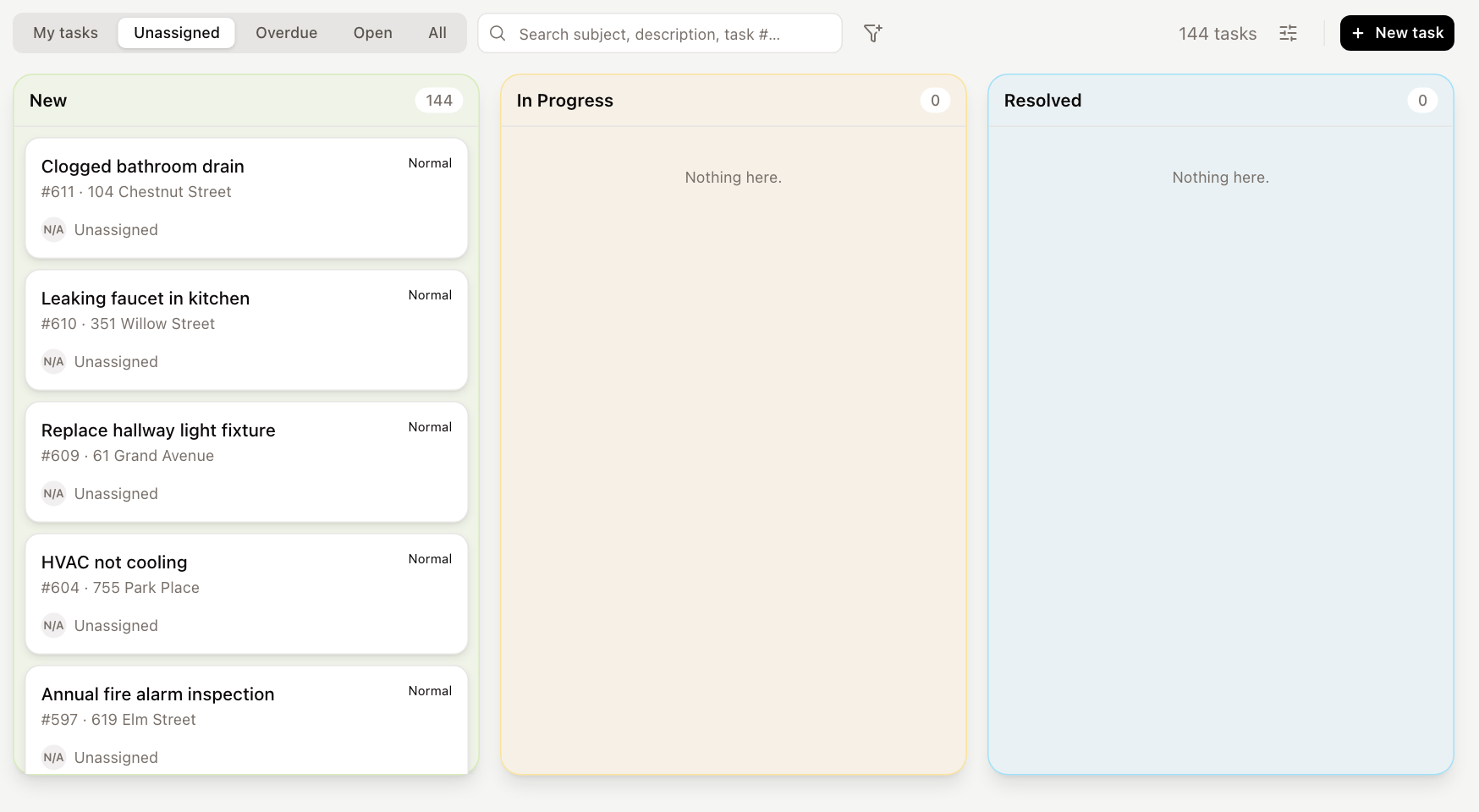
To hide the summary tiles, click the view settings icon next to the task count and change Summary tiles.
Create a task
- Click New task.
- Choose the Property and enter a Subject and Description.
- Choose the Type, Category and Priority.
- Choose who to Assign to, or leave it Unassigned, and pick a Due date if there is one.
- Click Create task.
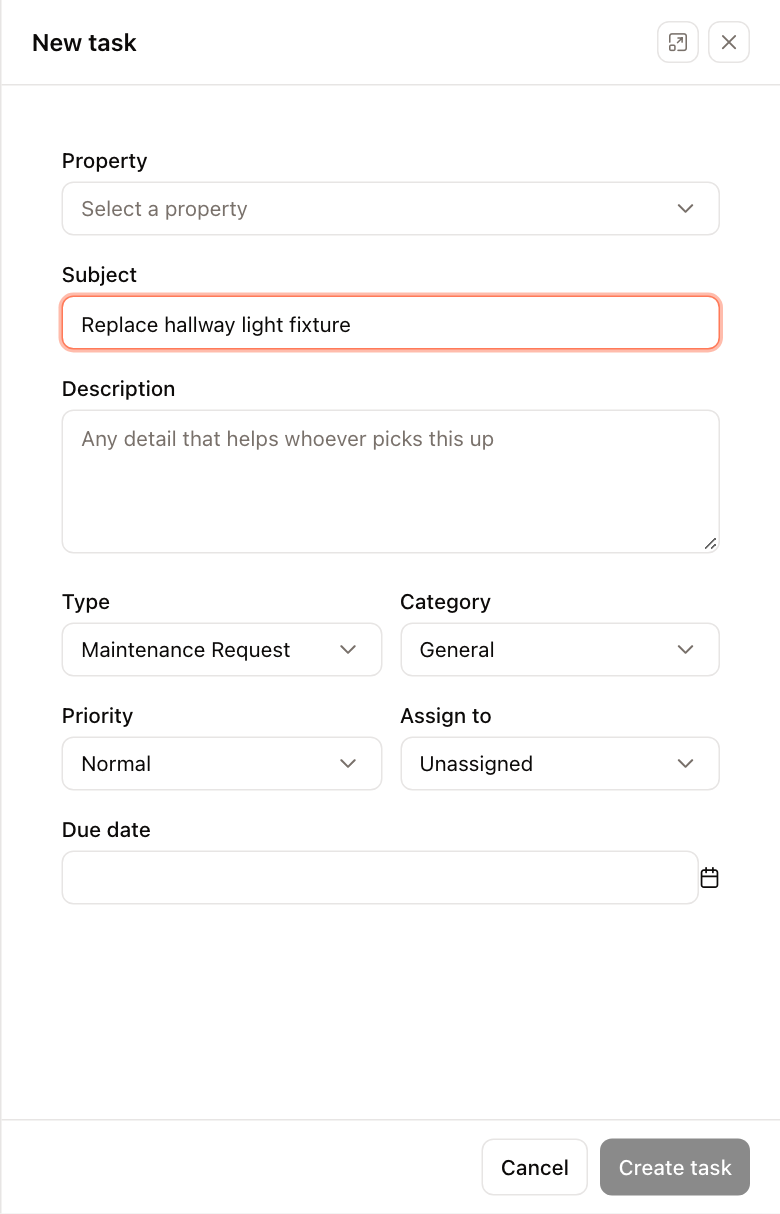
A task's property can't be changed after it is created.
Work on a task
Click a task to open it. The panel shows its Status, Assigned to and Due date at the top — click any of them to change it; the change saves immediately. Below are the description, details (task number, priority, type, category, dates), the property, who requested and created it, Attachments, and Activity.
- Post an update: type in Add an update… and click Post update.
- Share with tenant: when a tenant raised the task, turn this on before posting so the update is visible to the tenant in the portal. Updates from the tenant are marked "from the tenant portal".
- Attachments: click Upload to attach photos, quotes or other paperwork.
- Edit details changes the subject, type, category and priority. Delete removes the task from the list; its activity history is kept.
Creating and changing tasks requires permission to modify tasks. Tenants can submit requests only when the Requests feature is turned on for the tenant portal.