
The home page is what you see after you sign in. It sums up your account and links to everything else. Under the greeting is the account you are looking at: your name, account number, unit and address.
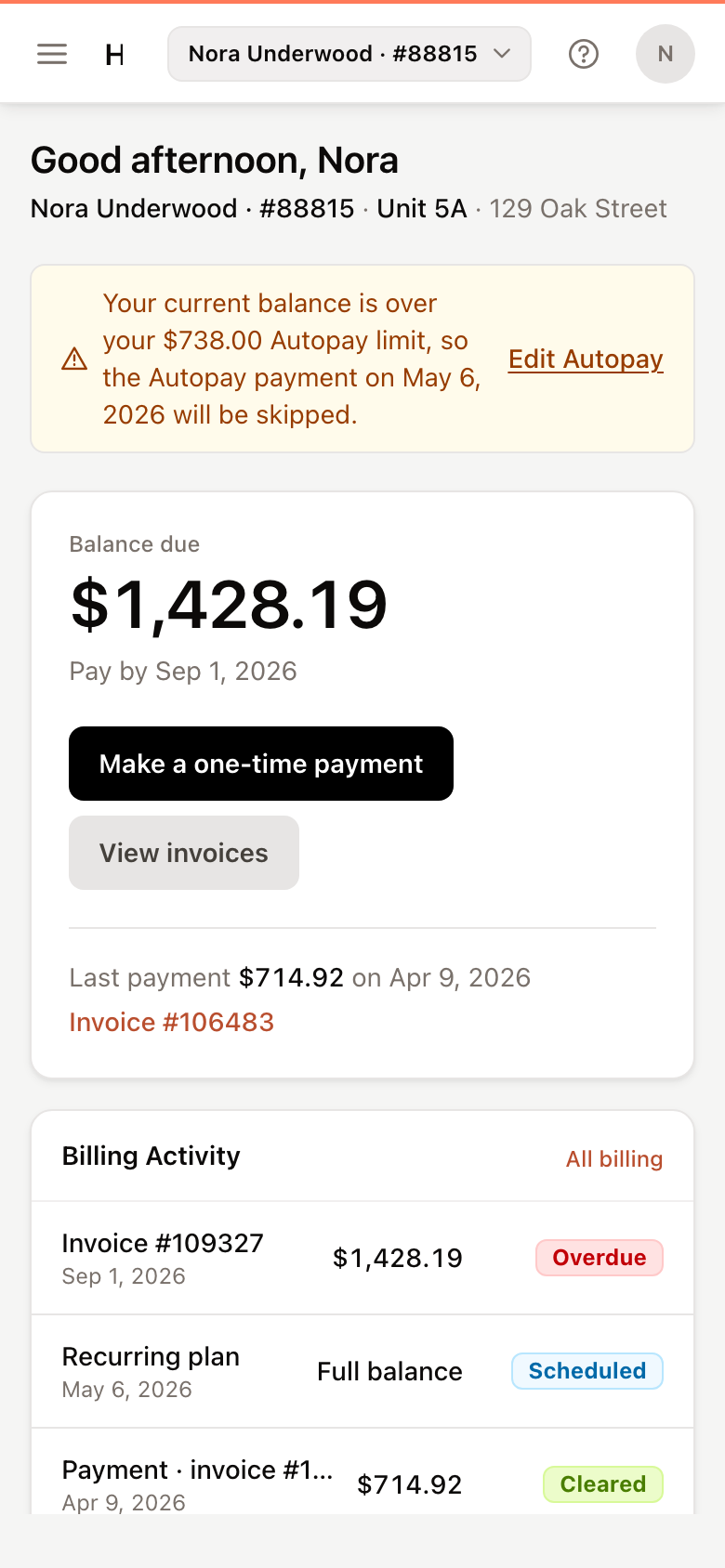
The cards
- Balance due — what you owe now and when it's due. Depending on your account, the button reads Pay $…, Make a one-time payment or Make a payment, and opens the payment page. View invoices opens Billing. Below is your last payment; click the invoice number to open that invoice.
- Billing Activity — your latest invoices and payments, each with its status. Click an invoice to open it, or All billing to see every invoice.
- Autopay — whether Autopay is on, the next payment date and your limit. If you don't use Autopay yet, click Set up Autopay.
- Payment Methods — your saved cards and bank accounts. Click Manage to change them.
- Requests — your open maintenance requests. Click New request to report something.
- From Your Manager — the latest announcement. Click it to read it, or View all.
Note
Your property manager decides which parts of the portal you can use. If they don't take payments online, or don't use requests or announcements, those cards and pages don't appear.
Get around
On a computer, the menu runs down the left side: Home, Billing, Payments, Documents, Requests, Announcements and Contact. Click Collapse at the bottom to shrink it to icons.
On a phone, tap the menu icon in the top-left corner to open the same menu.
Your initial in the top-right corner opens Preferences, Add account and Sign out.