
You can pay your balance in the portal with a saved card or bank account. Pay today, or schedule the payment for a later date.
Start a payment
Any of these opens the Pay now tab on the Payments page:
- On your home page, click Pay $… or Make a one-time payment.
- On Billing, click Pay next to your latest invoice, or Pay $… at the top.
- In an open invoice, click Pay $….
- Or open Payments from the menu and click Pay now.
Pay
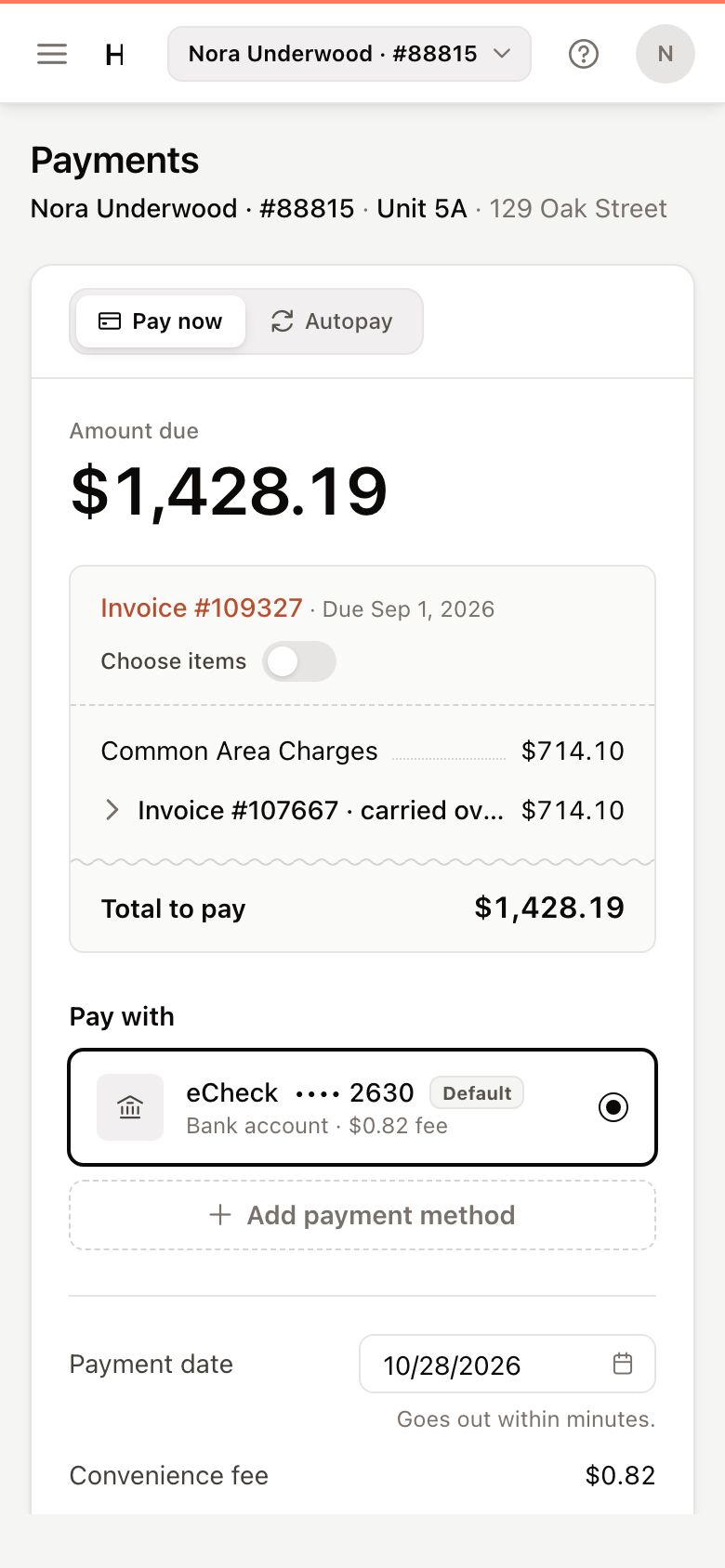
- Check the Amount due. If more than one invoice can be paid, choose one under Invoice.
- To pay only some charges, turn on Choose items and tick the ones you want to pay. The total updates as you go.
- Under Pay with, choose a card or bank account. To use a new one, click Add payment method. See Manage your payment methods.
- Leave Payment date on the earliest date to pay now ("Goes out within minutes."), or choose a later date to schedule the payment.
- Check the Convenience fee. Cards are charged a percentage and bank accounts a flat fee, as set by your property manager.
- Click Pay $…, or Schedule $… for the date you chose.
The portal confirms with Payment scheduled, and the payment appears under Payment Activity.
Each day has a cut-off. After it, the portal says Payments for today have closed and the earliest date moves to the next day.
Change or cancel a scheduled payment
While a payment is scheduled, the Pay now tab shows it instead of the payment form:
- To include the rest of your balance, click Add $… to this payment.
- To call it off, click Cancel payment. It is cancelled straight away.
Once a payment goes out, it can't be changed. While it is processing, the portal says A payment is processing and you can make your next payment once it clears.
If you don't see Payments in the menu, your property manager doesn't take payments in the portal. Contact them about other ways to pay.