
Autopay pays your open balance automatically on the day of the month you choose. You set a limit: if your balance is over it, that month's payment is skipped, never partly charged.
Before you start
Autopay needs a saved card or bank account. See Manage your payment methods.
Turn on Autopay
- Open Payments and click the Autopay tab. You can also click Set up Autopay on your home page.
- Click Set up Autopay.
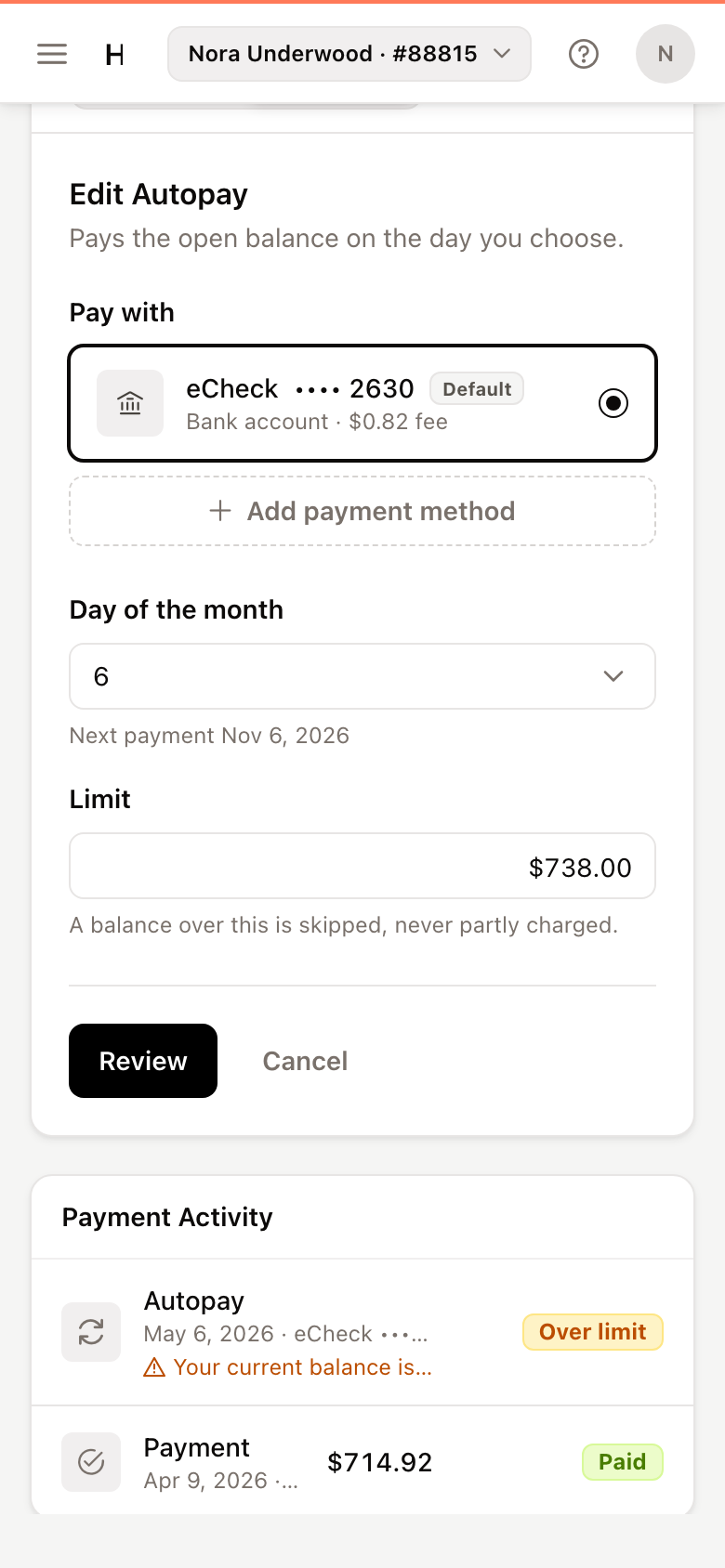
- Under Pay with, choose the card or bank account to use.
- Choose the Day of the month, from 1 to 28. The next payment date shows underneath.
- Set a Limit. A balance above it is skipped that month.
- Click Review, check the details, and click Confirm Autopay.
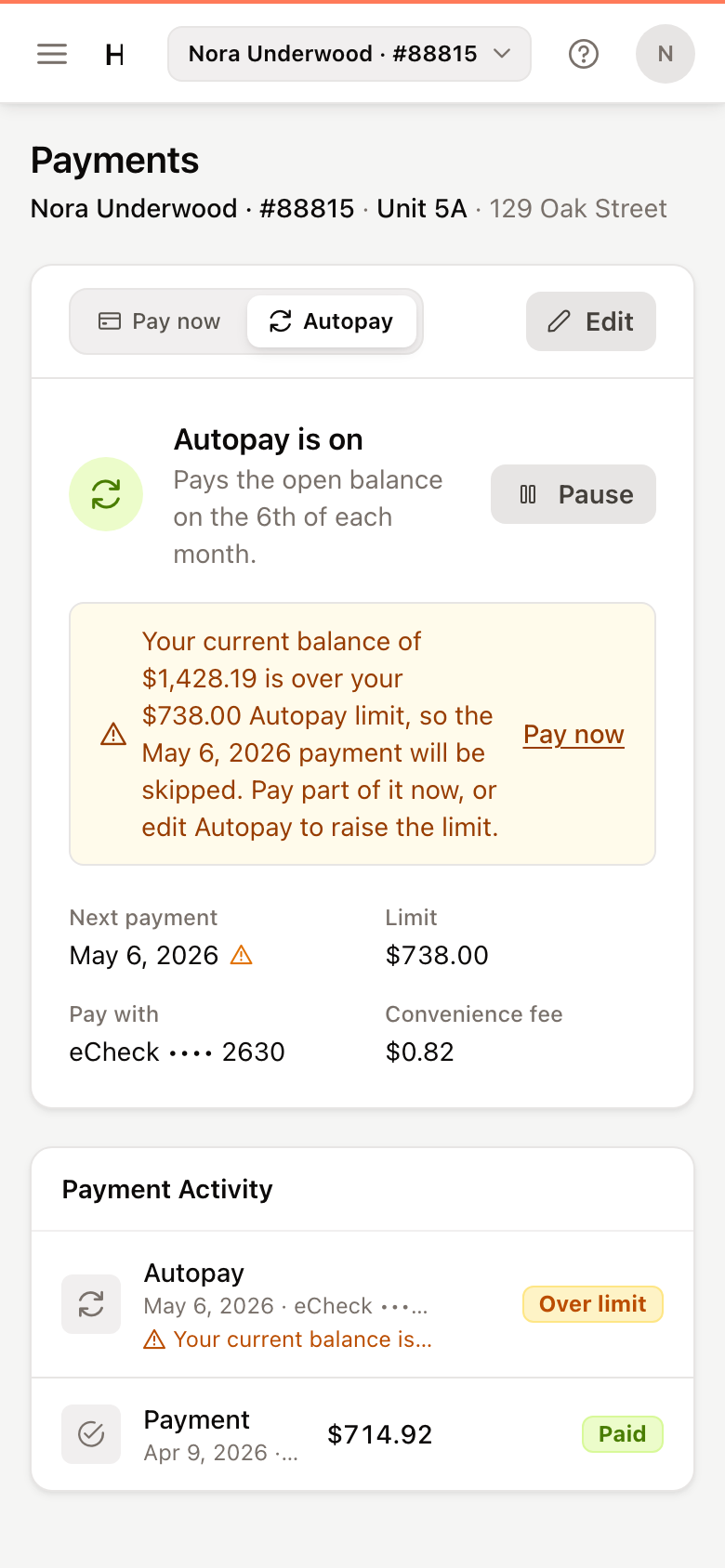
The portal shows Autopay saved, and the Autopay tab reads Autopay is on.
Change Autopay
On the Autopay tab, click Edit. On your home page, click the pencil on the Autopay card. Change the payment method, day or limit, then click Review and Confirm Autopay.
Pause or resume Autopay
- To pause, click Pause on the Autopay tab, or the pause button on the home page's Autopay card, then confirm with Pause. Nothing is charged while Autopay is paused.
- To start again, click Resume Autopay.
To stop Autopay, pause it.
When your balance is over the limit
If your balance is over your limit, the portal warns you that the next Autopay payment will be skipped. Either pay part of the balance now with Pay now, or click Edit Autopay and raise the limit.
Removing the payment method Autopay uses cancels payments scheduled with it.