
A saved view remembers how you like a report laid out — its columns and headings, sort and filters — so you can return to it in one click. Views keep their period as a relative window, so "last month to today" stays current every time you open it.
Save a view
- Open a report, set its filters and click Run report.
- Arrange the columns and sort the way you want.
- Click Views (the bookmark icon), then Save current.
- Enter a Name. Tick Open this report with this view to make it the default for this report.
- Click Save.
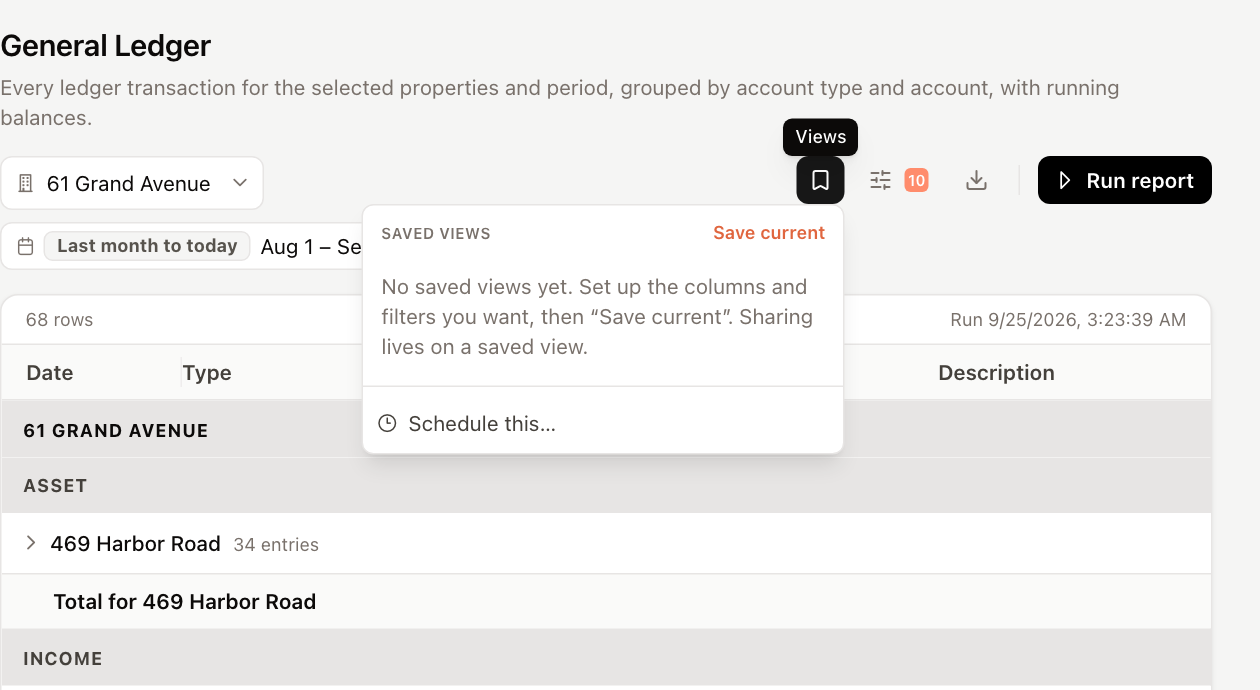
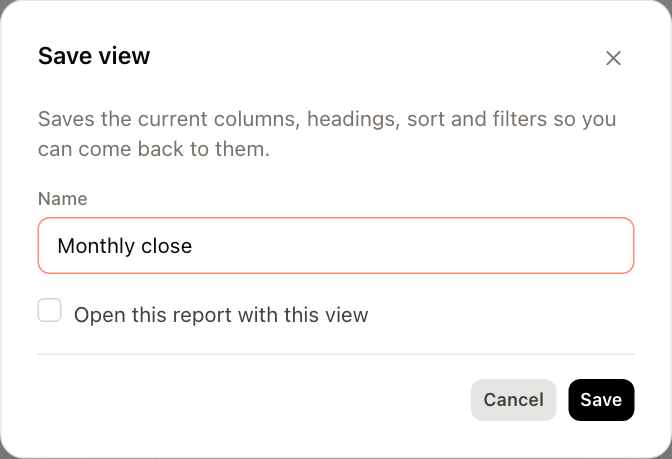
Save current is available only after the report has run.
Use, update and delete views
Open Views on the report:
- Click a view's name to apply it. Reset to the report's defaults removes it again.
- Click the pencil to update the view to the current layout.
- Click the trash icon to delete it. This removes only your saved layout.
Your views also appear on the Reports landing page under Your saved views. Views that colleagues have shared with you are listed under Shared with you, with the owner's name.
Share a view
- Open Views and click the share icon next to your view.
- Choose who can open it:
- Private — only you.
- Everyone in your organisation — signed-in colleagues can open it read-only. Each of them still sees only the properties they have access to.
- Anyone with the link — no sign-in required. Choose when the link expires under Link expires after, then copy the link.
- Click Save.
Whoever opens a shared view sees the report run fresh with current data, not a snapshot.
A public link can be read by anyone who has it, including people outside your company, and it runs with your property access. It keeps working until it expires or you click Revoke link in the Share view window.