
Announcements are short notices that tell tenants what's happening in their building — a water shut-off, parking lot work, holiday office hours. They appear in the tenant portal for the properties you choose, and you can email a copy to those tenants at the same time.
Find announcements
In the sidebar, click Announcements. The list is grouped by month and shows each announcement's Subject, Property, Posted date and number of Views. Expired announcements are marked Expired. Use the search box, the date filter and All properties to narrow the list, and click an announcement to read it on the right.
Create an announcement
Click New announcement.
Enter the Subject.
Write the Body. Use the toolbar for bold, headings, lists and links, and click Preview to see how it will look.
Optionally add Attachments (images, PDFs and documents, up to 50 MB in total).
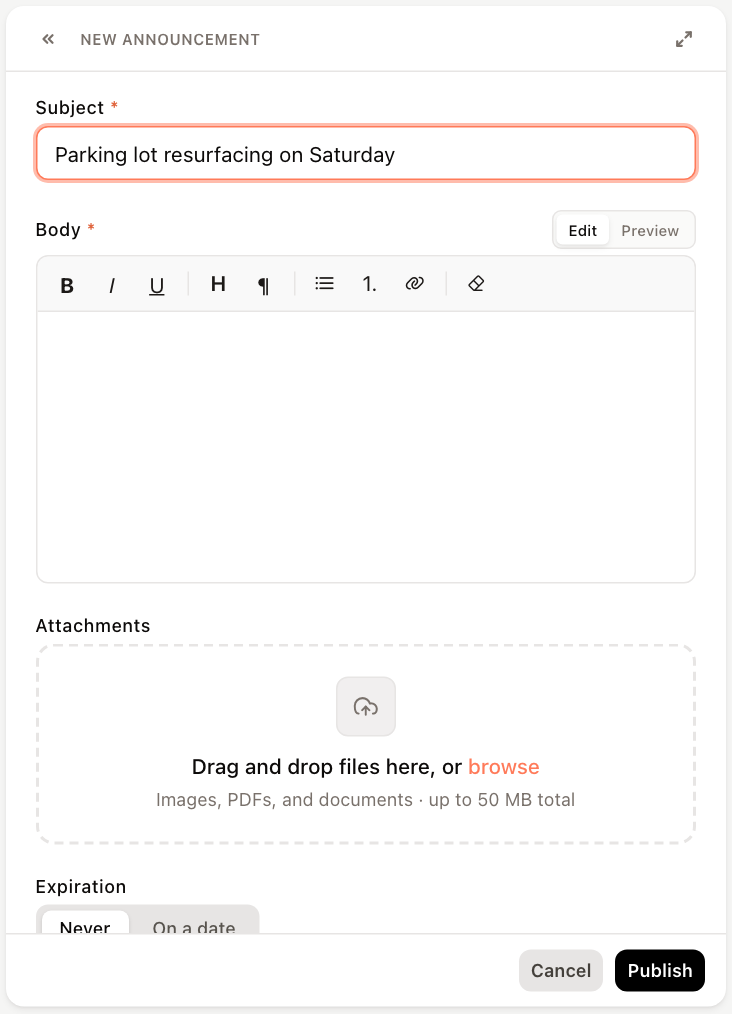
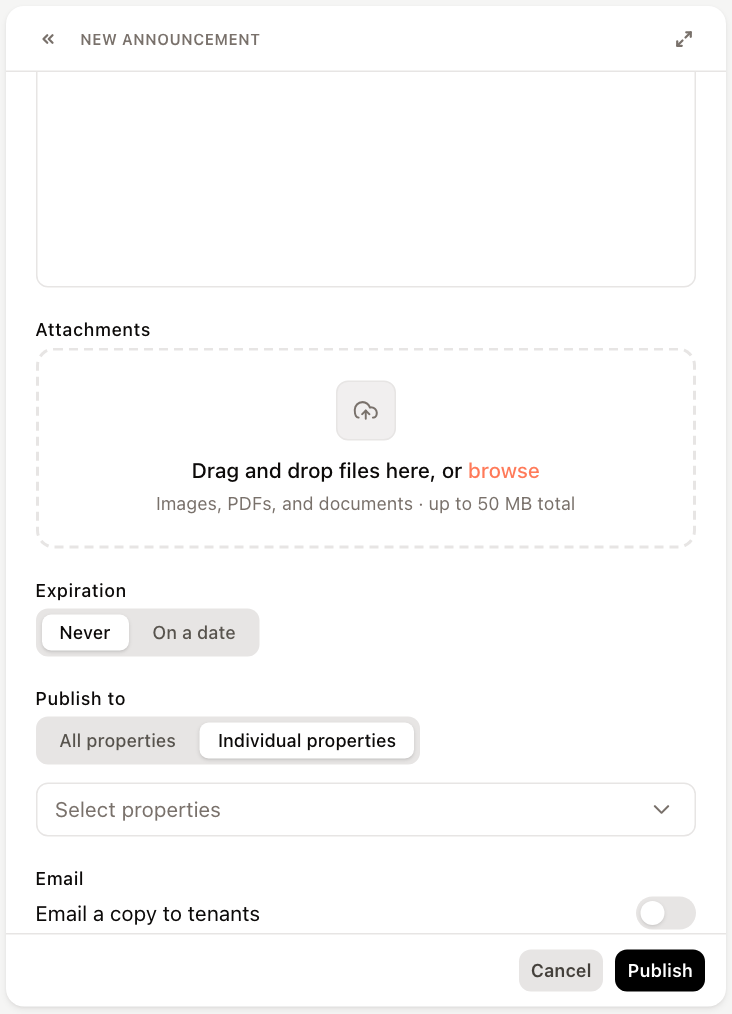
New announcement Under Expiration, choose Never, or On a date and pick the date the notice stops showing.
Under Publish to, choose All properties or Individual properties and select them.
Under Email, turn on Email a copy to tenants to send it to the tenants of those properties. Turn on CC additional addresses to copy other people; separate addresses with commas.
Click Publish.
Edit or delete an announcement
Select the announcement and click the pencil icon (Edit), or the trash icon to delete it. When you save changes to an announcement that was already emailed, you are asked whether to Send again with the updated copy.
Creating, editing and deleting announcements requires permission to modify announcements. Tenants see announcements only if the Announcements feature is turned on for the tenant portal. See Tenant portal settings.